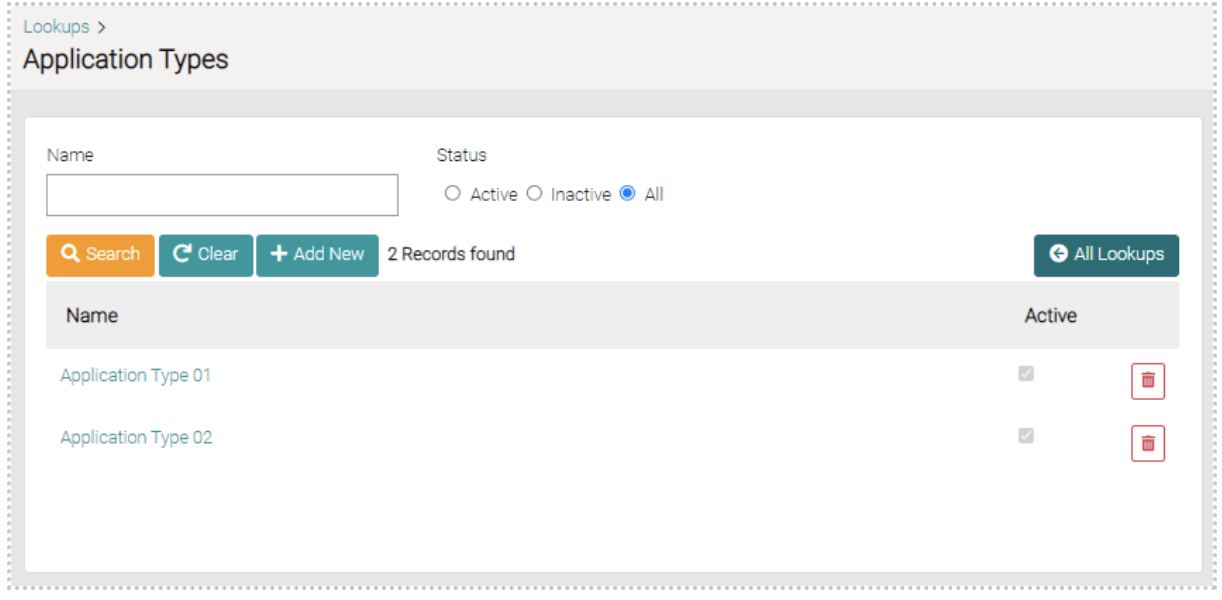
This is where the application types are managed. Application types are used in the Building Approvals which is discussed further down.
Search
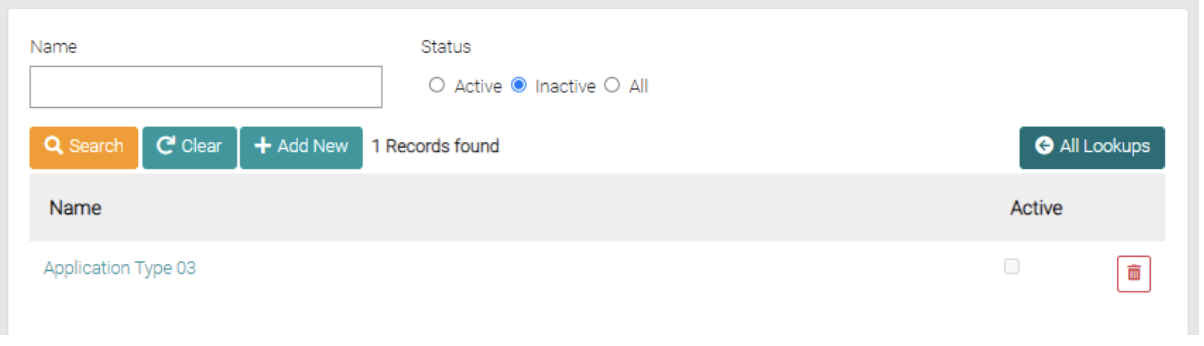
In the Application Types page, you can search any type via the Name search bar, you can further narrow the search through the Status of the item by selecting ‘Active’, ‘Inactive’ and ‘All’, by default the search is set to All.
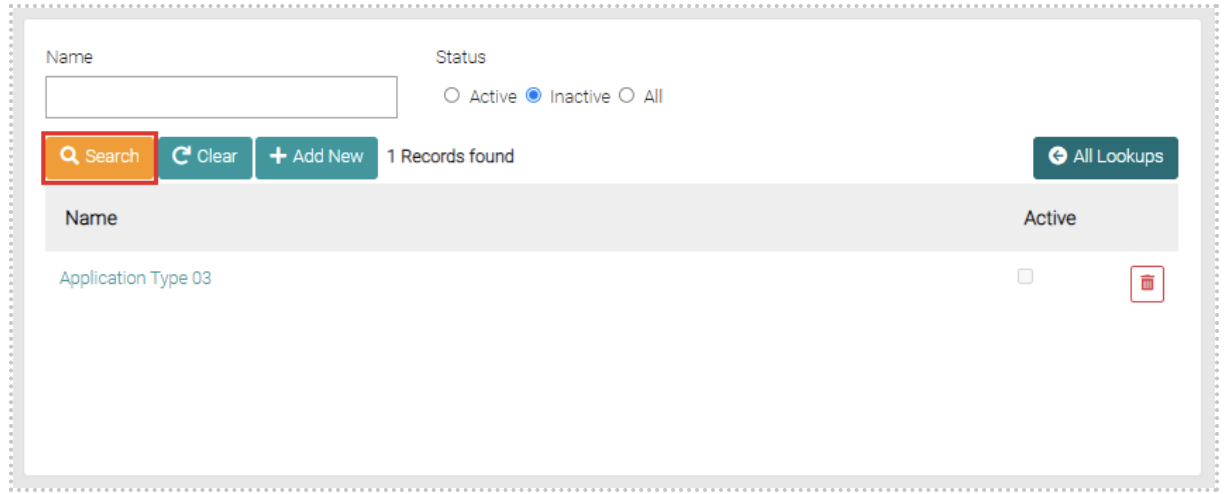
You can search for specific names with partial searches and use the search button below the Name search bar; below is an example of a search using a partial name, search button previewed below.
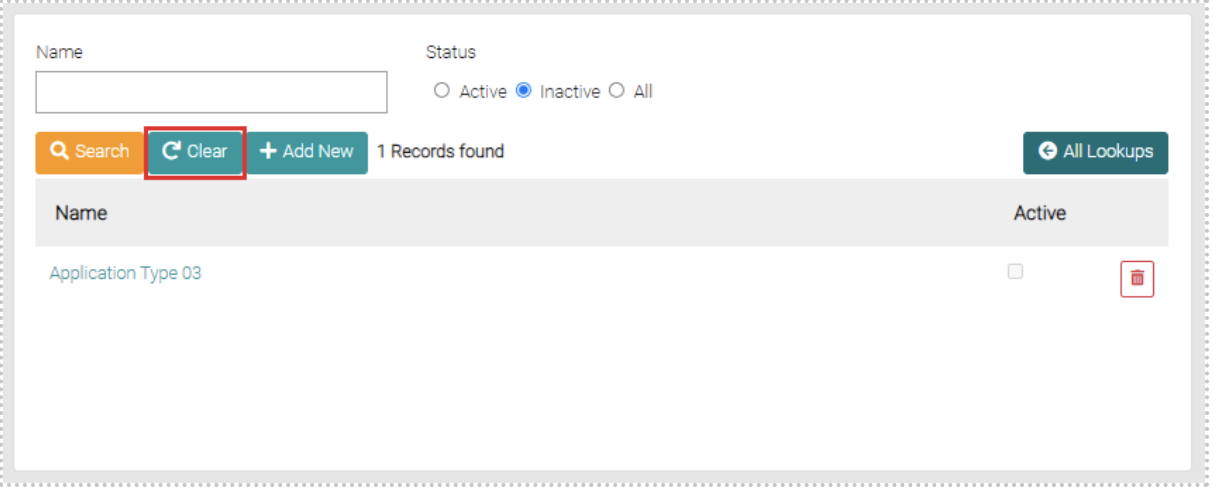
Besides the Search button, there is a Clear button that will remove all search filters put on the search such as a Name or Status, pictured below.
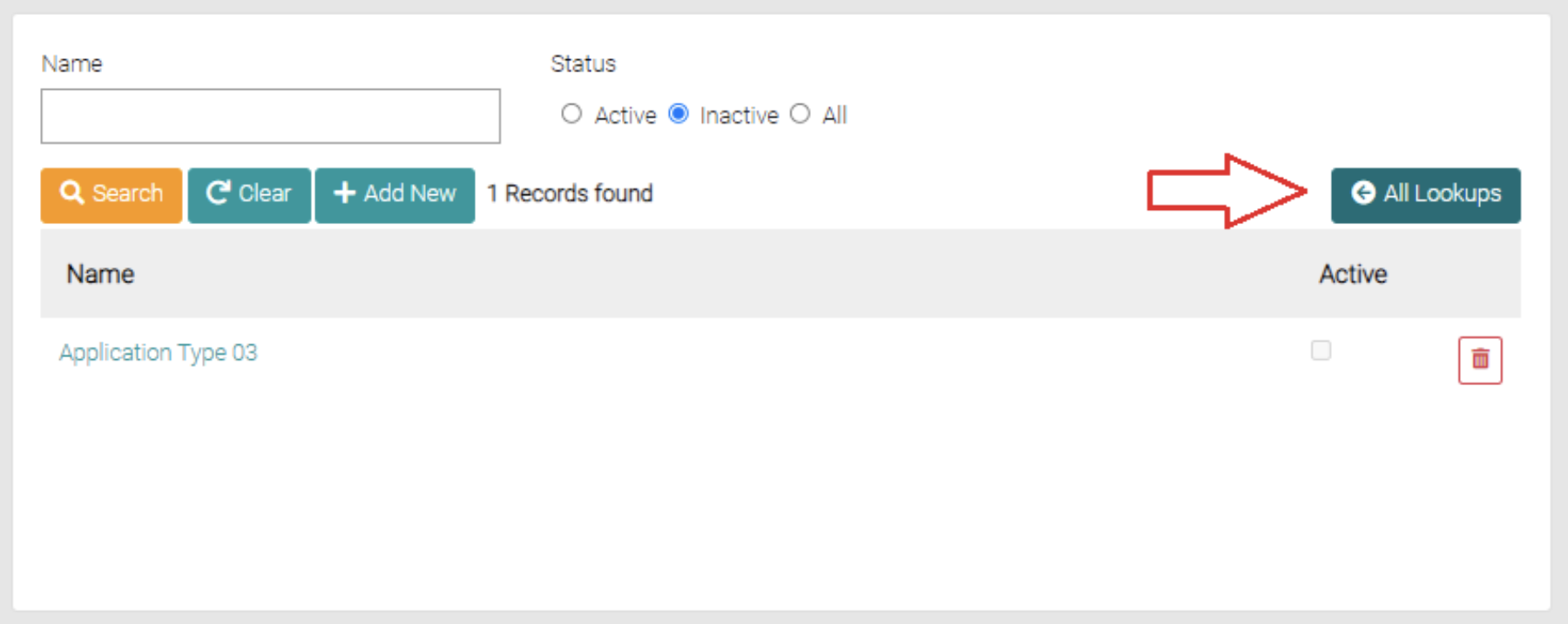
The ‘All Lookups’ button will take you back to the Lookup page.
Add New
The Add New button is found on the search page beside the Clear and Search Button.
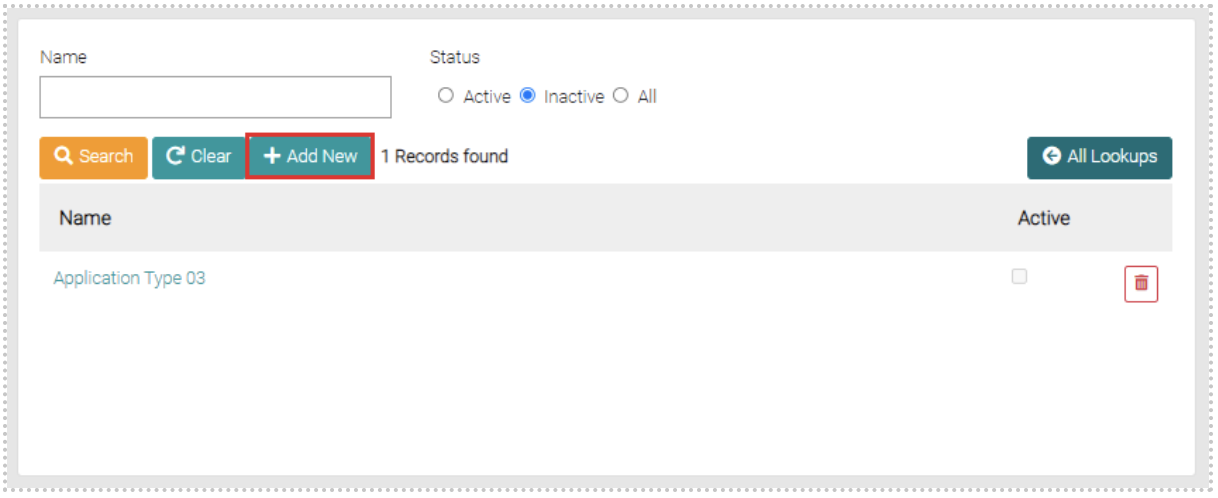
The Add New button opens a new page that allows the user to create a new Application Type, required spaces to be filled are marked with *. Once mandatory fields are complete you can click Save to complete the creation or Close which takes the user back to the Application Type page.
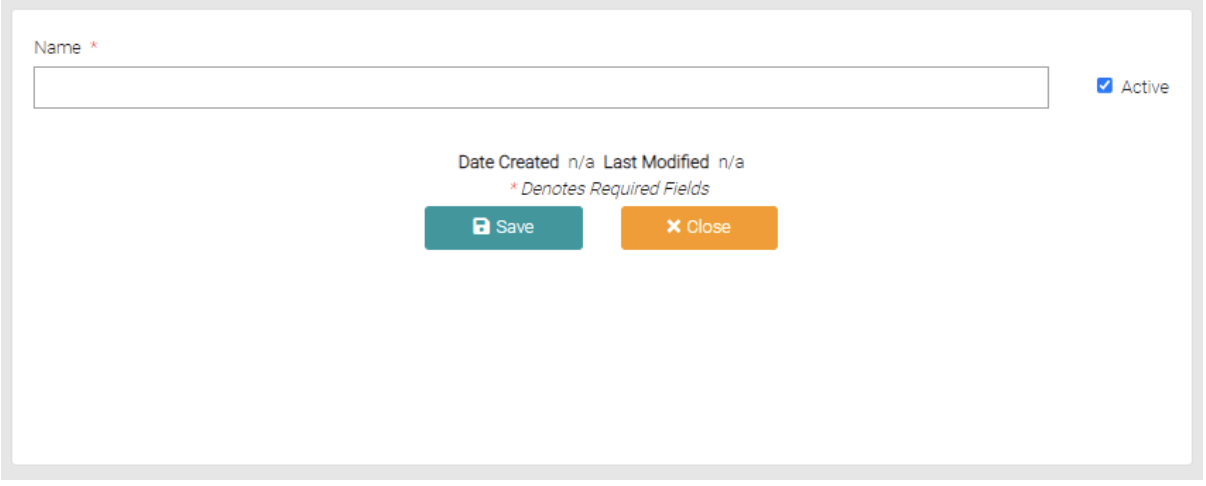
Besides the Name field there is a checkbox that when checked makes the Application Type to be Active and show up on the Building Approval tab, unchecked marks it as Inactive.
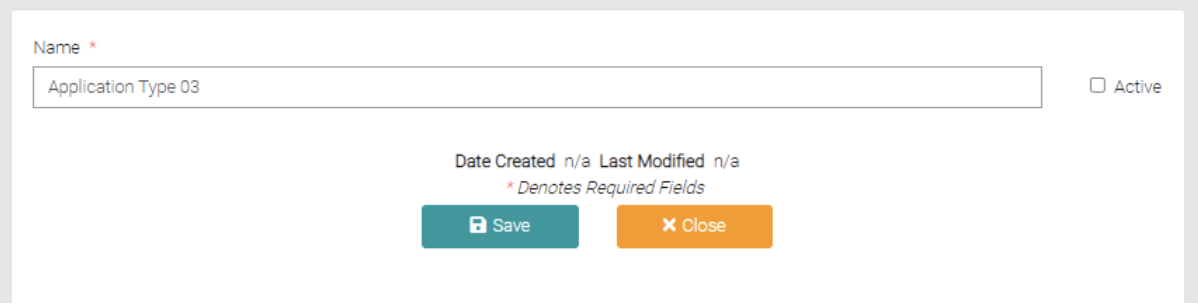
This is how the new item is seen on the search page, take note that there is a column named Active which you can see the same checkbox that shows if the Application Type is active.
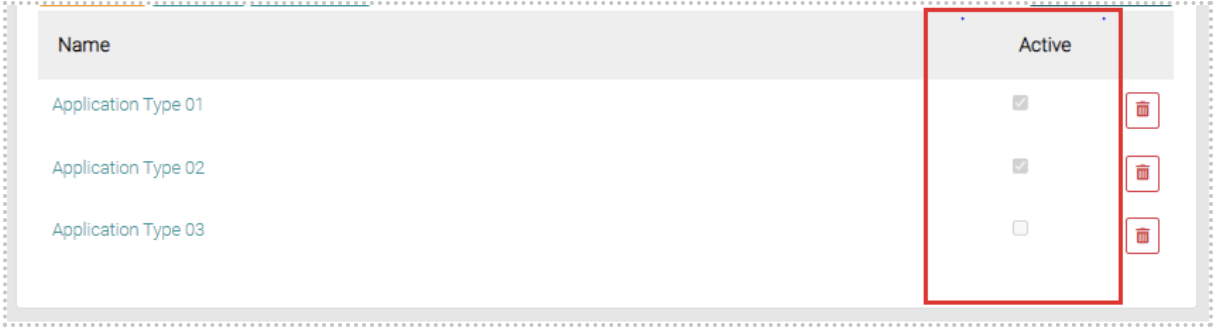
As mentioned before, you can search via Active and Inactive Status, see screenshot below for an example of searching via just Inactive Status.
Edit
To edit already created Application Types click on the name of the Application Type to be edited.
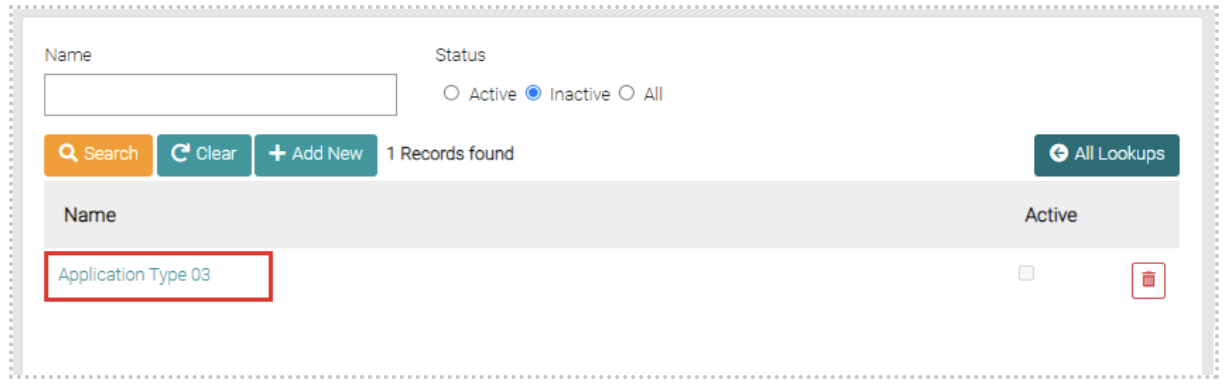
This will open a page similar to the Add New page, here the Name and Status can be altered.
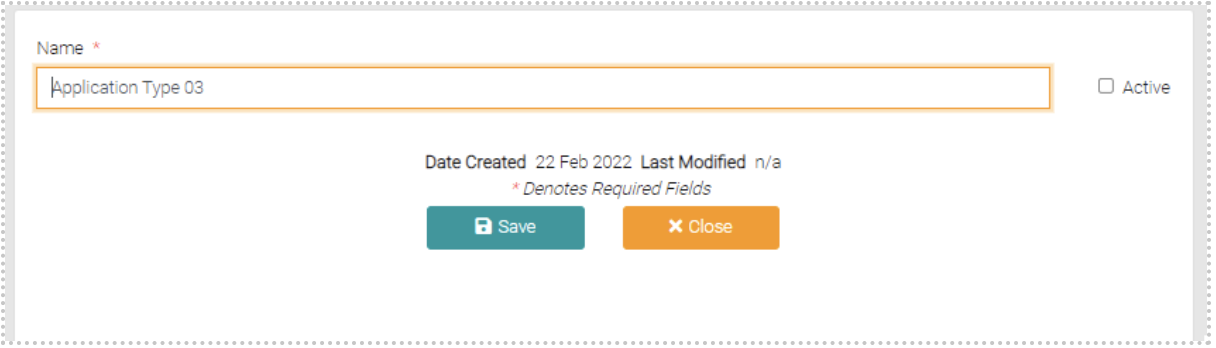
If altering occurs make sure to click Save to put the changes into effect, by clicking Close instead will exit back to the Search List with none of the changes in place.
Delete
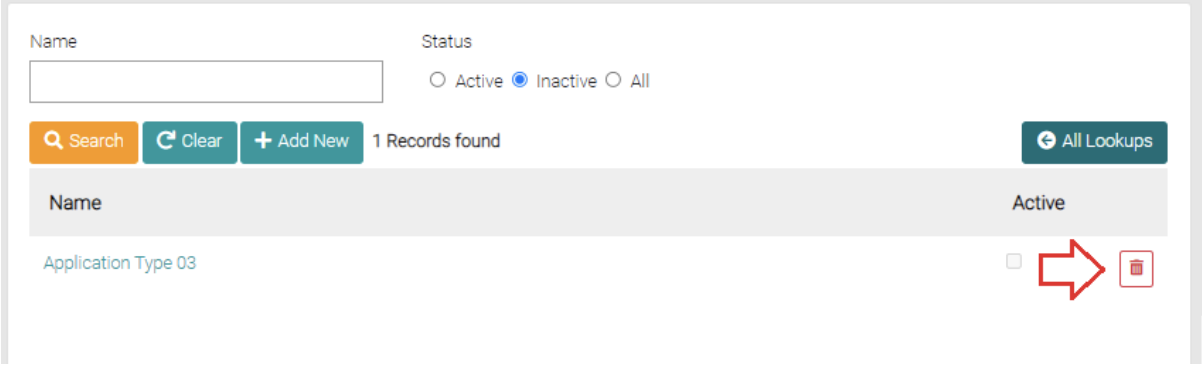
On the far right of the Application type, there is a red trash can button that will delete the Application Type, this will permanently remove the Application Type.