The Job Folder holds all the files concerning the Job.
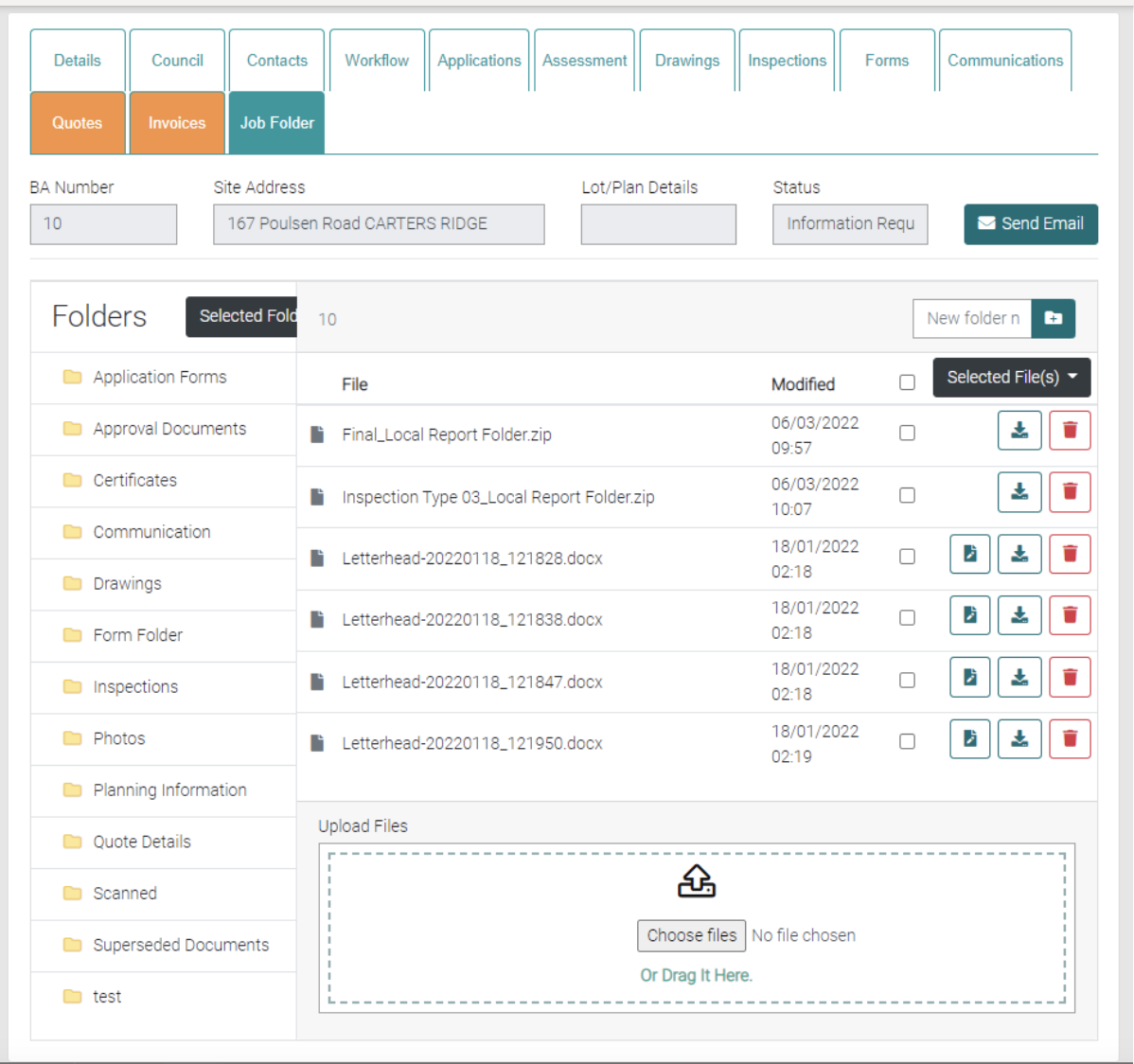
Folders
Use the Folders to organise the files, click on the folder name to open the folder to view Files inside.
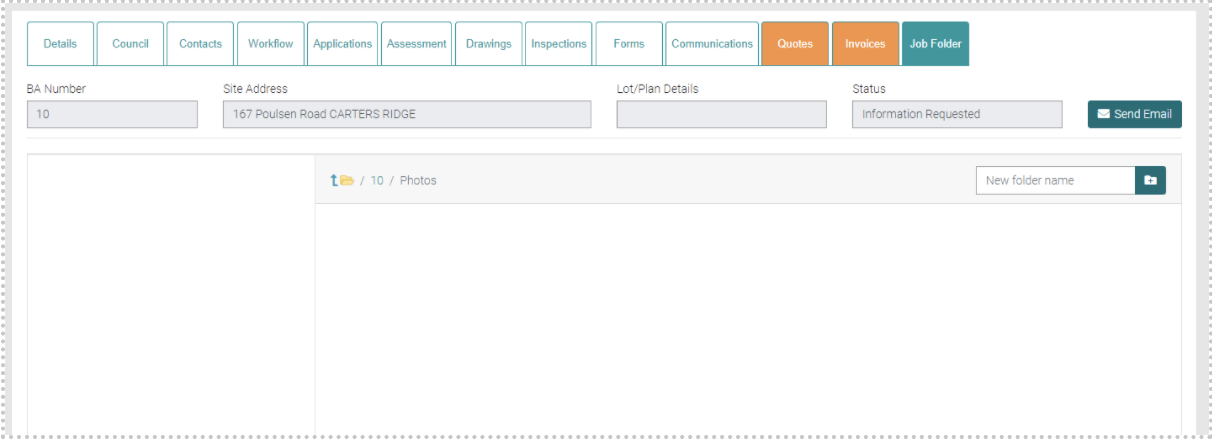
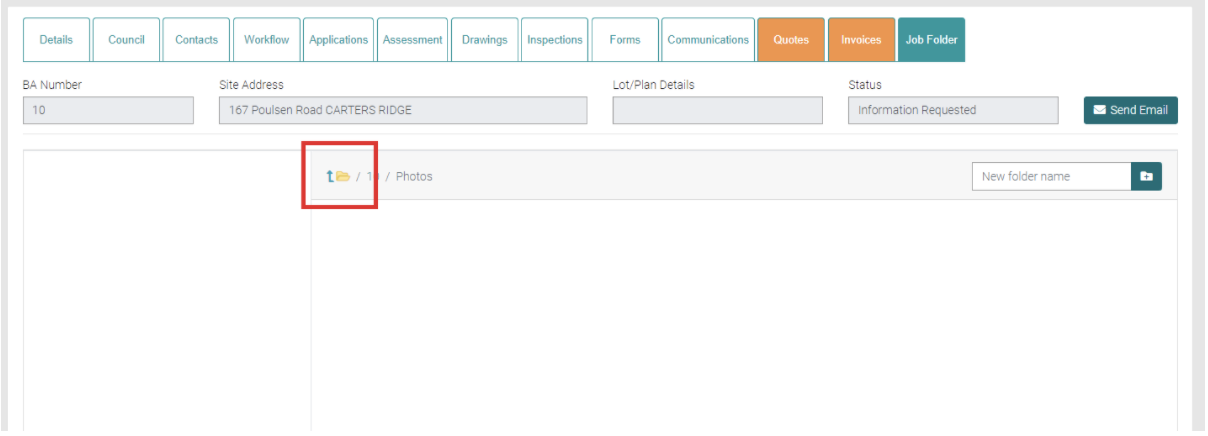
The backward folder symbol will take you back out of the folder you have selected.
Uploading File
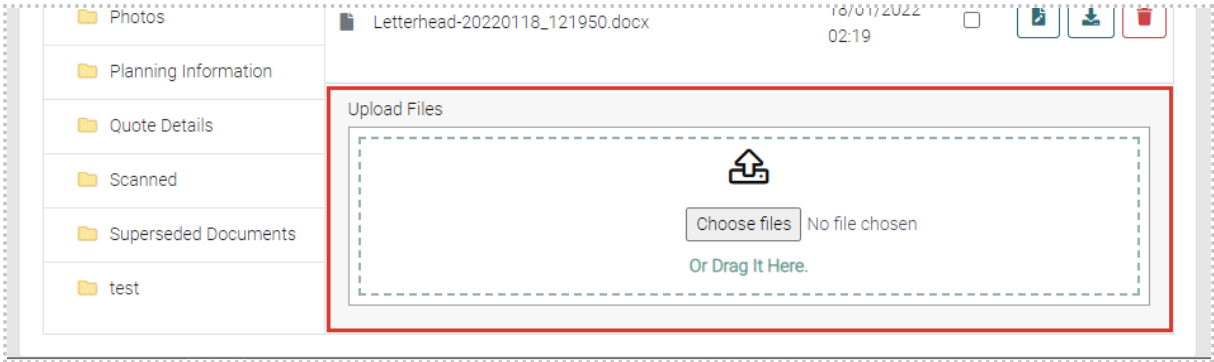
The user can either click on Choose Files or drag the files from Window Explorer onto the Upload Files.
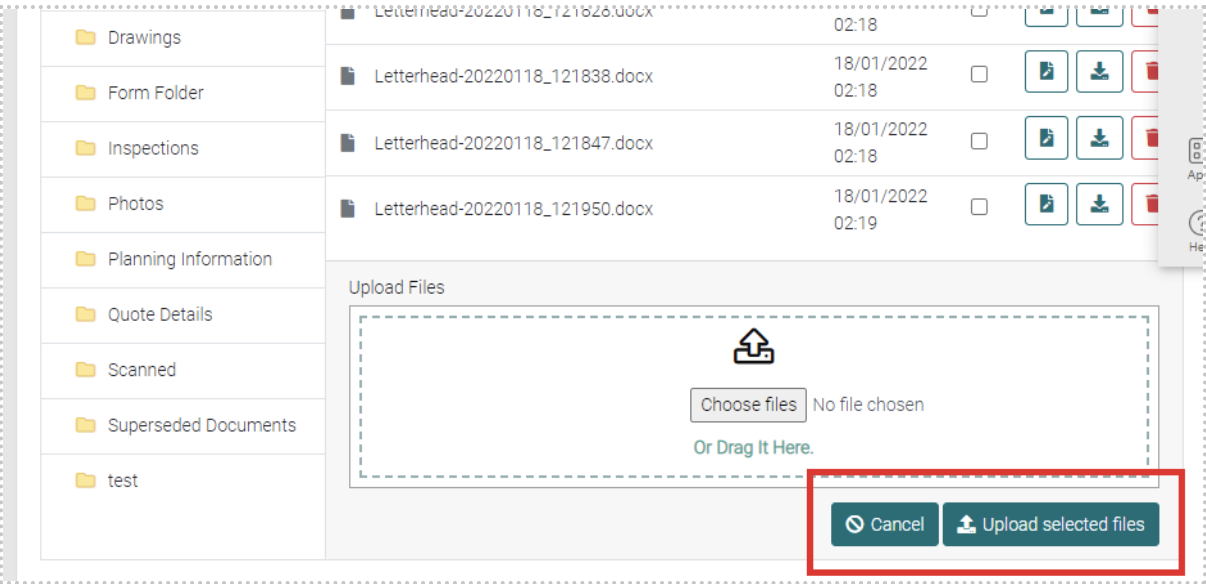
Once files have been chosen, click on the Upload Selected Files or Cancel if the files don’t need to be uploaded.
New Folder
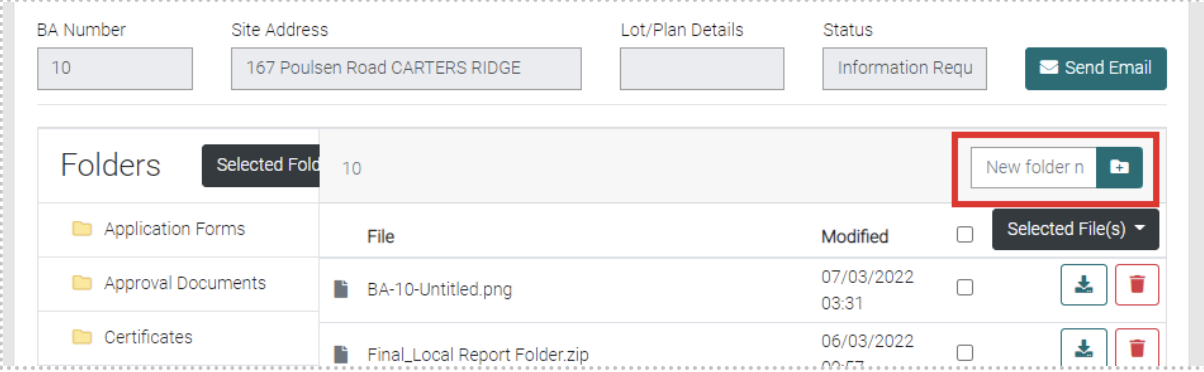
To create a new folder to organise the files by entering the Name of the Folder into the text field and clicking on the Create New Folder button.
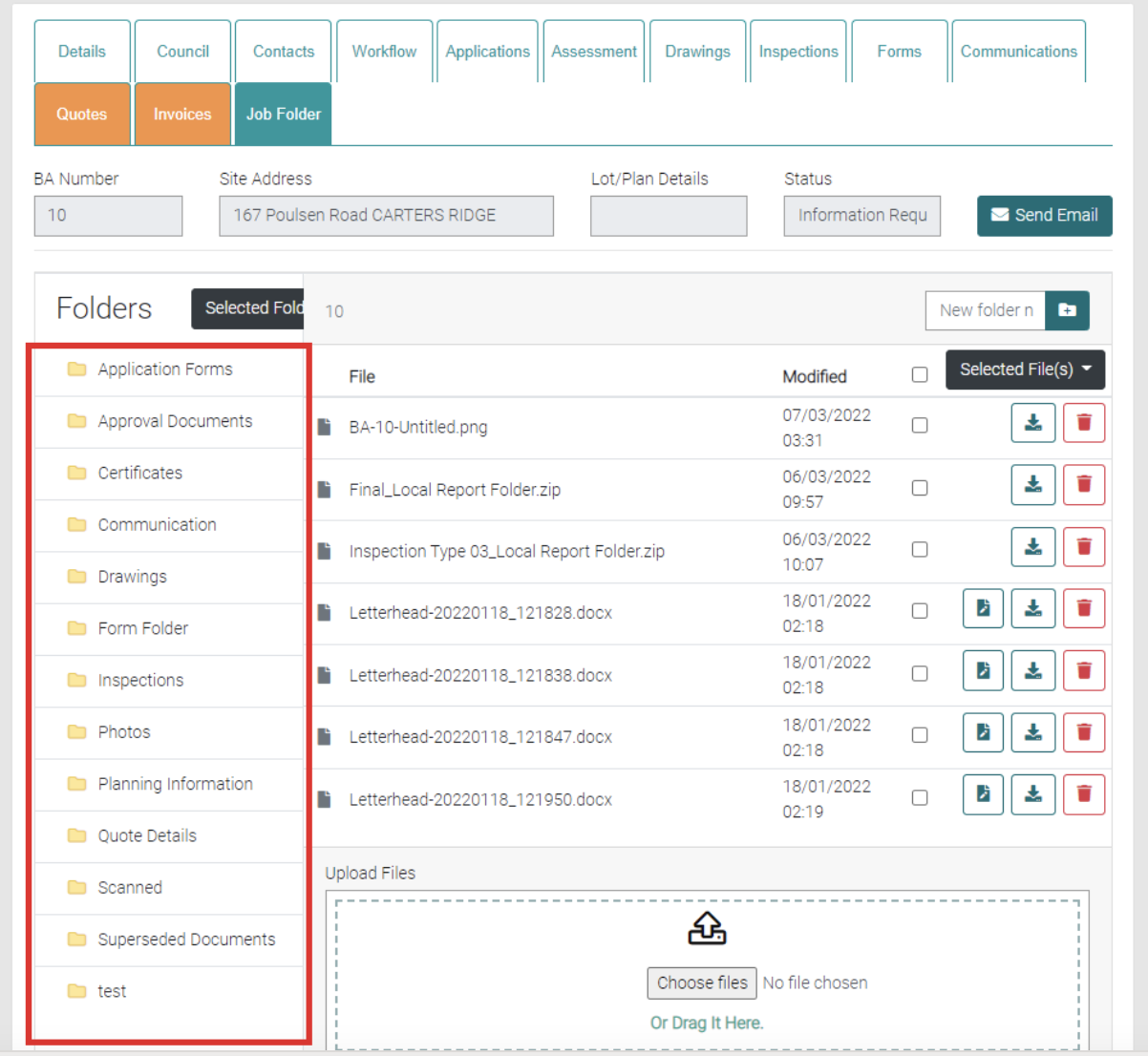
New folders appear on the left.
Rename Folder
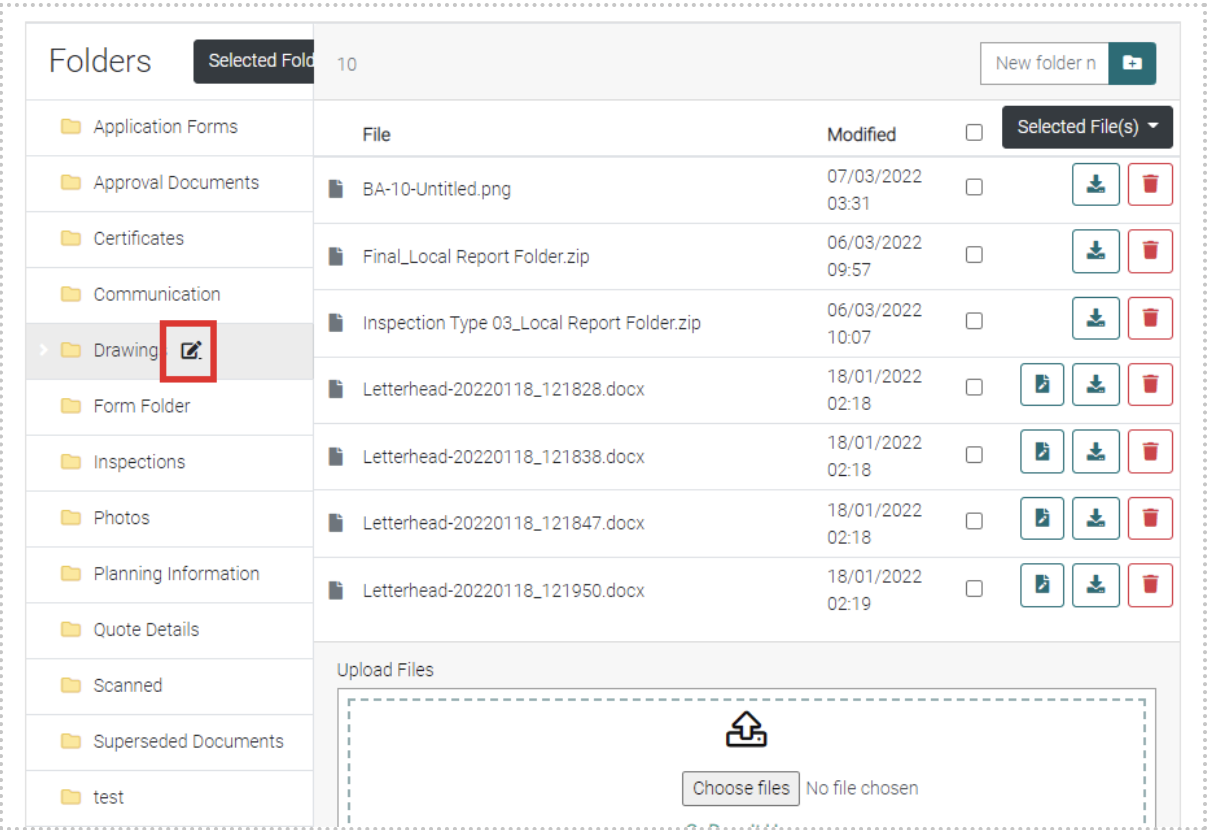
When you hover your cursor over the Folder a symbol will appear that, when clicked, will allow the Folder to be renamed.
Selected Folder(s)
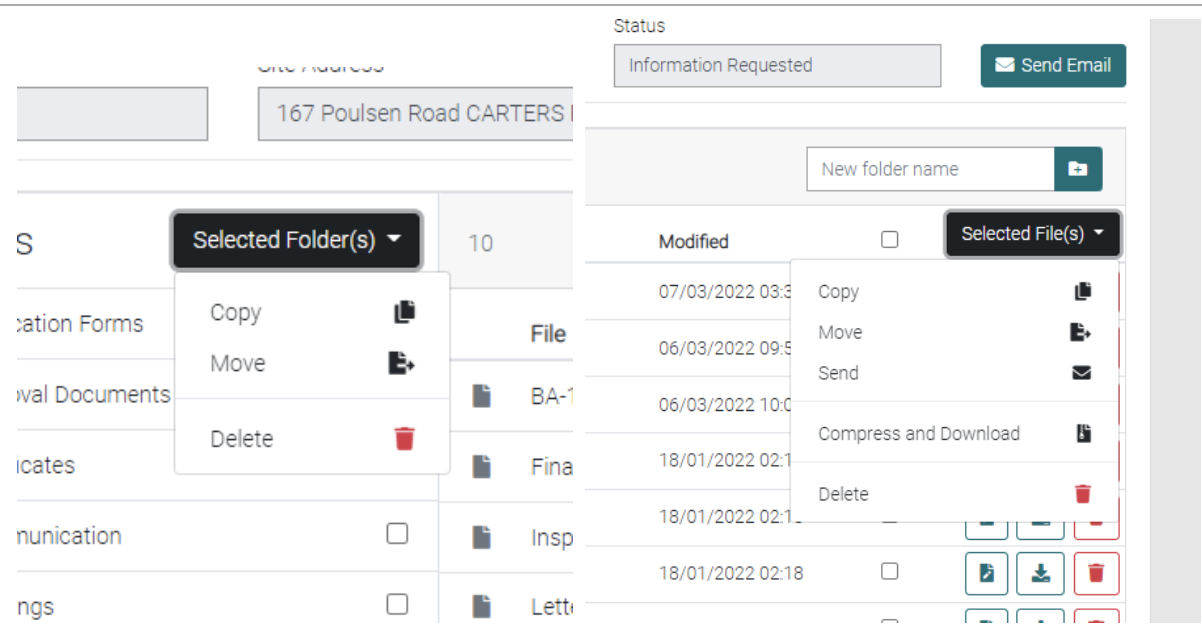
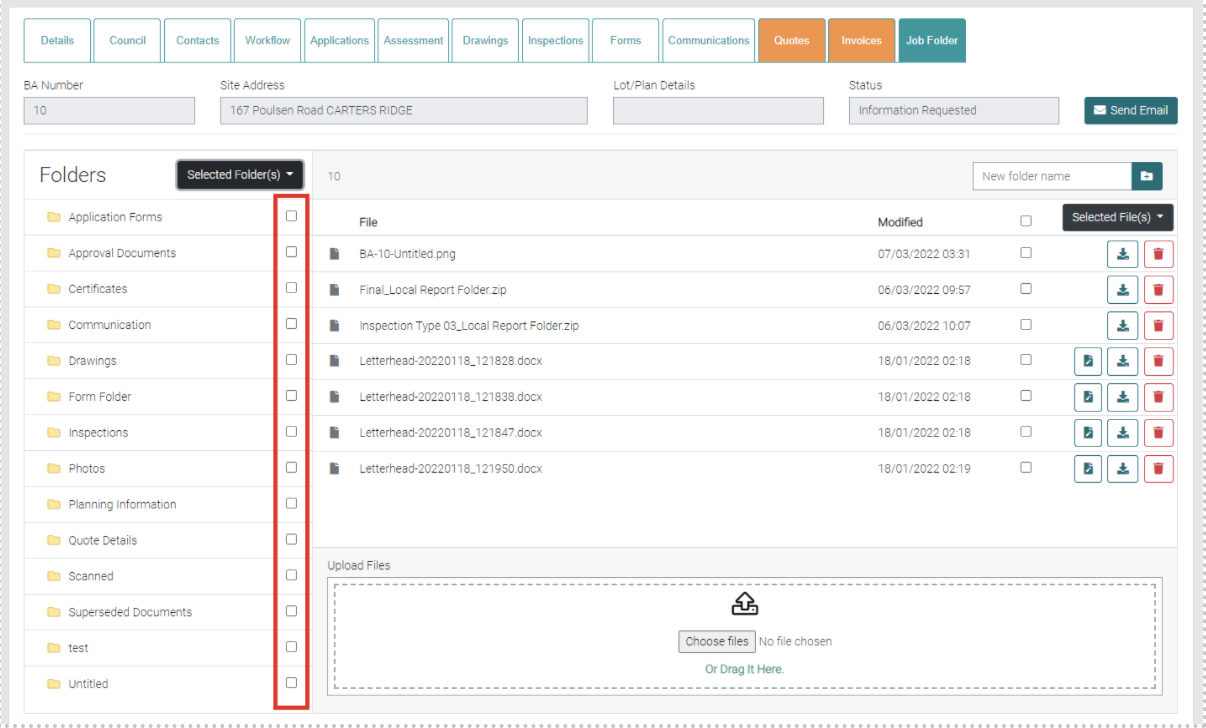
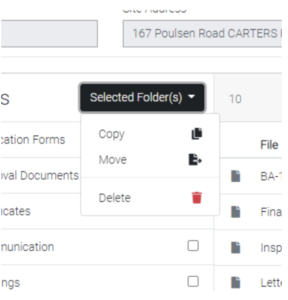
Use the checkboxes to select the Folders you want to copy, move or delete.
Selected File(s)
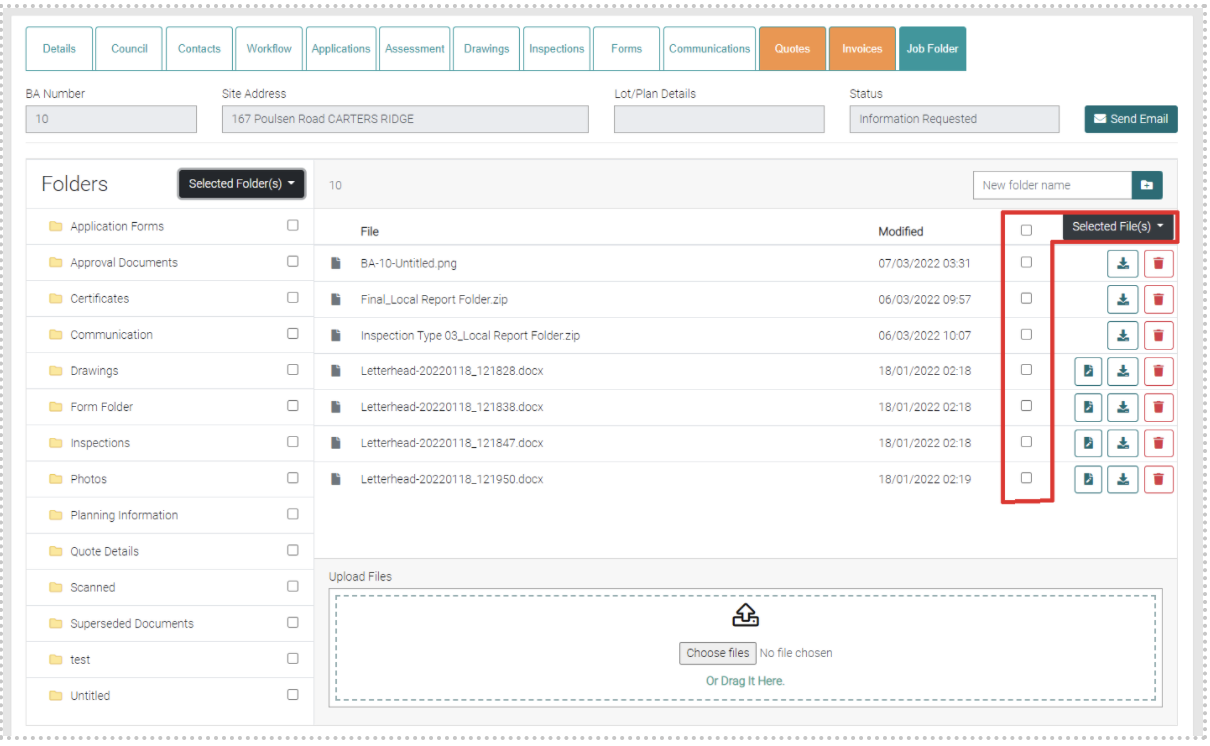
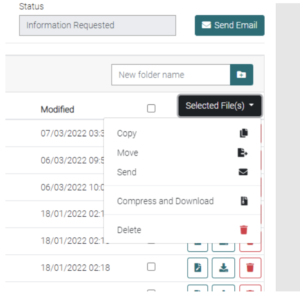
Use the checkboxes to select specific files to be copied, moved, send, compressed/download or deleted. Use the check box beside the Selected Files to select all files.
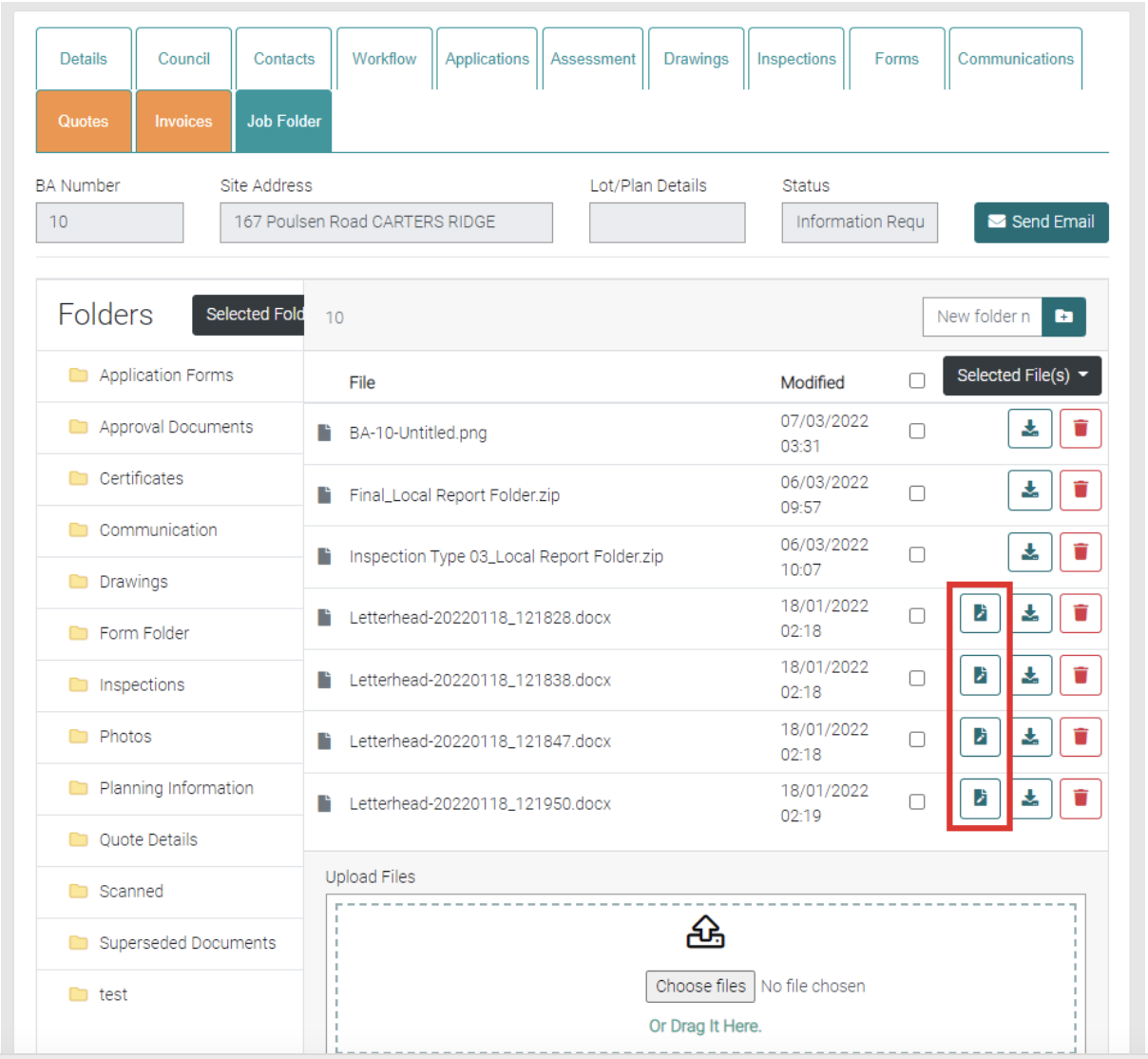
Open
Use the Open button to open word documents, this will open the document on the website that one can edit the file.
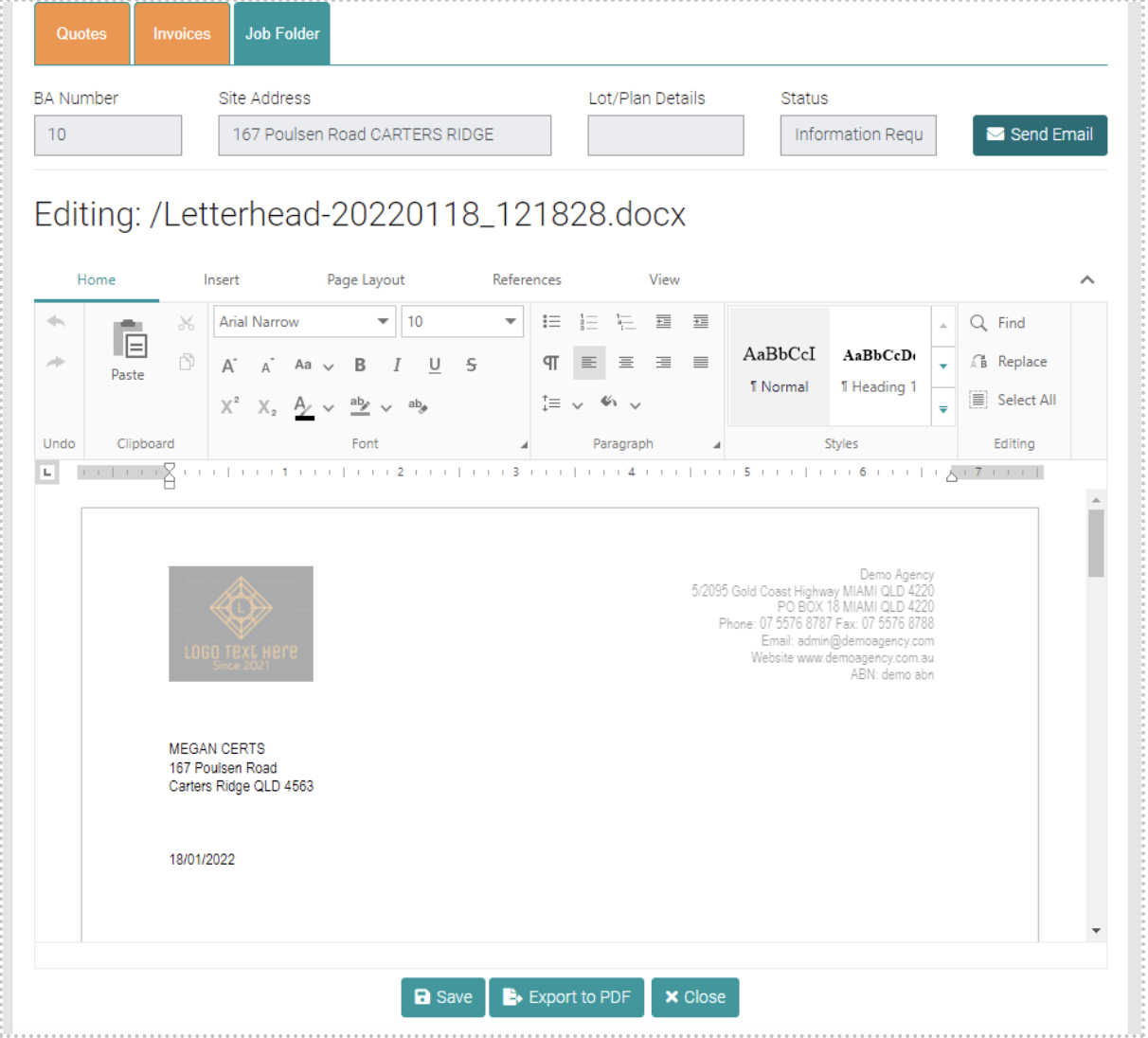
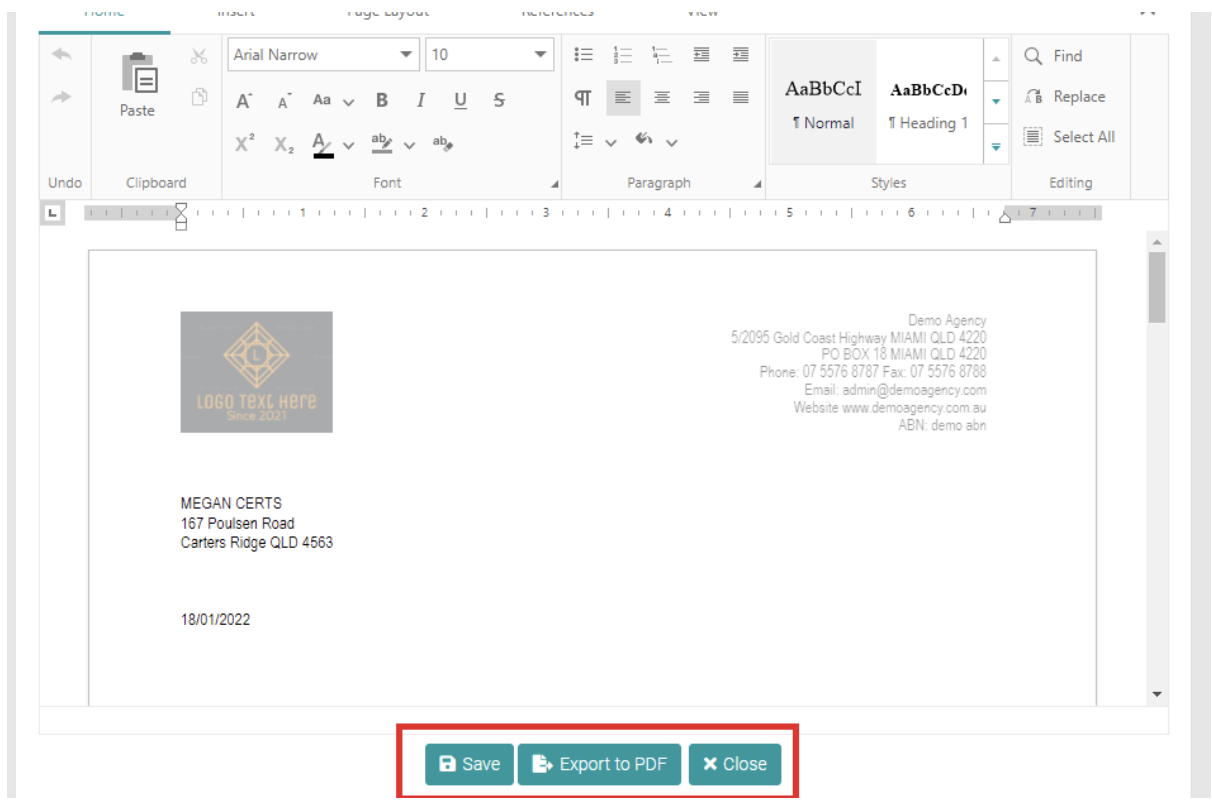
Use the Save button to save any changes, Export to PDF to export the file as a PDF to the PC or Close to leave the editing.
Download
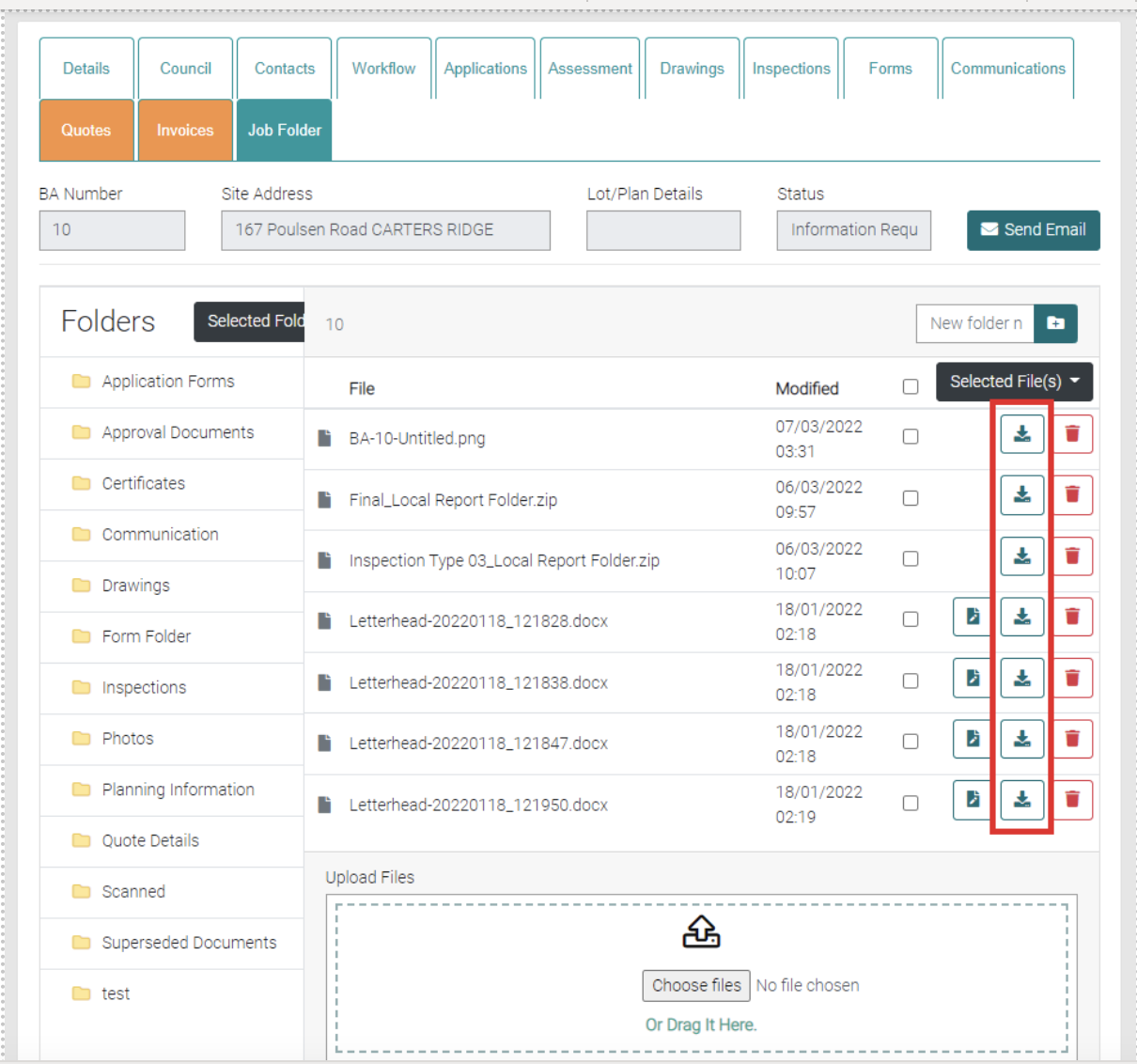
Click on the Download button to download the file to your PC.
Delete
Click on the red trash-can beside the file to delete it.
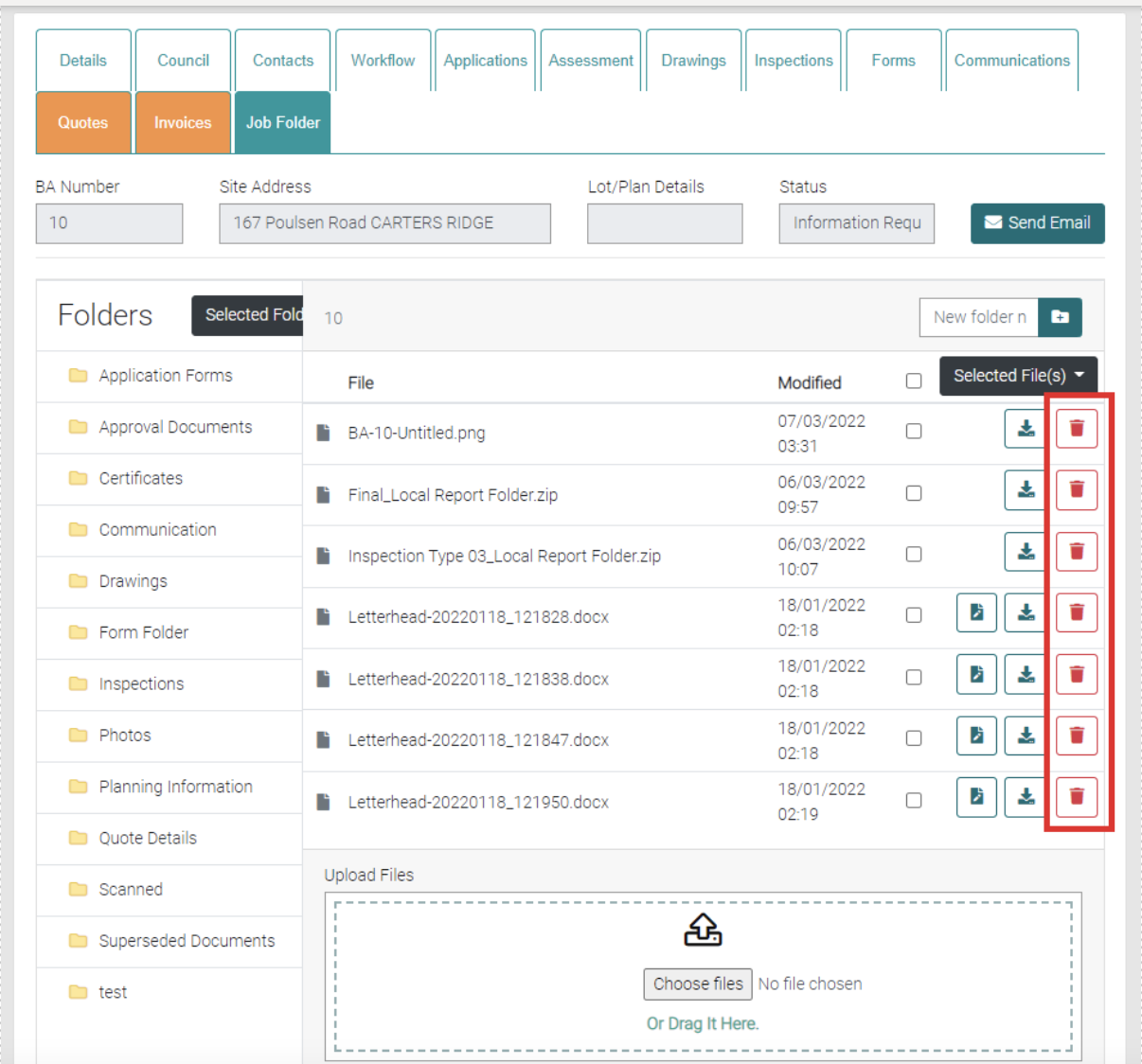
Or use the selection tool to select multiple files/folders to delete and use the drop-down menu to select Delete.