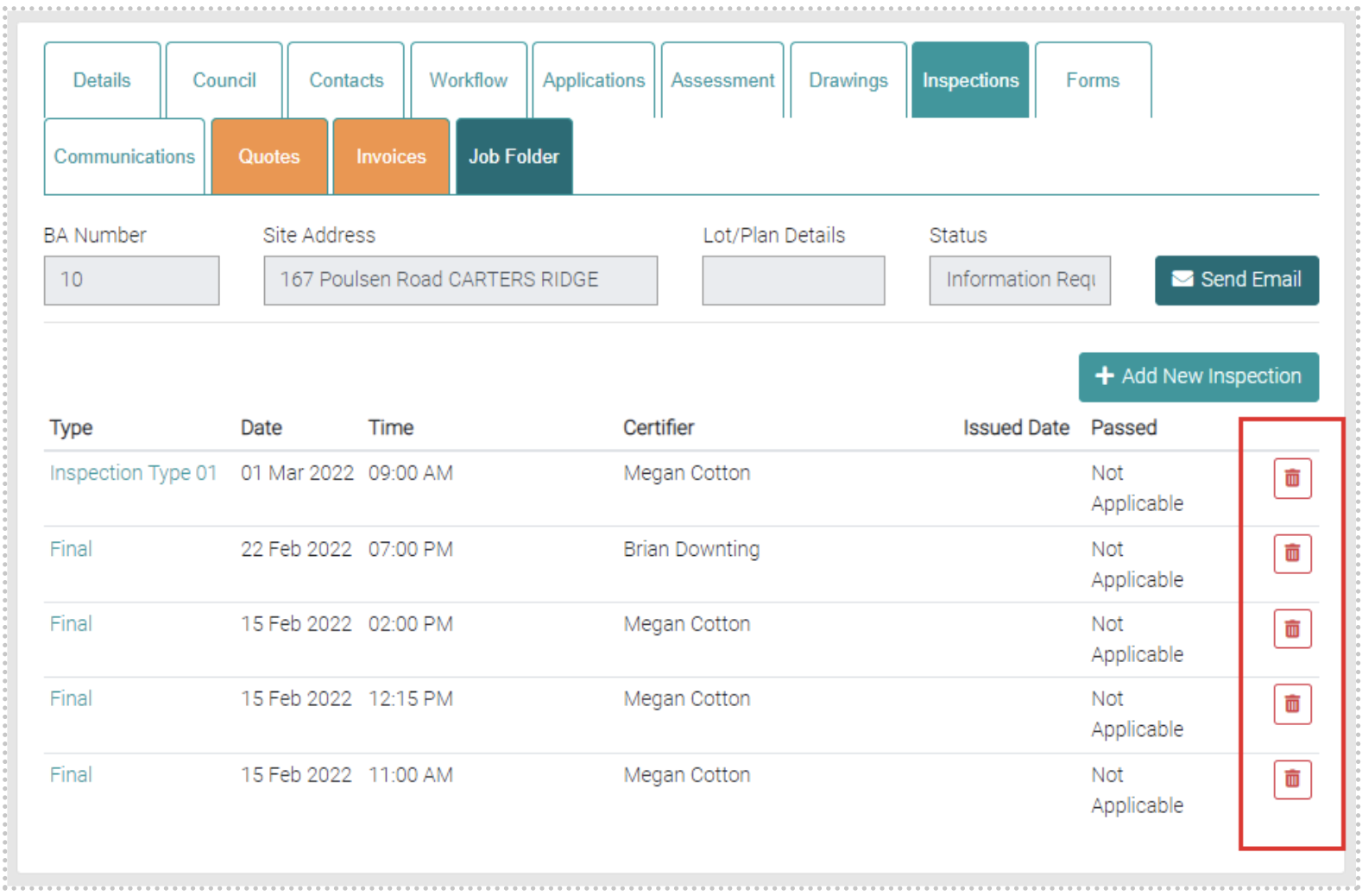
The Inspections tab shows all the Inspections for the job.
Add
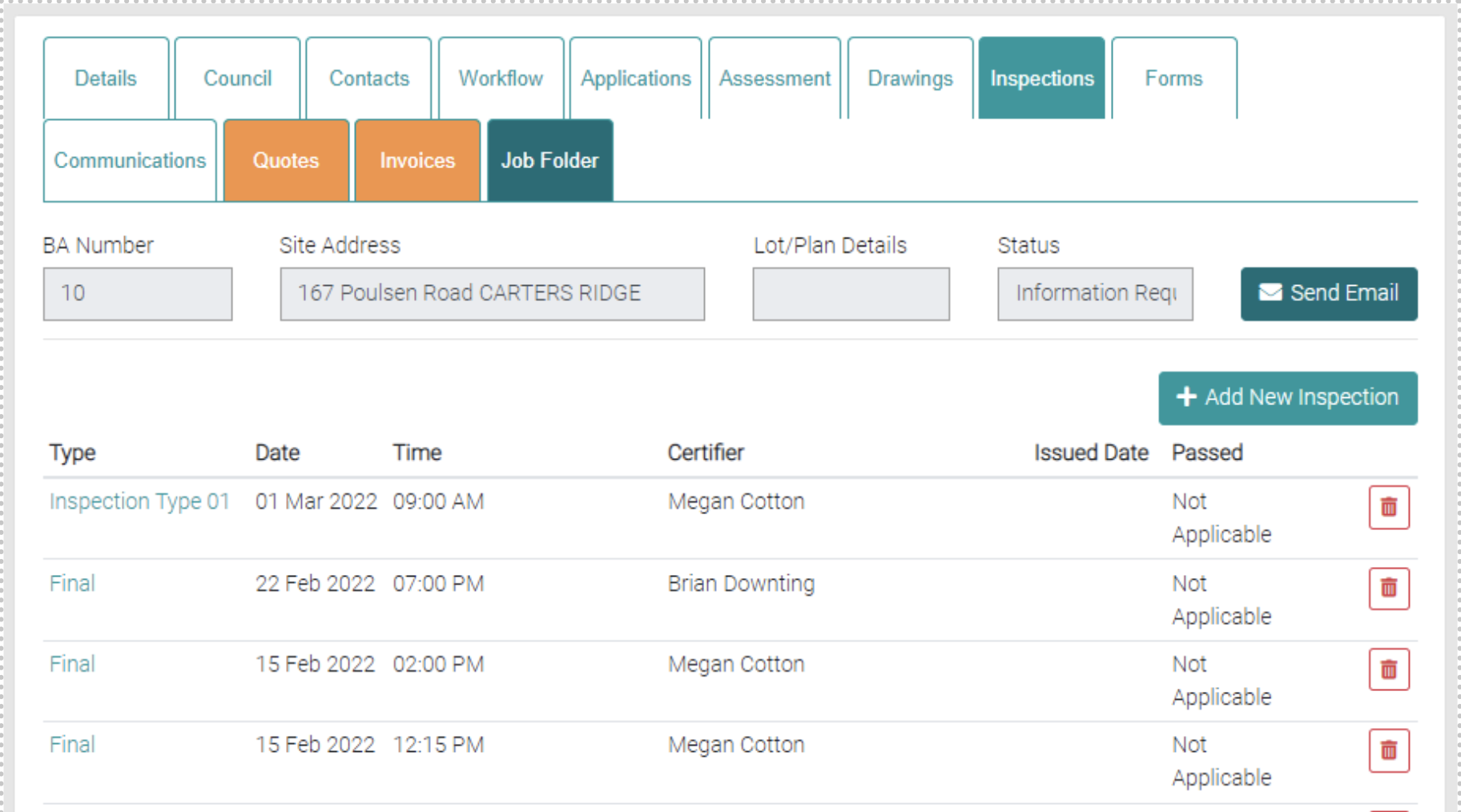
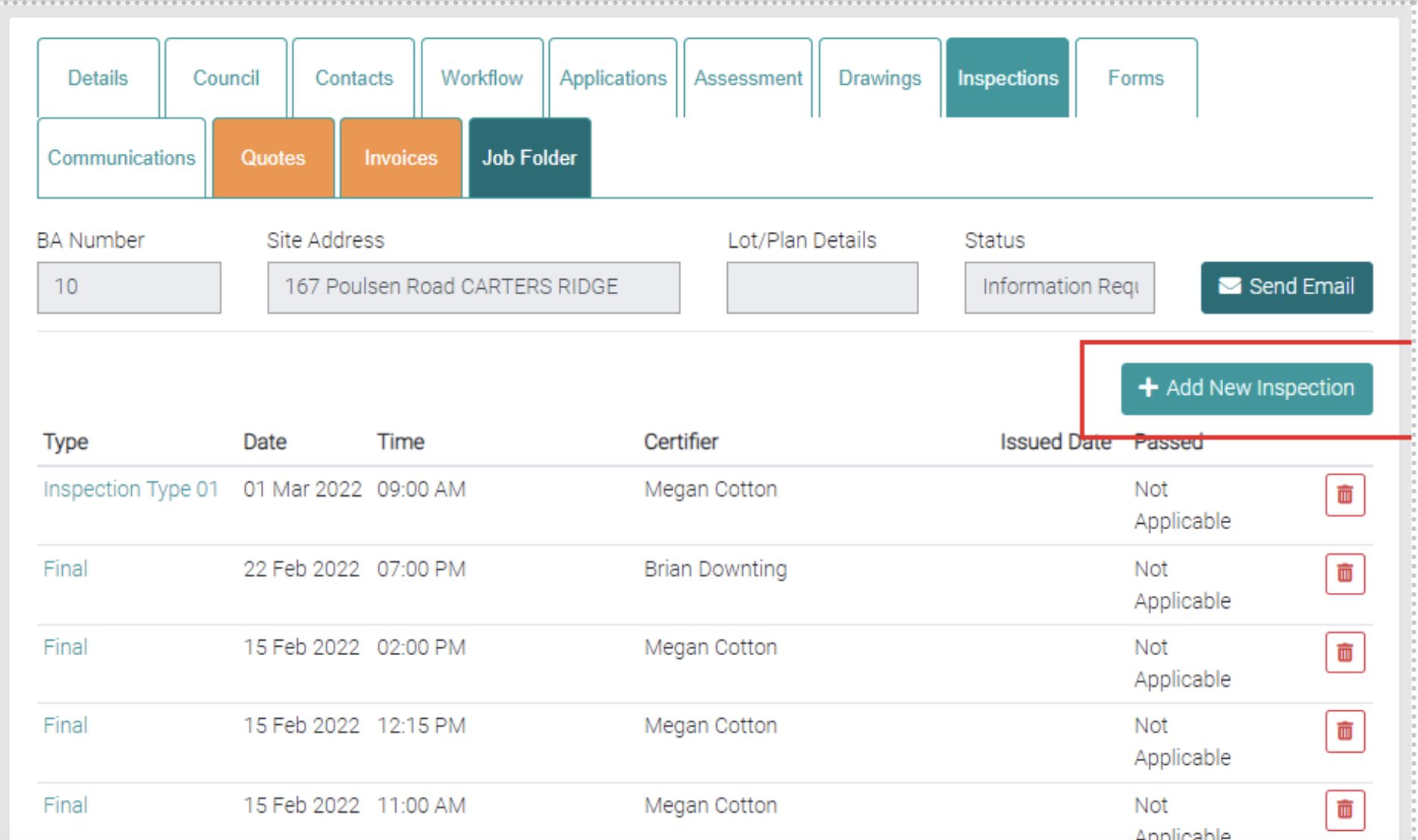
New Inspections can be added by the Add New Inspection button.
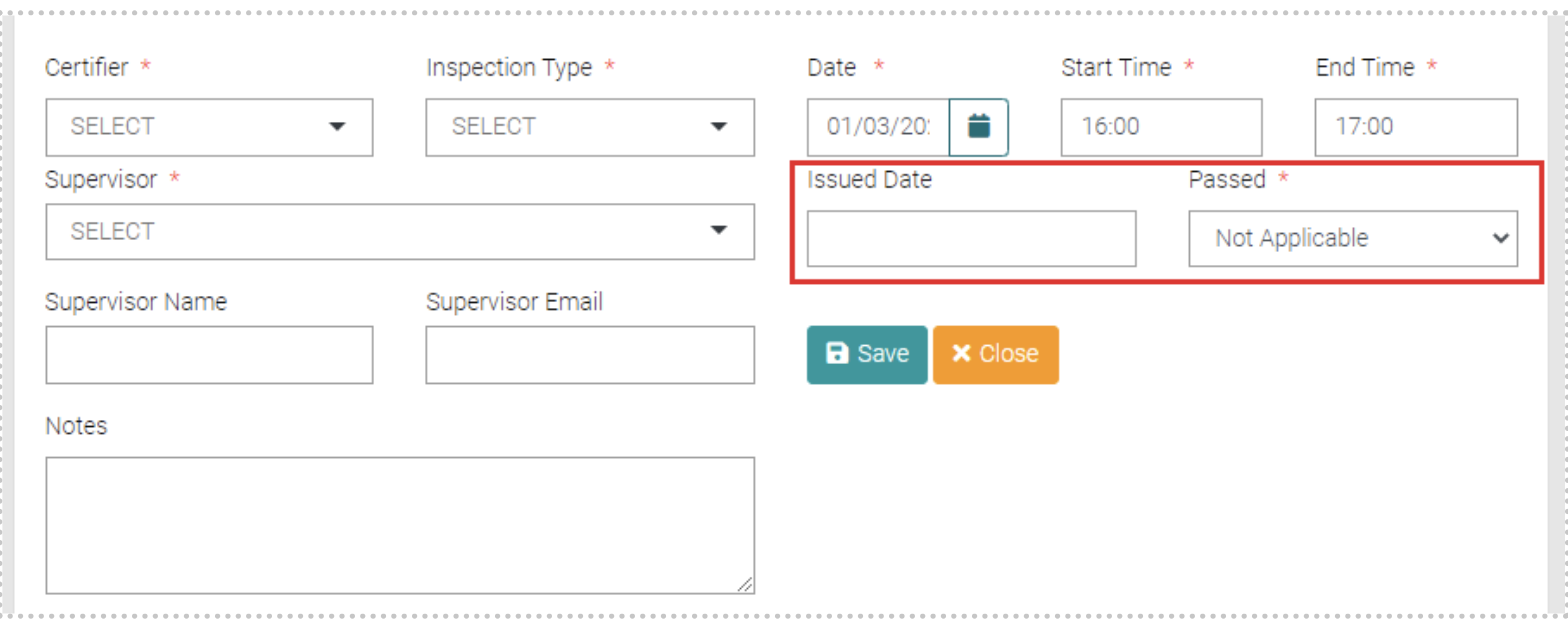
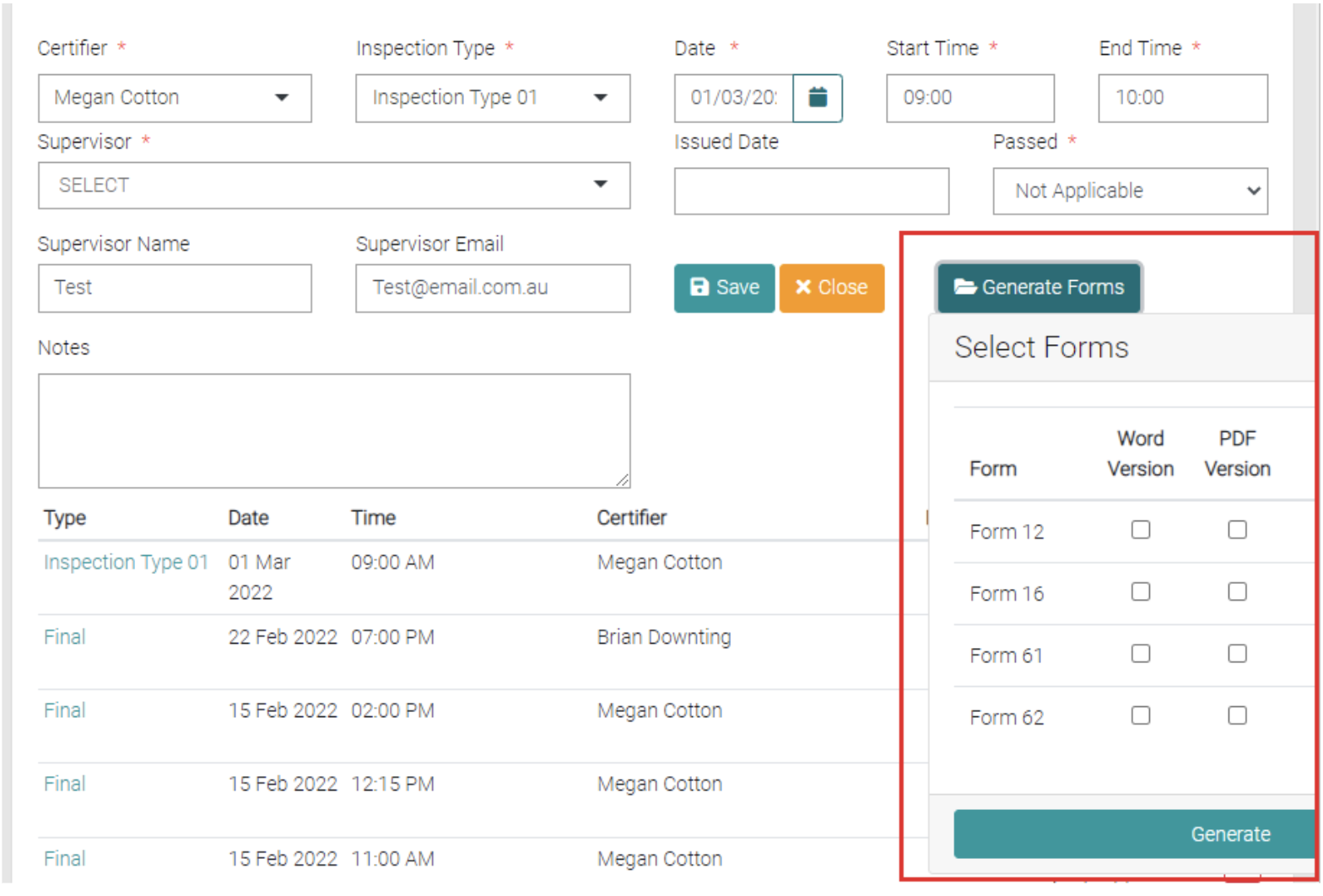
When clicked it will open a new section that will allow details of the Inspection to be added. Each text field or drop-down menu marked with the * symbol is mandatory before saving.
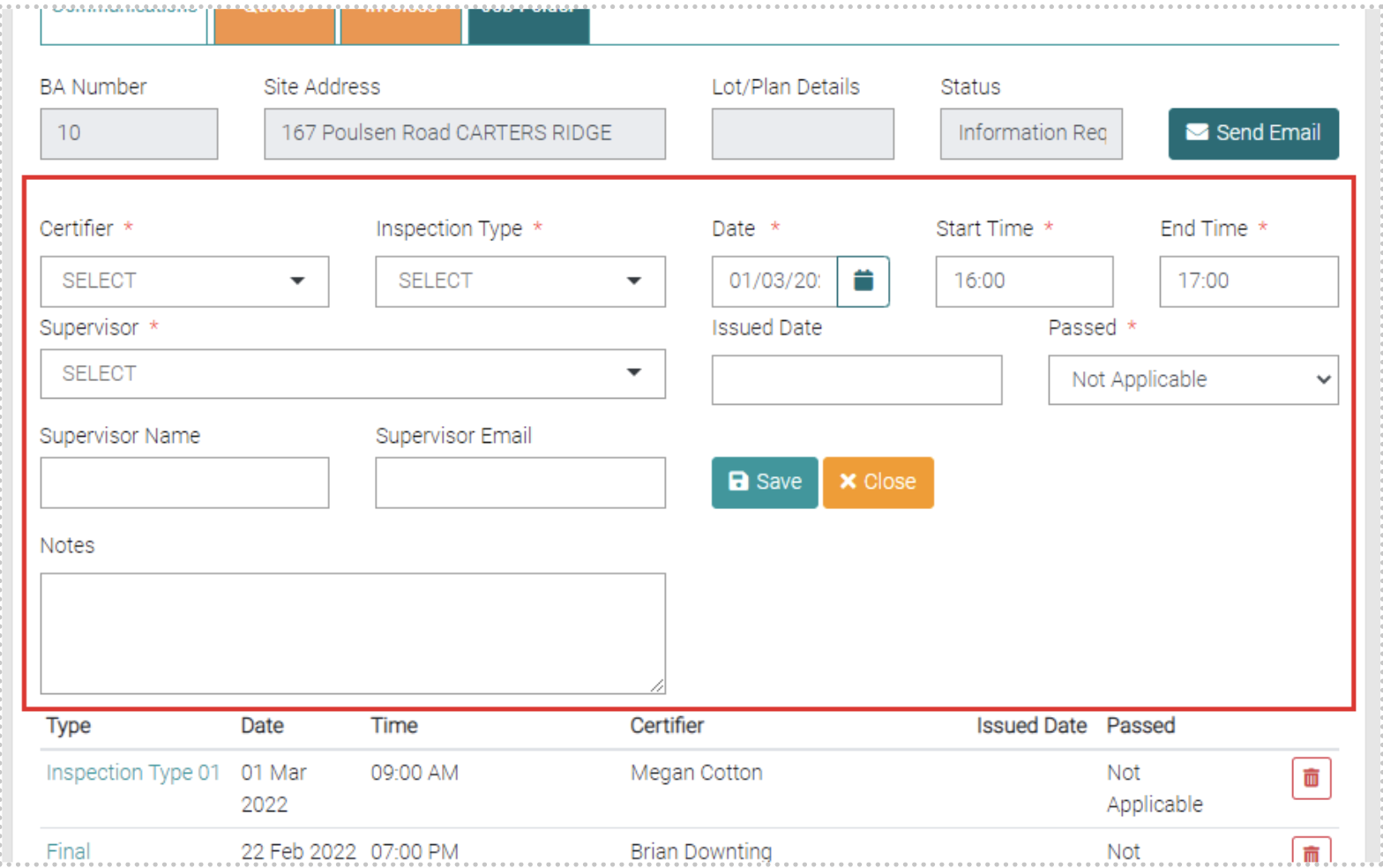
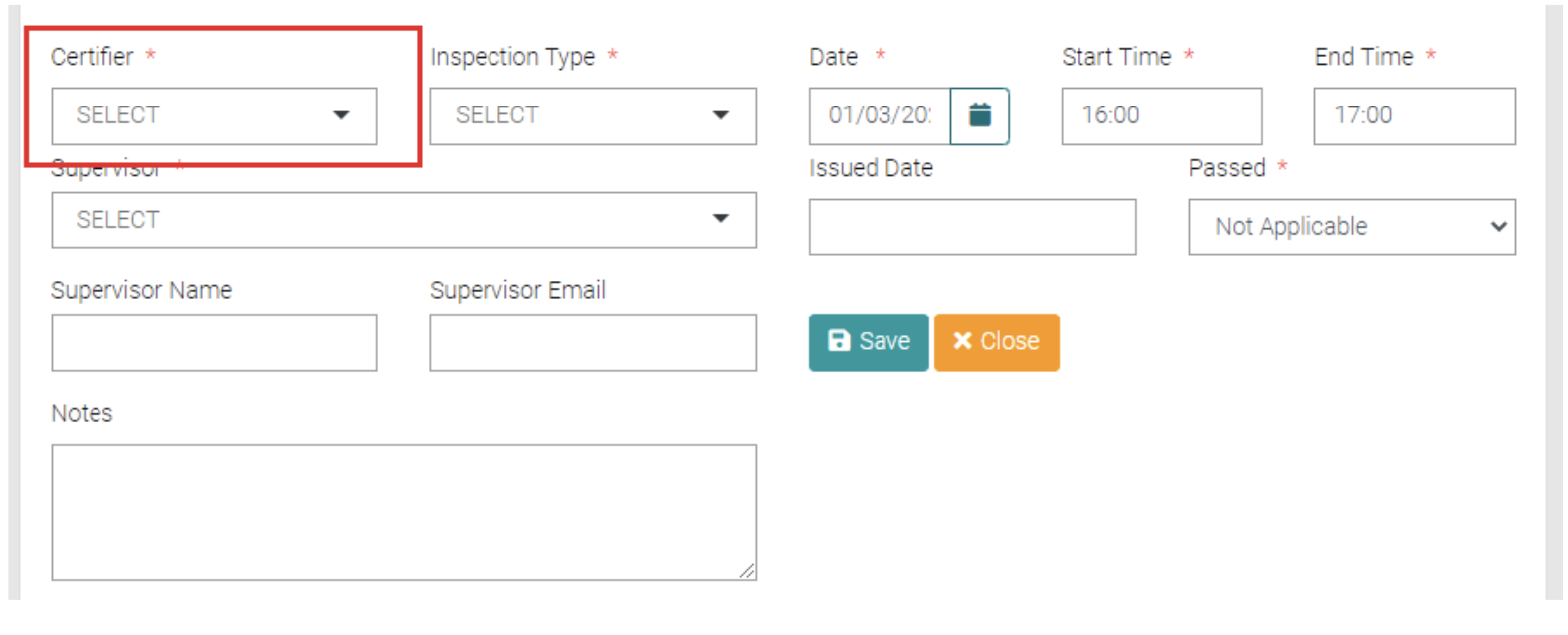
Certifier drops a menu to select from Users with the Certifier role. These Users can be managed in System Users.
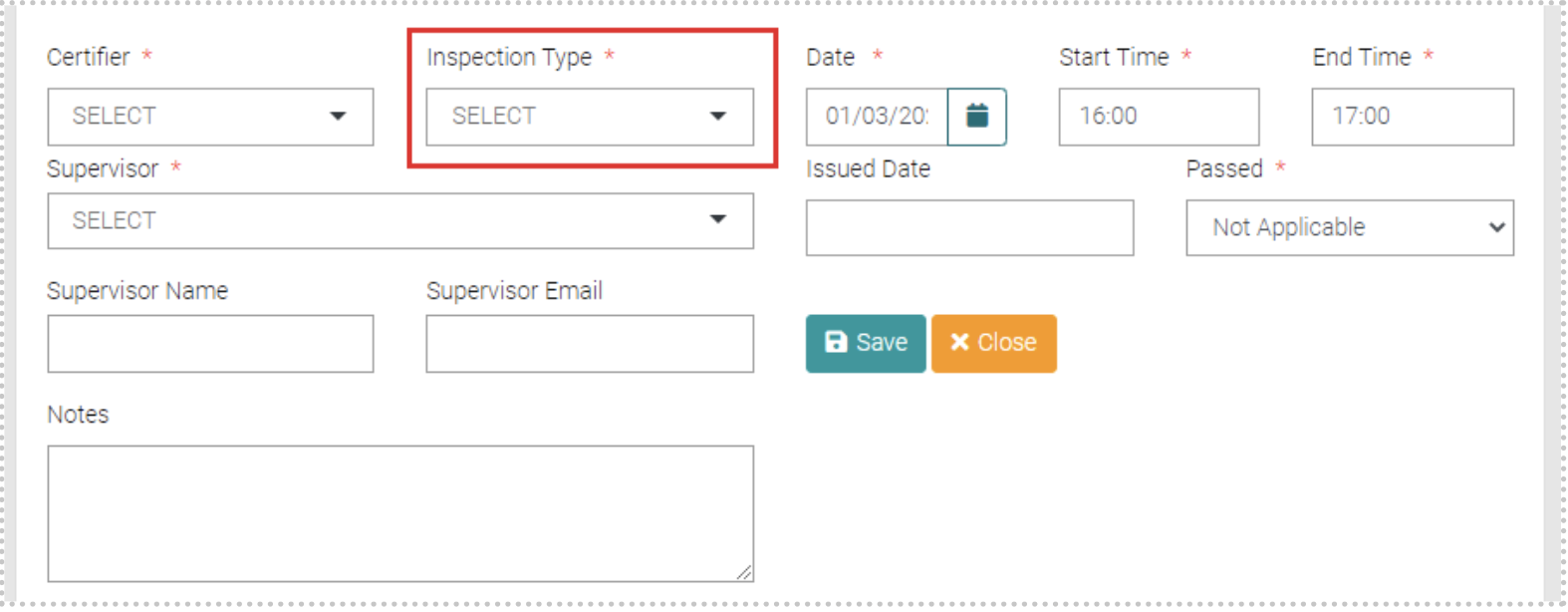
Inspection Type is a menu that allows you to select an Inspection Type, these can be managed in Lookups > Inspection Type.
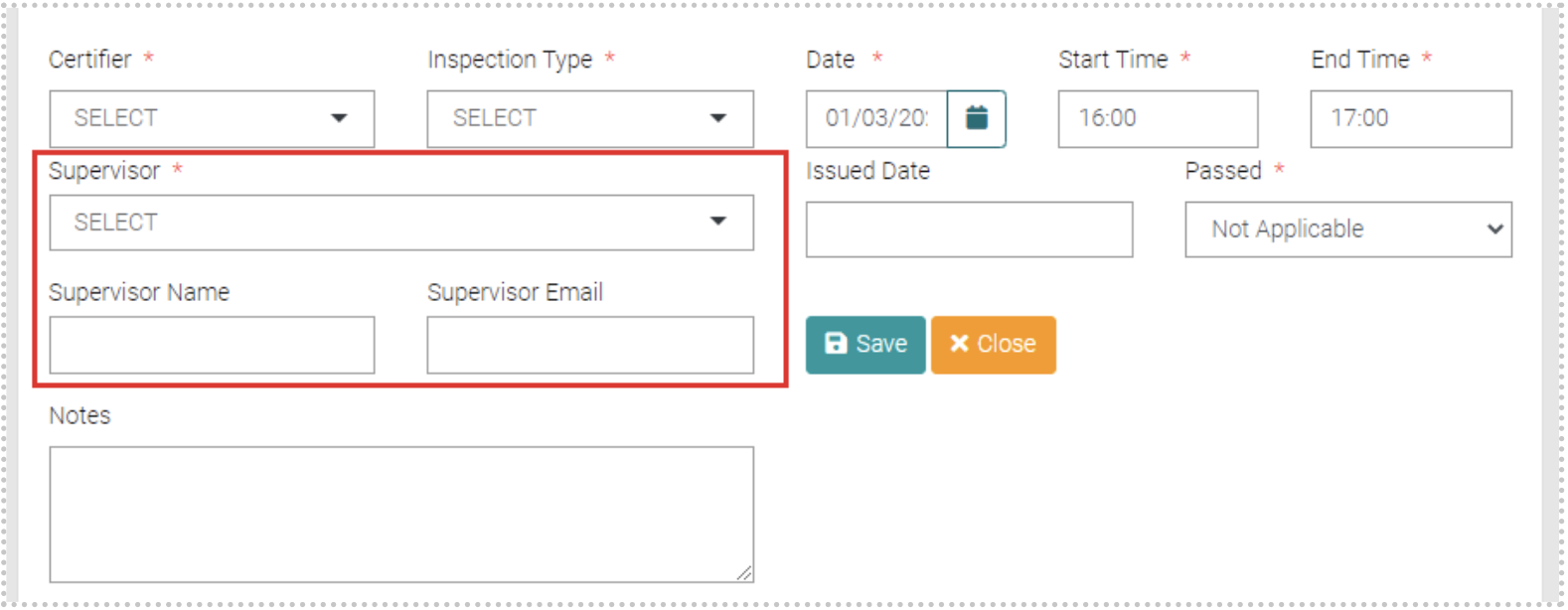
The supervisor is a drop-down menu that allows you a selection from Users with the Supervisor Role, or you can select Add New and complete the Supervisor Name and Email text fields.
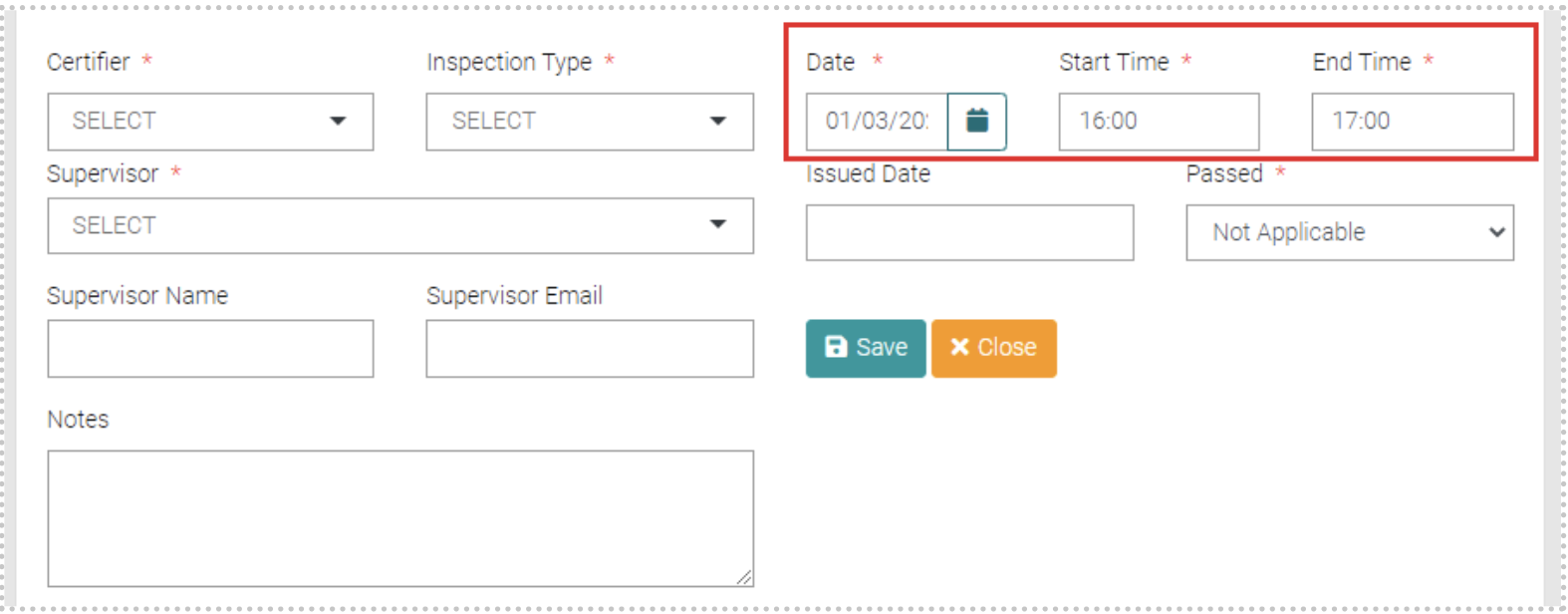
You can set the date and time of the Inspection.
issued Date drops a calendar to select the date the Inspection was Passed. Beside it is a drop-down menu to show if the Inspection has passed (Yes), not passed (No) or not yet done (Not Applicable).
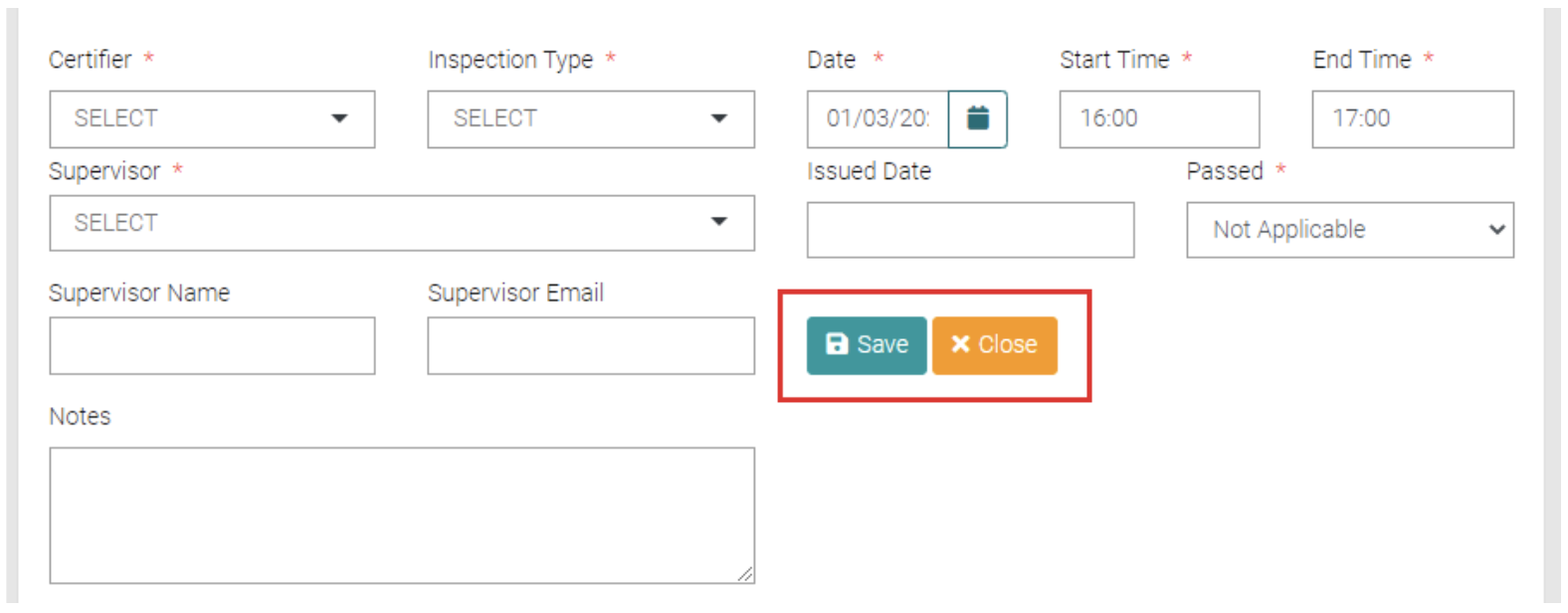
Once all Mandatory Fields are completed click on Save to save the new Inspection or click Close to close the Add New field.
Edit
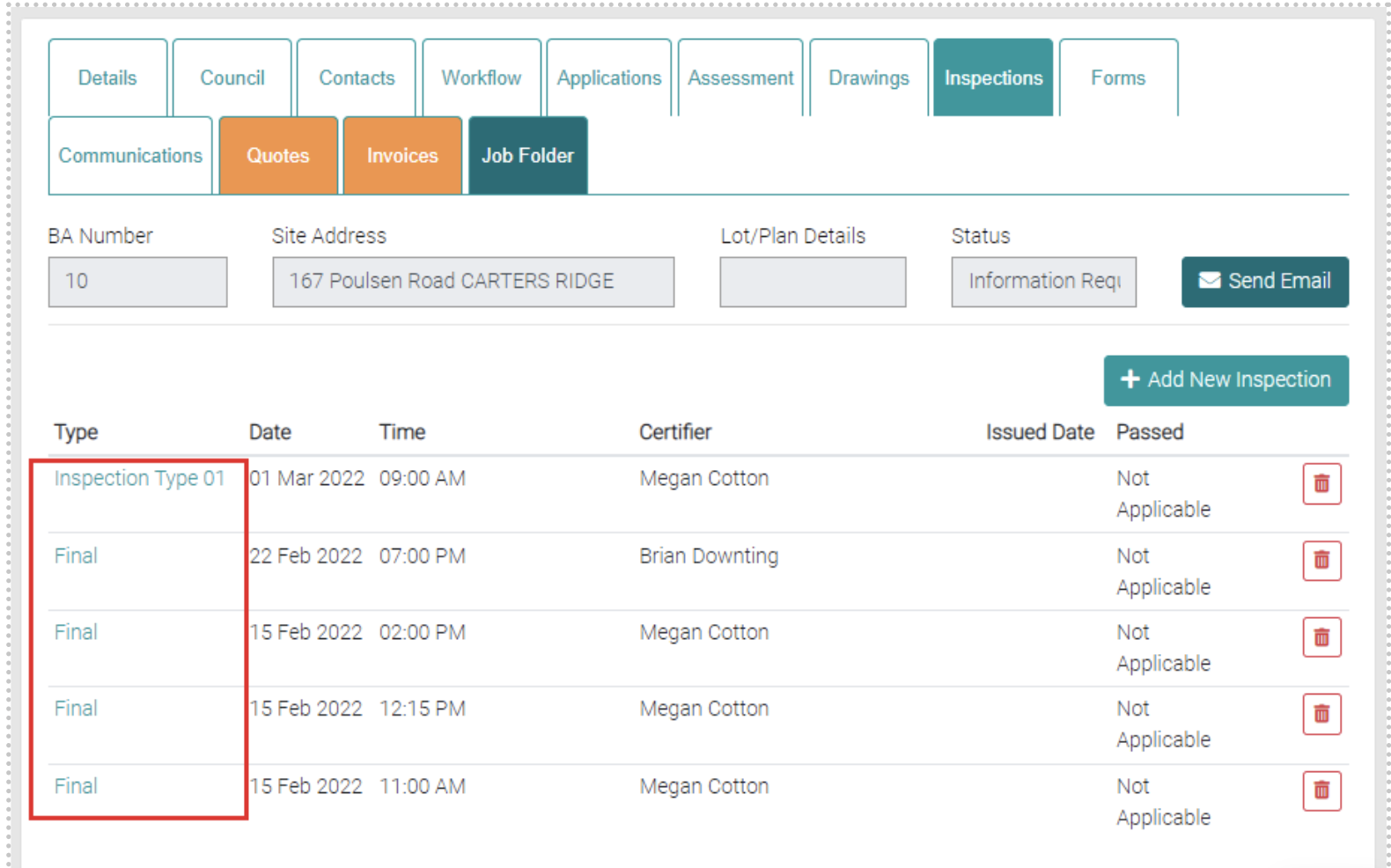
Edit existing Inspections by clicking on their Type.
This will open a new field where you can edit the information of the Inspection.
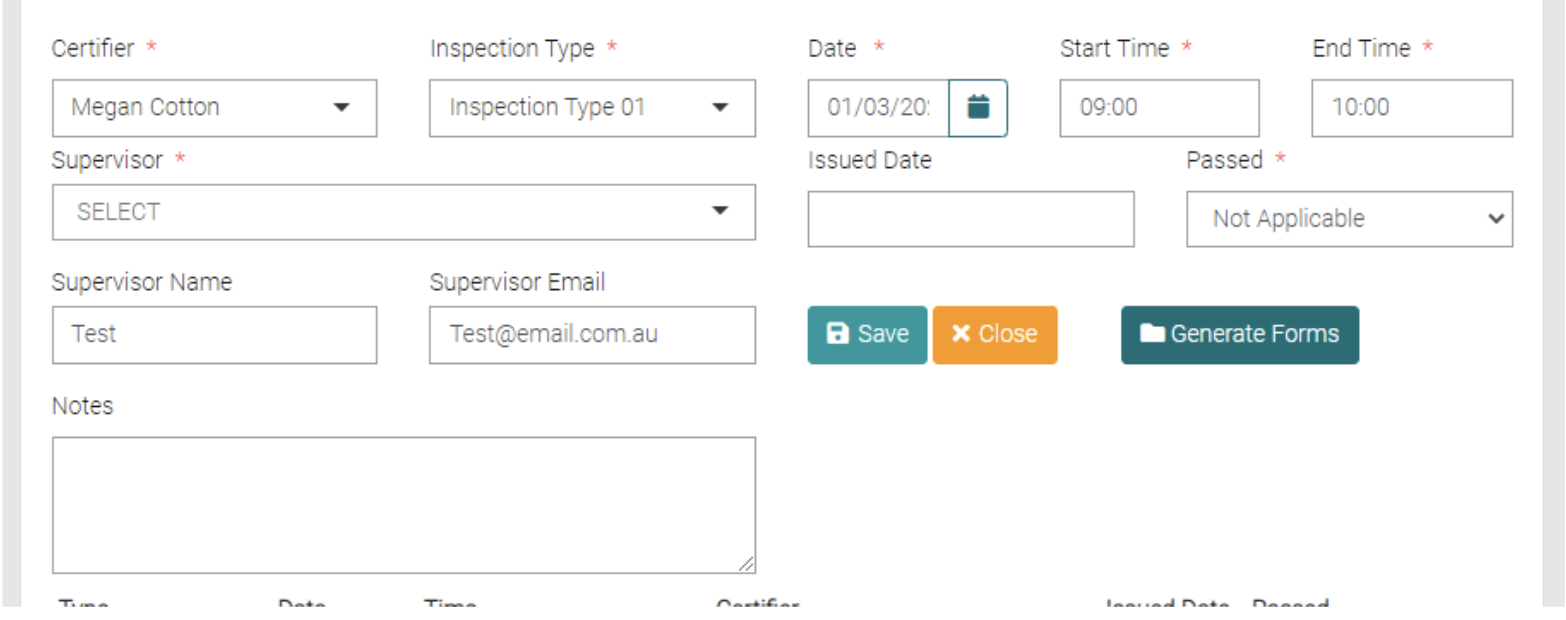
Use the Generate Forms button to generate forms. You use the checkbox to select the Form and what format it is to be generated in (either Word or PDF). The use of the Generate button to download the generated file in the preferred file format.
Delete
Use the red trash can to delete the Inspection.