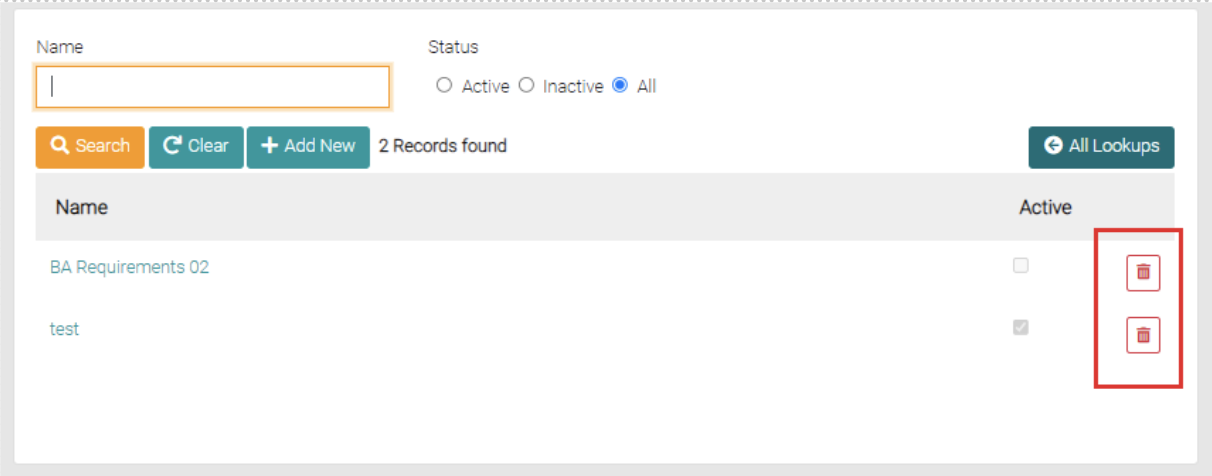
This is where the BA requirements are managed.
Search
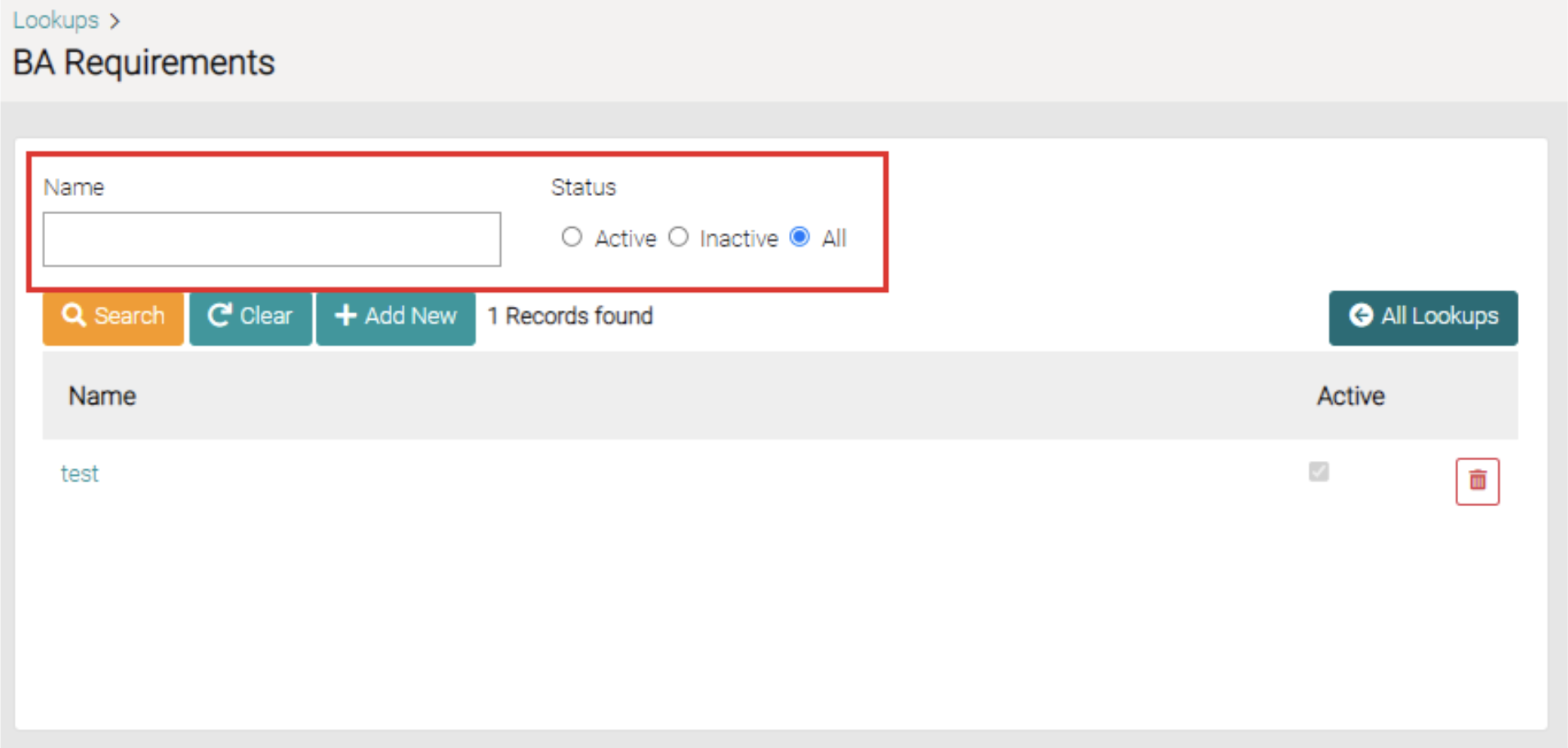
On the BA Requirements page, you can search for different requirements in the name text field, you can use partial names in the text field or complete titles. You can further narrow this search through the status of the items by selecting Active, Inactive and All, by default the search is set to All.
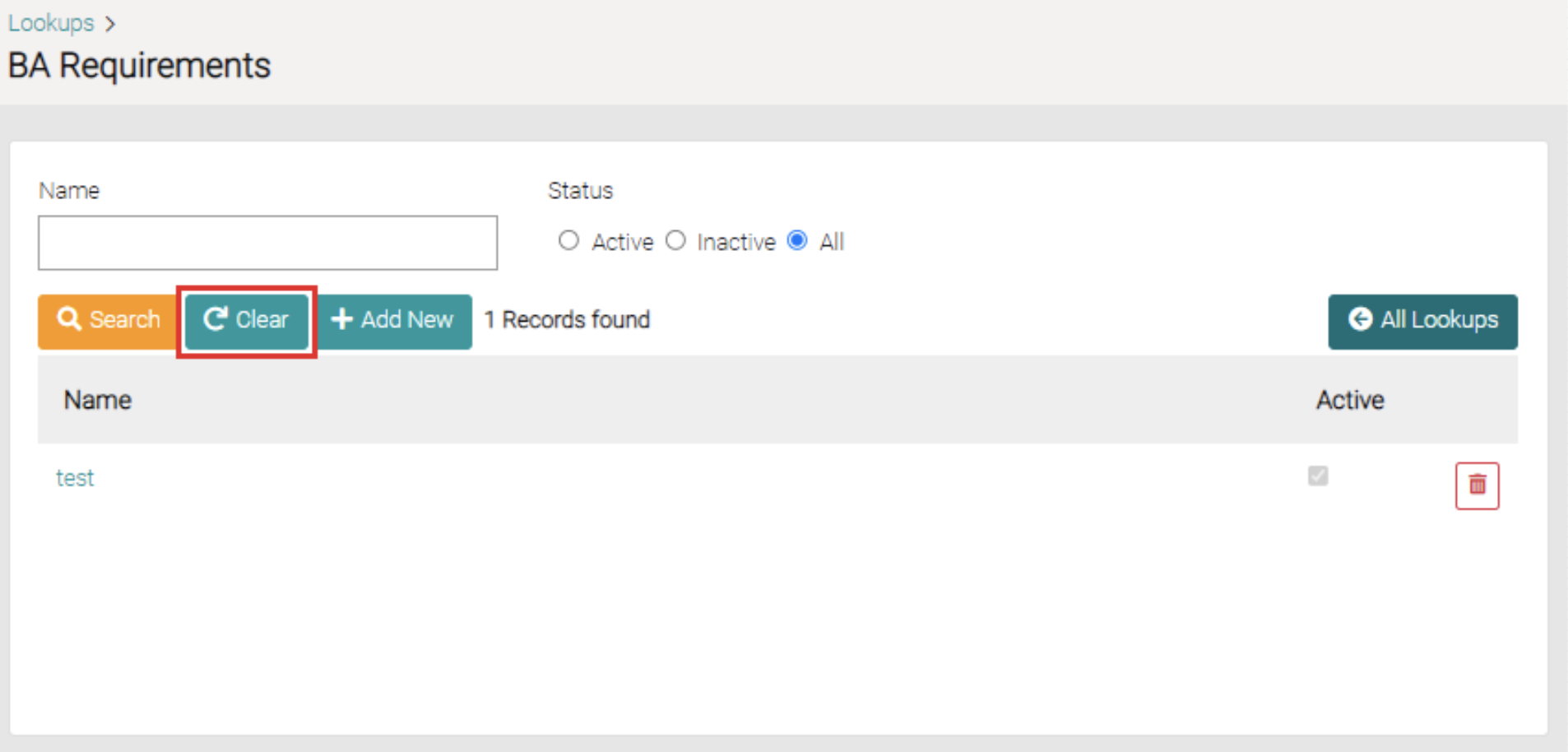
Besides the Search, the button is a Clear button that removes all filters put on the search.
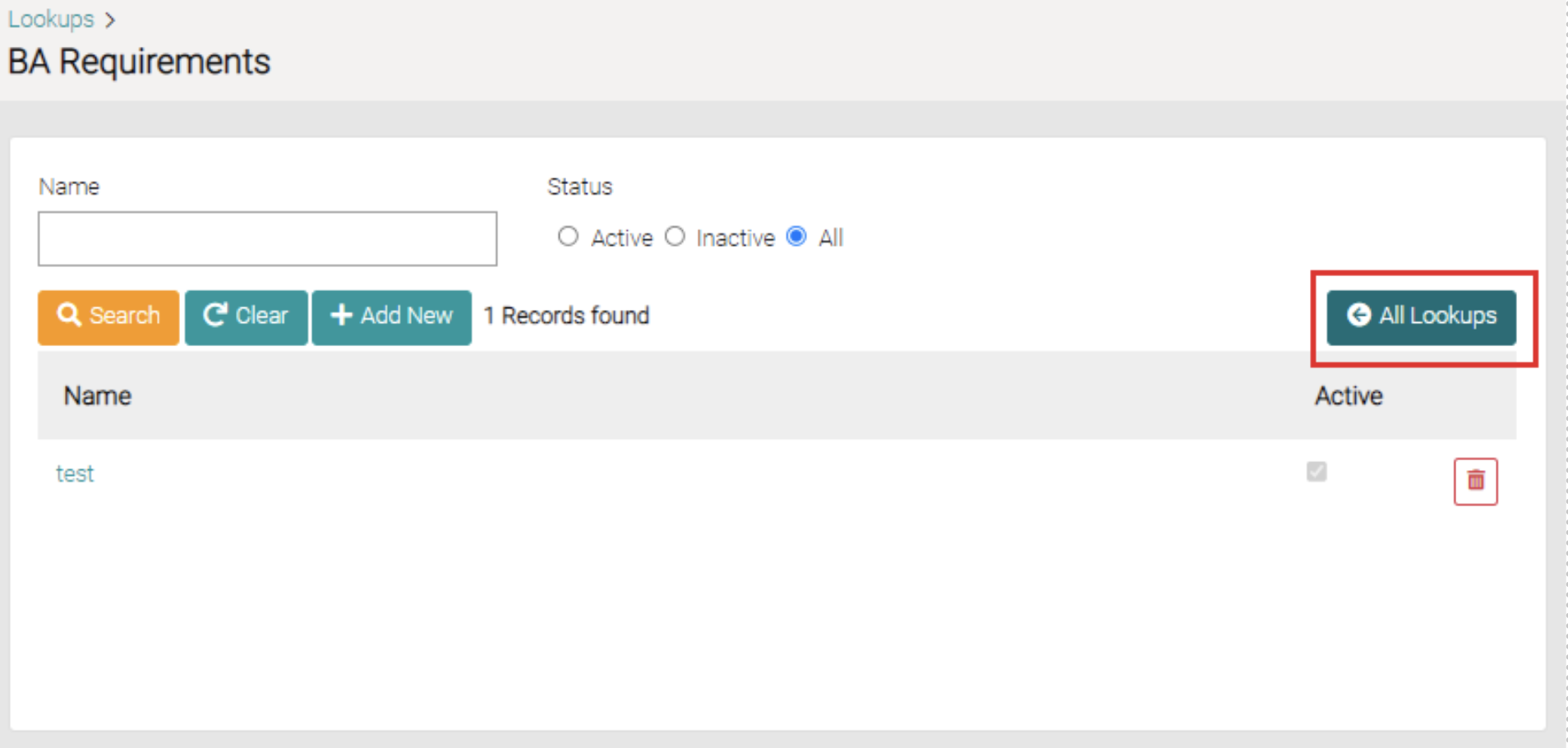
The All Lookups button will take you back to the Lookup page.
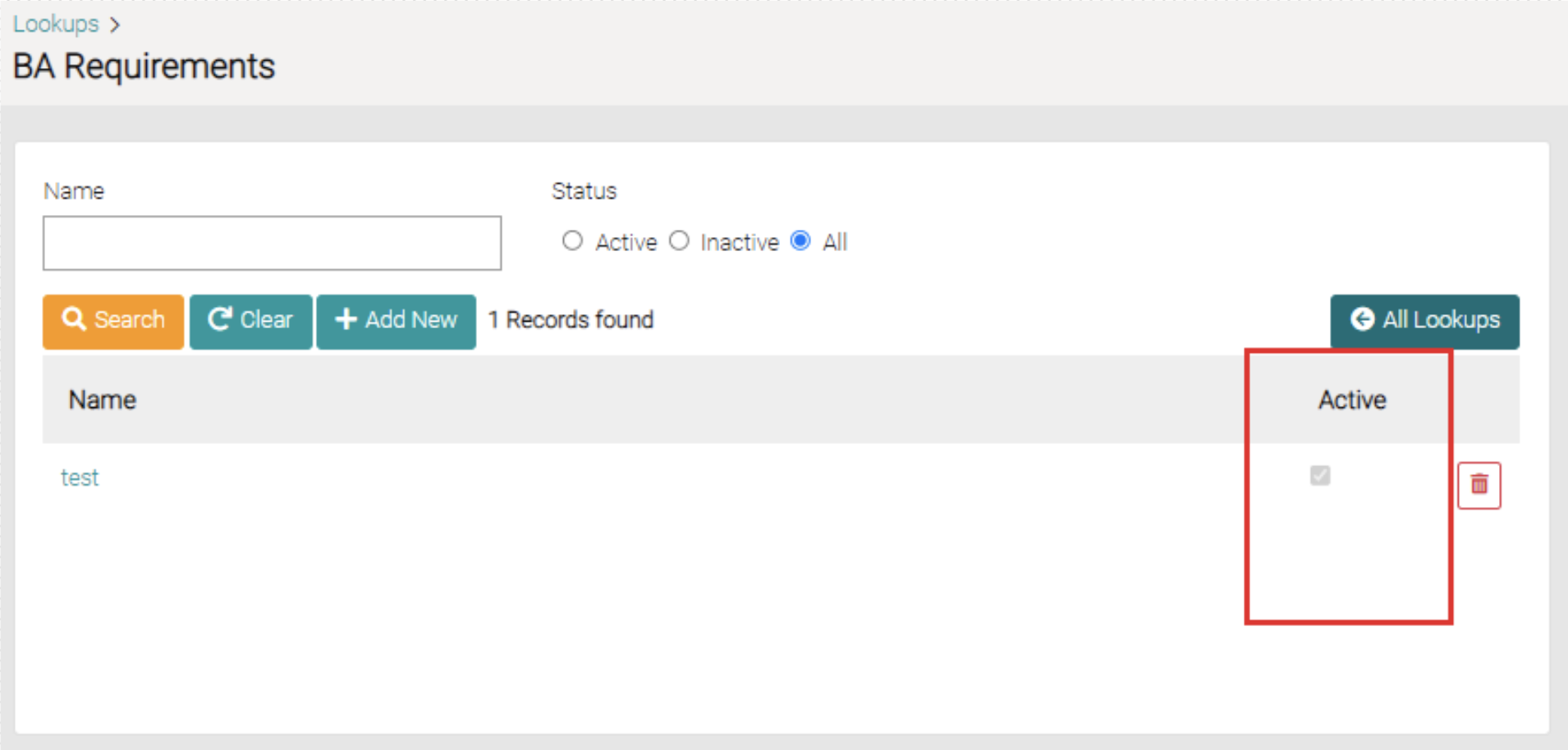
On the list of the BA Requirements, there is a column that reflects whether the Requirement is Active or Inactive.
Add
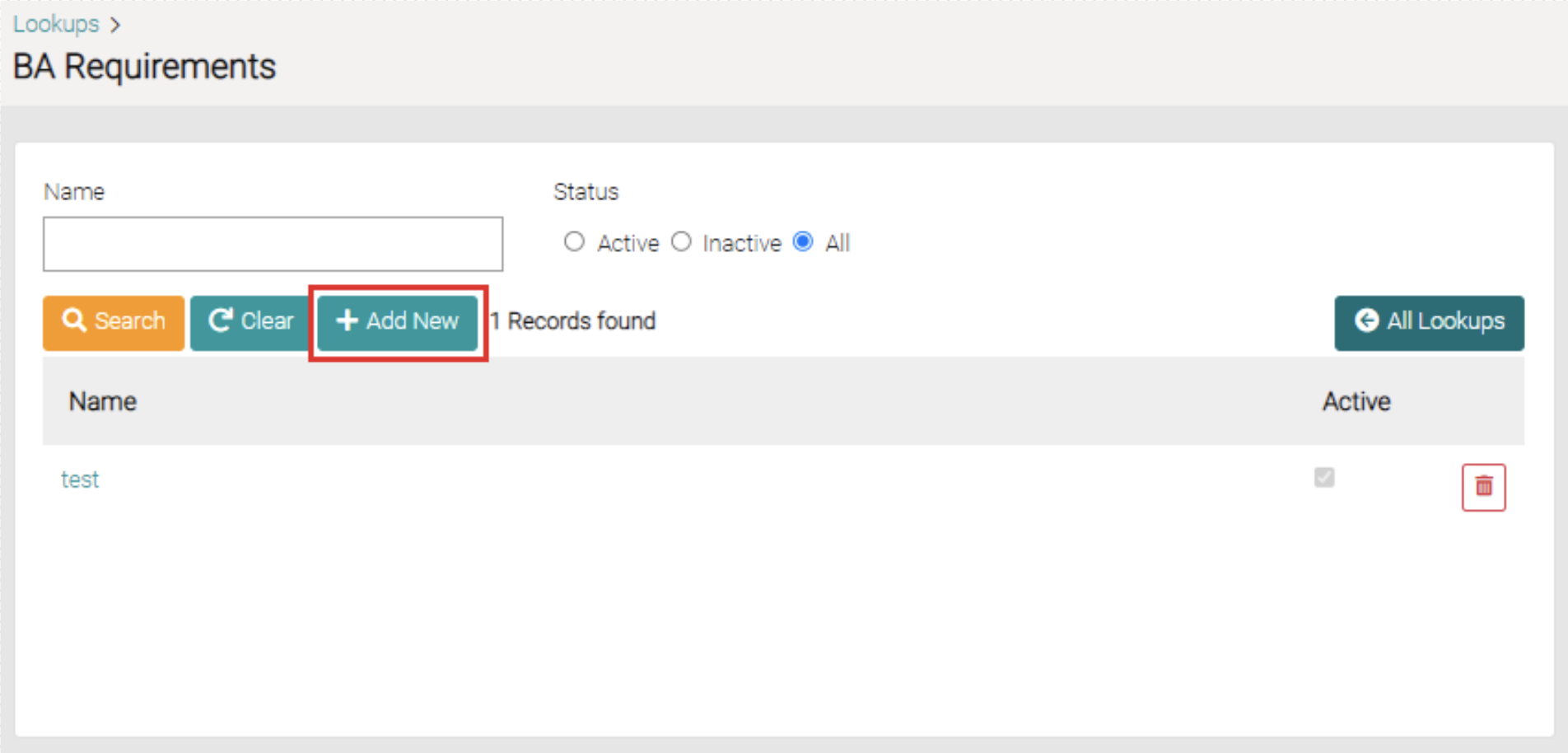
The Add New button is found beside the Search and Clear button.
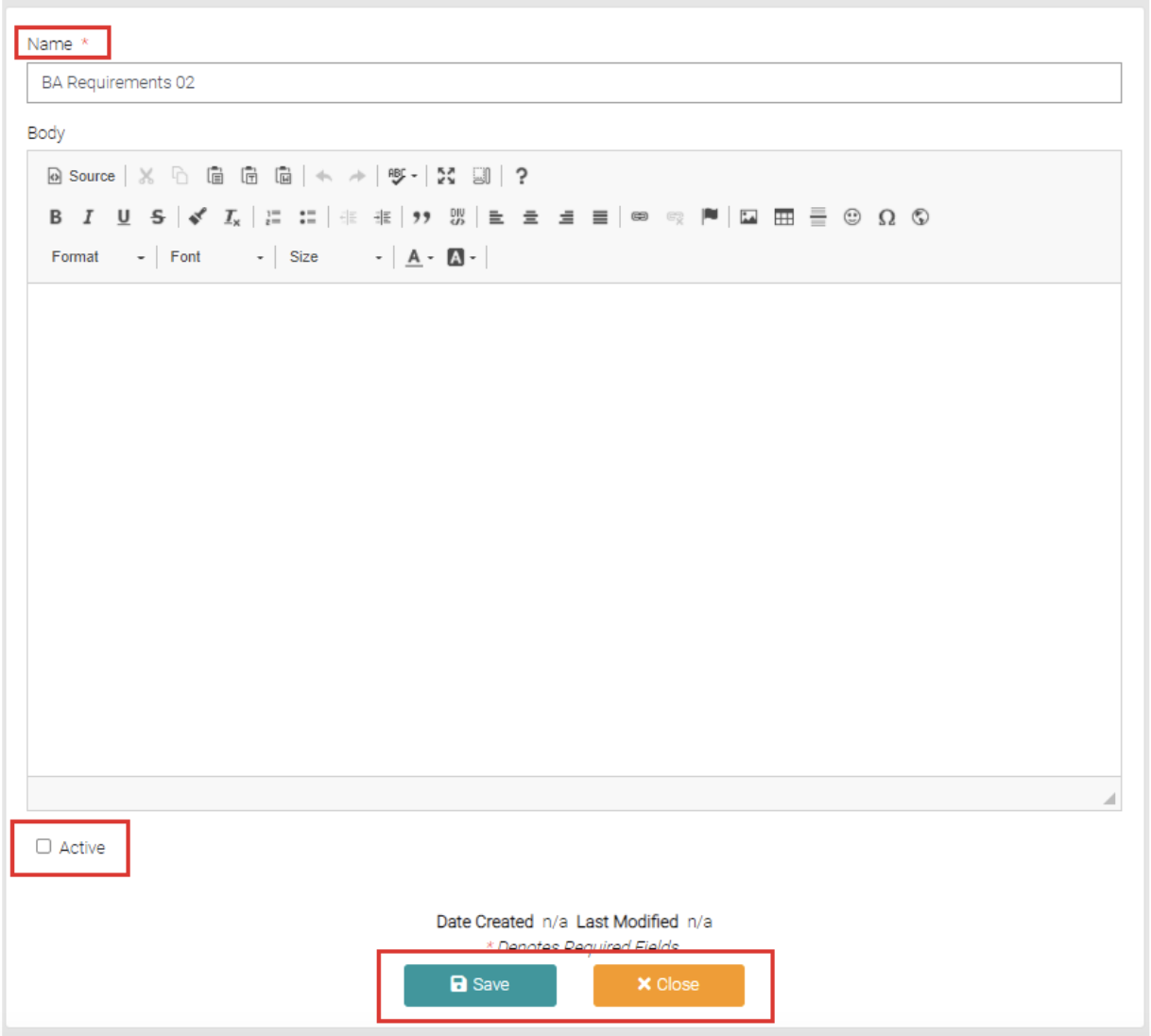
The Add New button opens a new page that has text fields that can be filled with relevant information, the fields with the * are required. Once complete you can click Save to create the new BA Requirement or Close which takes you back to the BA Requirements page. Below the text fields is a checkbox that changes the status from either Active or Inactive.
Edit
To edit existing BA Requirements click on the name of the BA Requirement that needs editing.
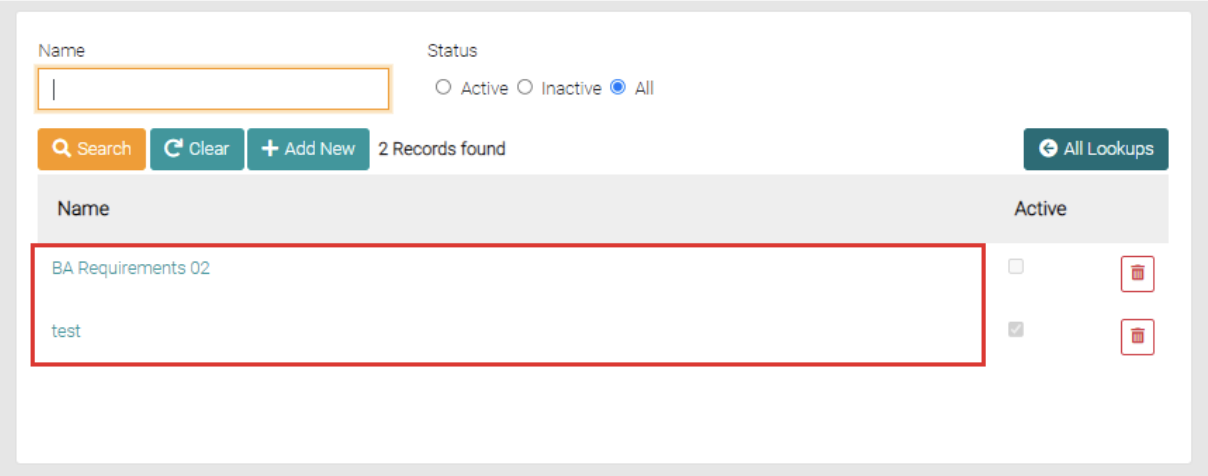
This will open a page similar to the Add New page, the text fields and status are editable, all fields with the * are required. Once complete you can click the Save button to apply changes, by clicking Close you will go back to the BA Requirements without editing.
Delete
On the same row of each BA, Requirement is a red trash can button that will delete the BA Requirement on the same row.