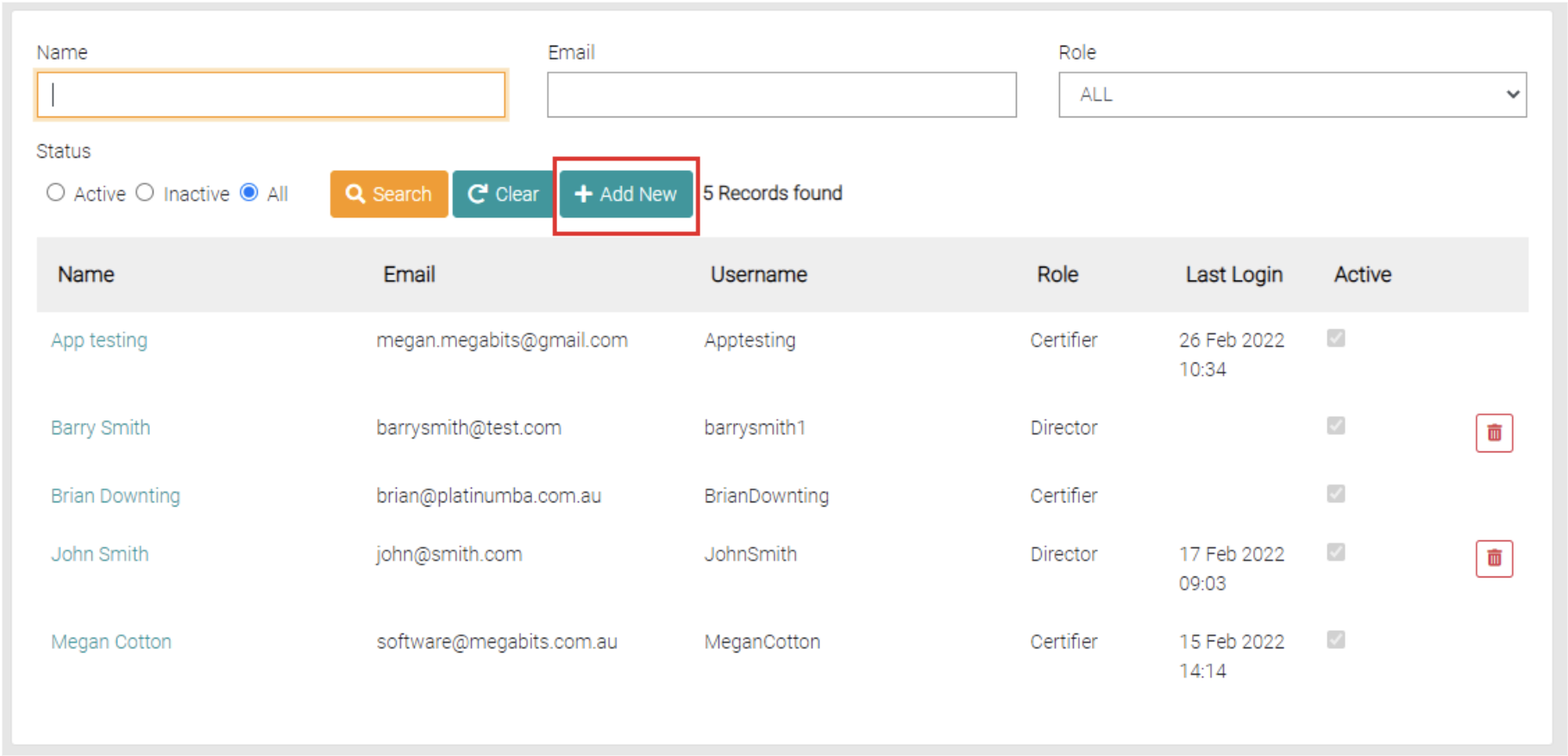
The Add New button is found on the search page beside the Clear and Search Button.
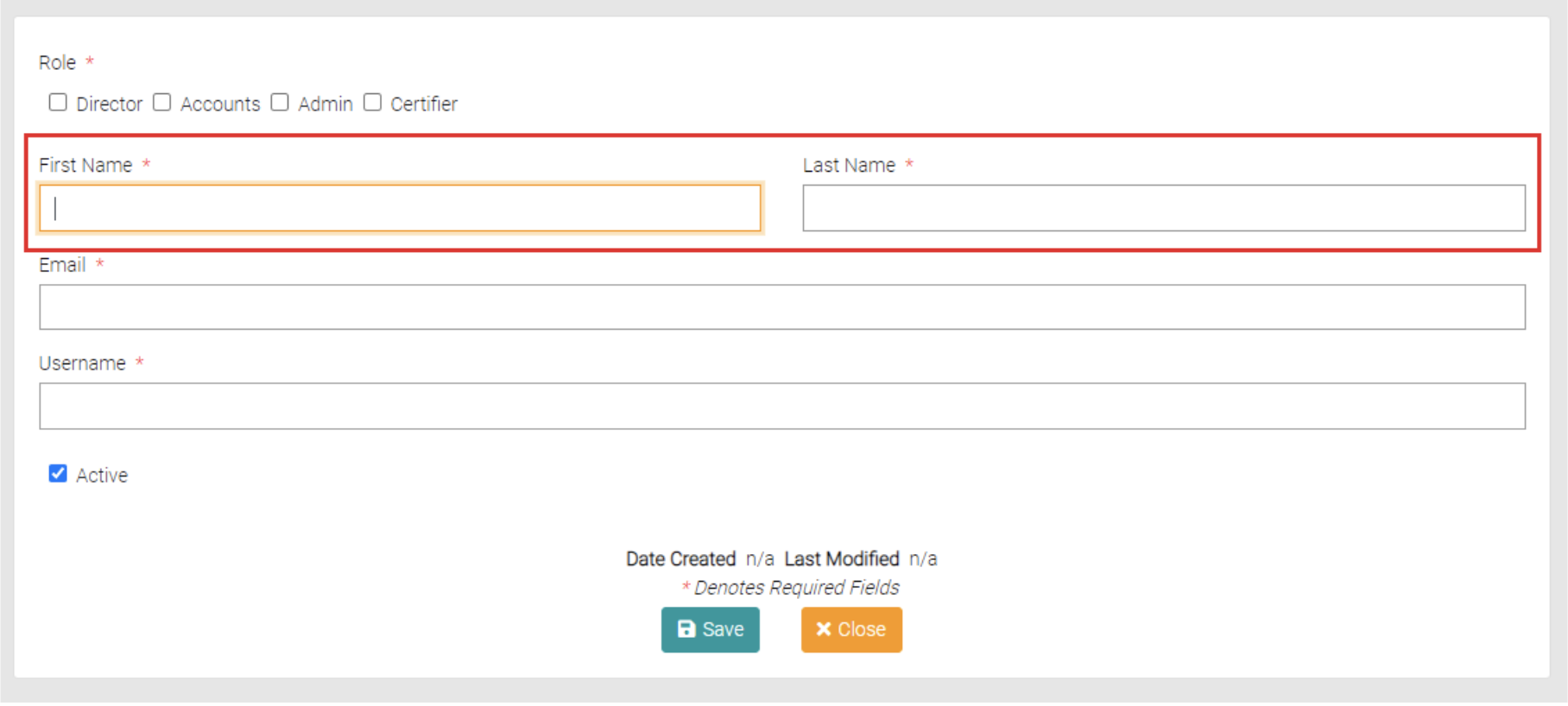
The Add New button opens a new page that allows the user to create a new User, required spaces to be filled are marked with *. Enter the name of the User in the First and Last Name text field.
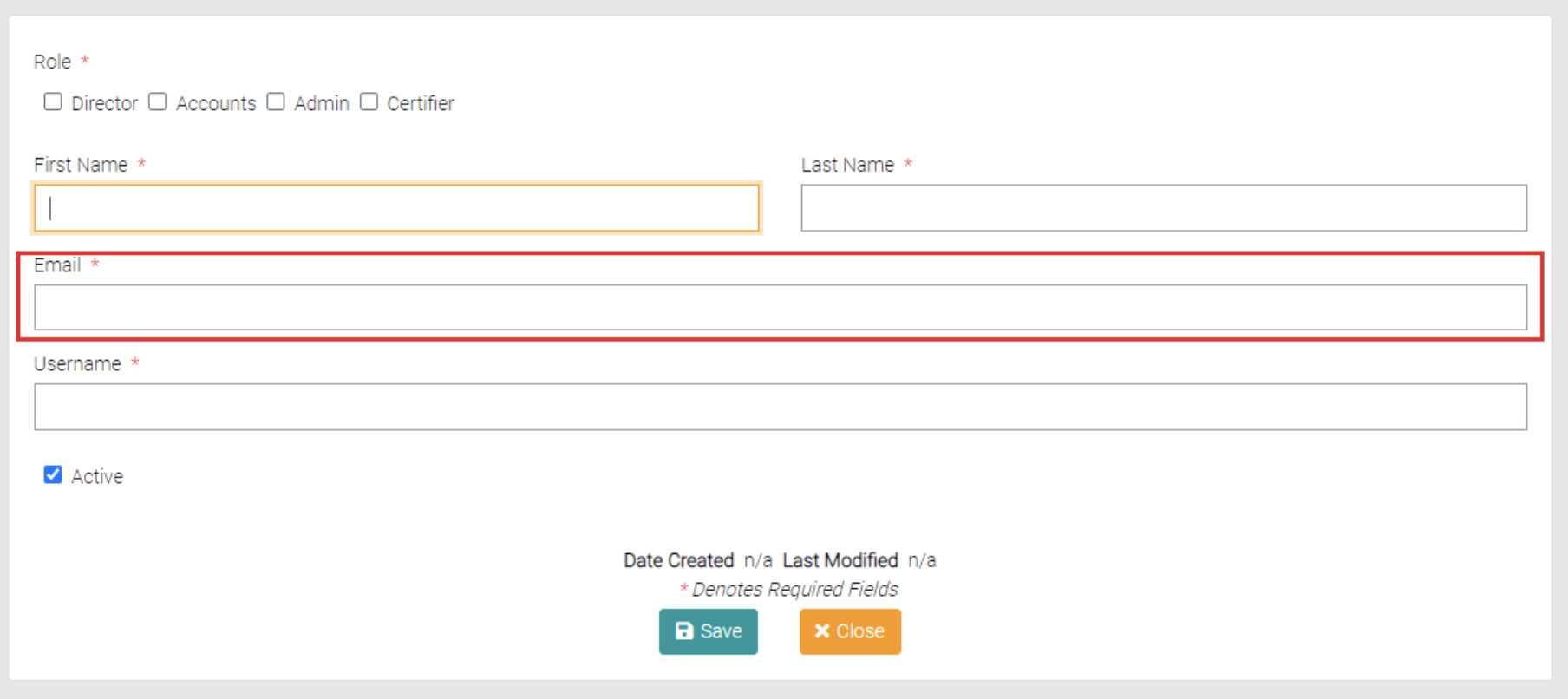
Add the Users email into the Email text field.
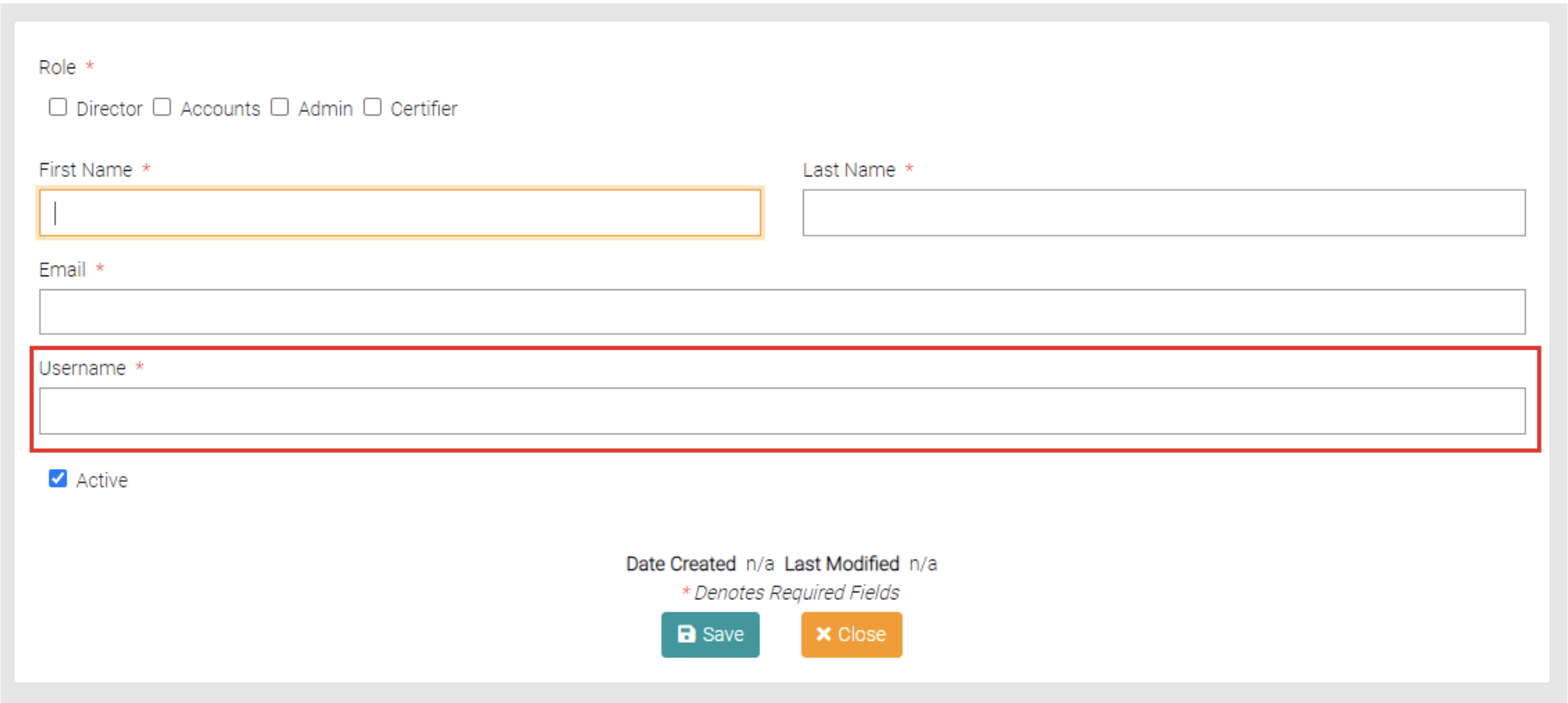
Enter the Username to be associated with the User in the Username text field.
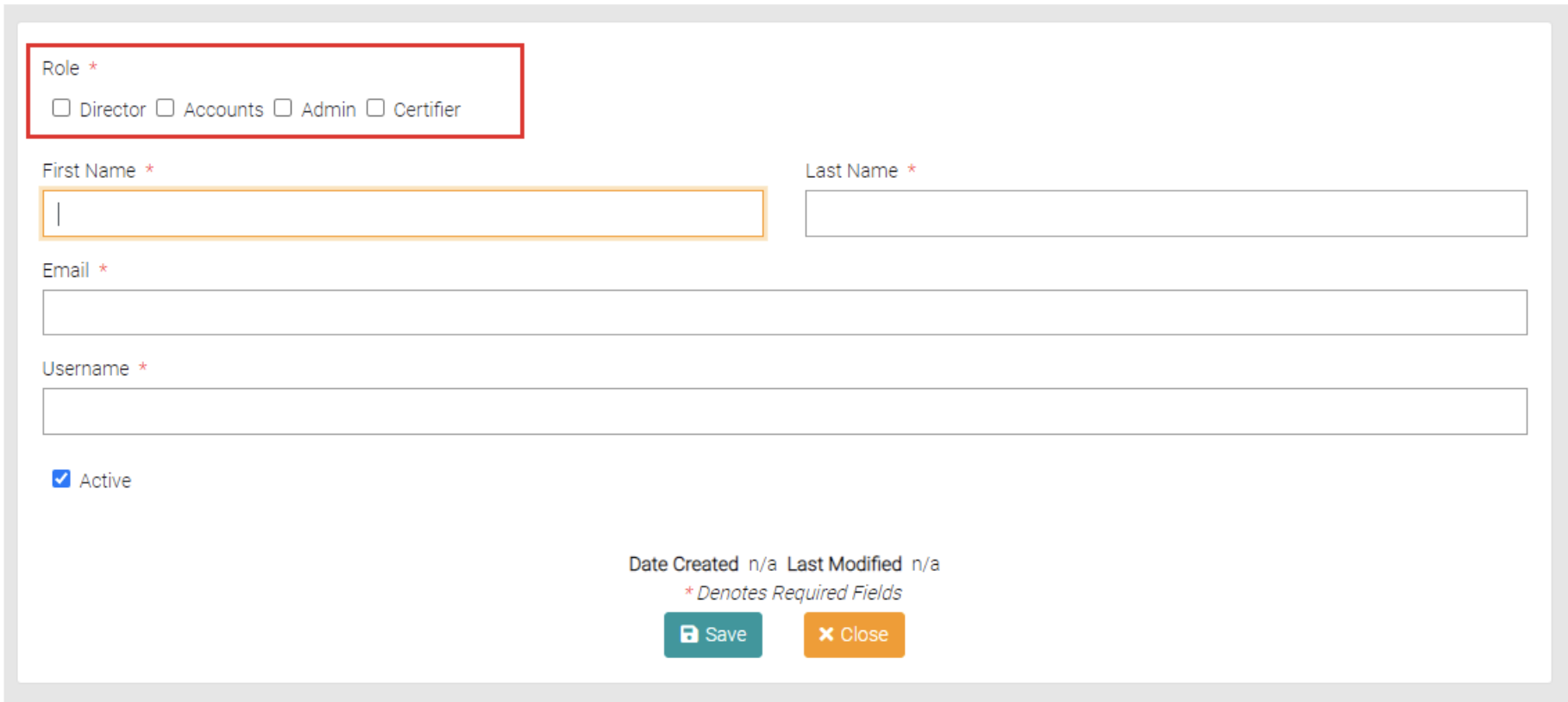
Choose what role this User will be assigned using the checkboxes.
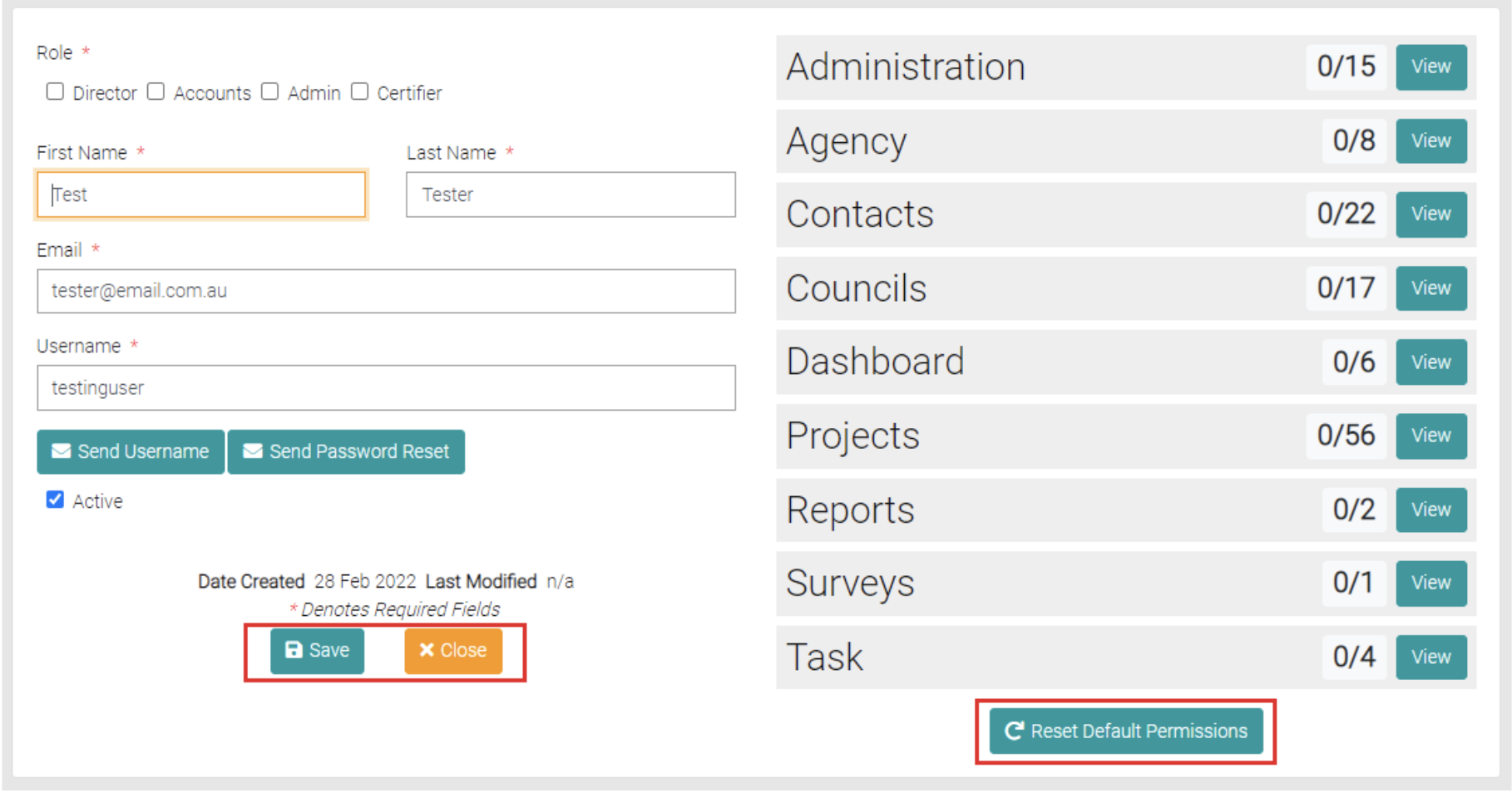
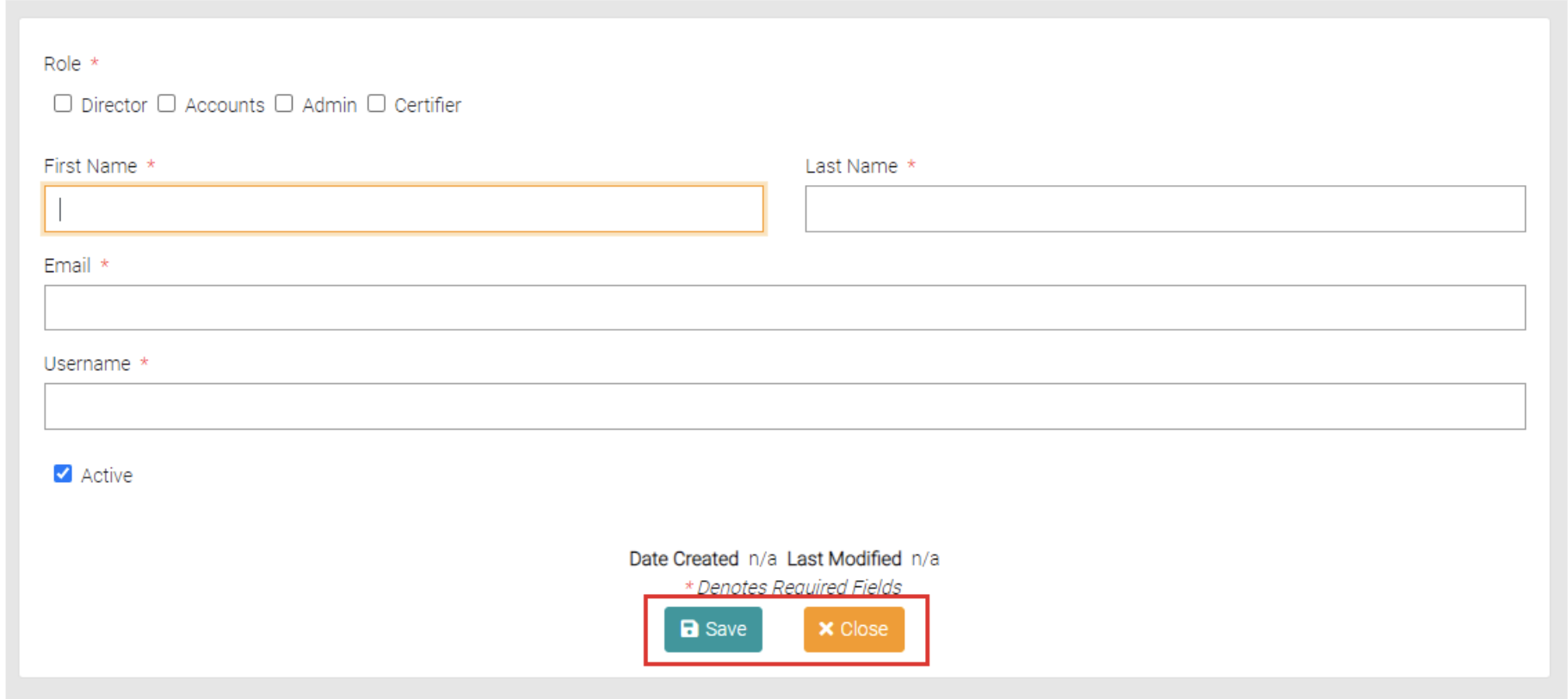
Once mandatory fields are complete you can click Save to complete the creation or Close which takes the user back to the User page.
Once complete it will send you the Details page. Here you can further edit the pages the User has permission to access/edit. Reassign the Role(s) if needed.
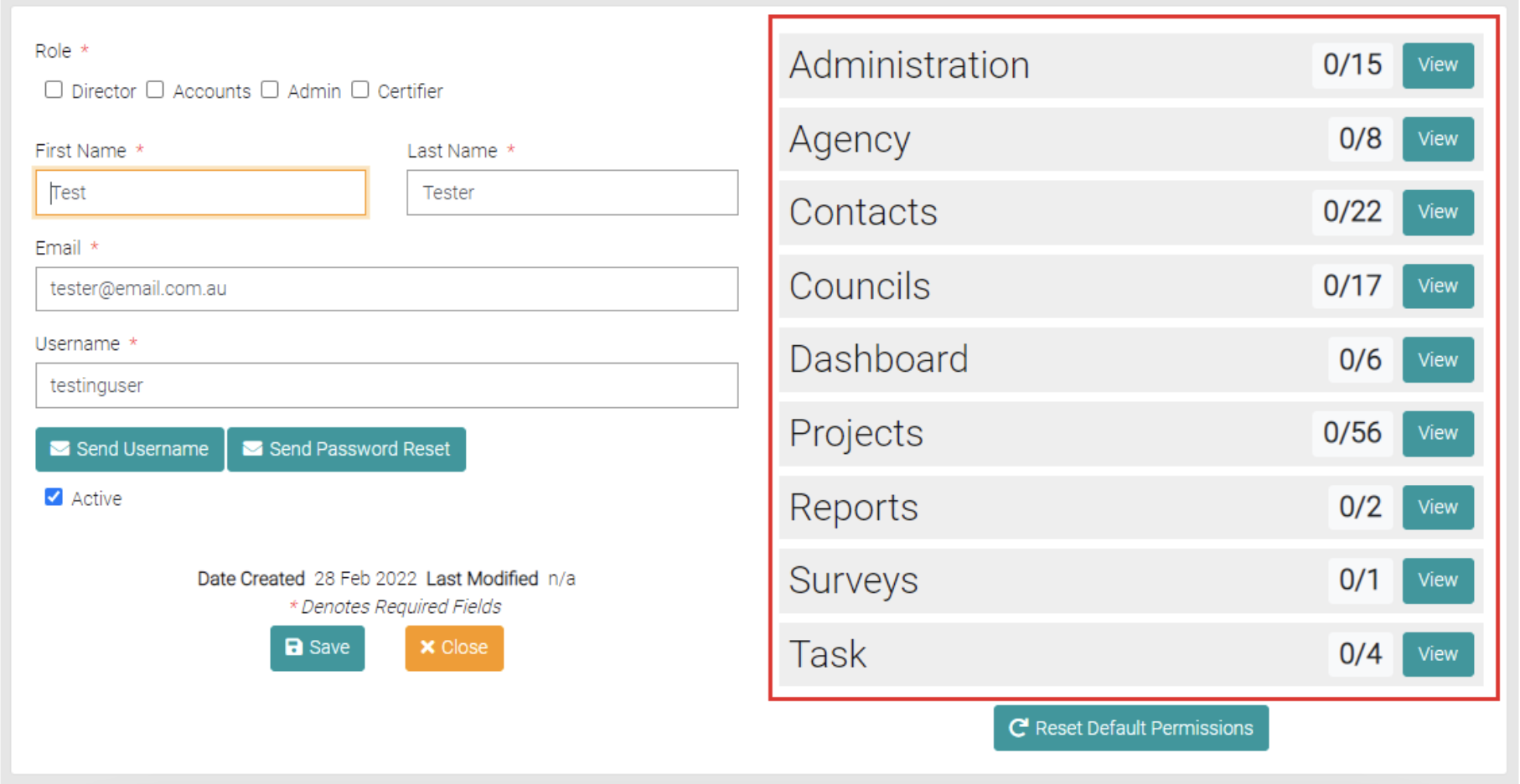
Can use the Reset Default Permissions to reset any applied permissions, setting it back to no permissions. Save the User profile using the Save button or use Close to go back to the list of Users.