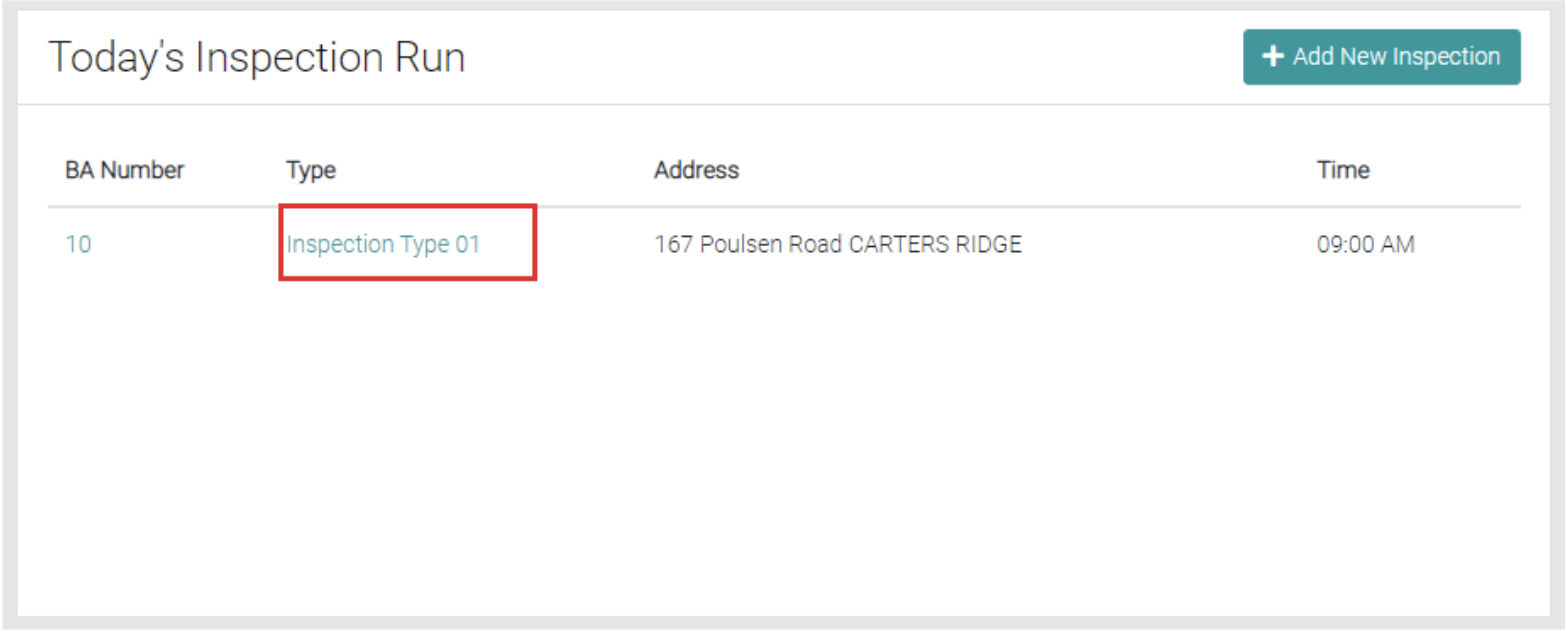
Today’s Inspection Run can be found in this location, this shows all Daily Inspections, click on Add New Inspection to create a new run.
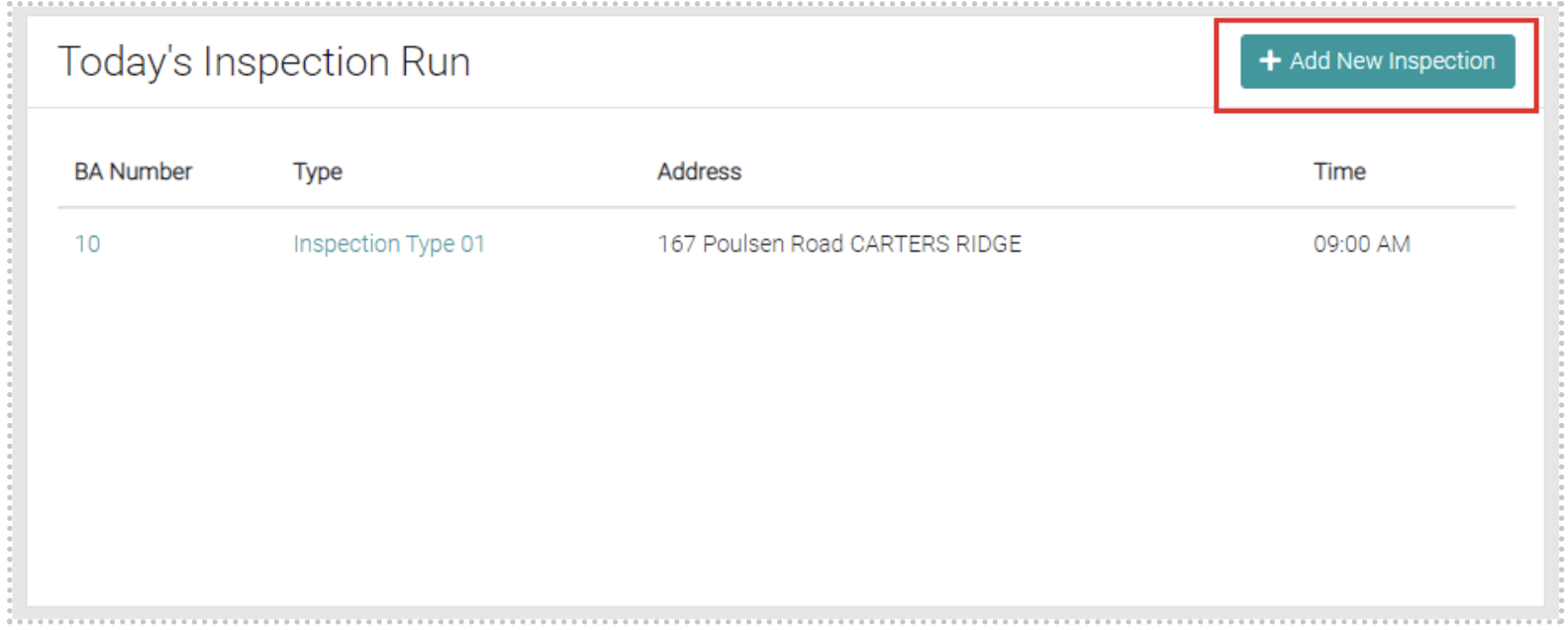
Add New Inspection
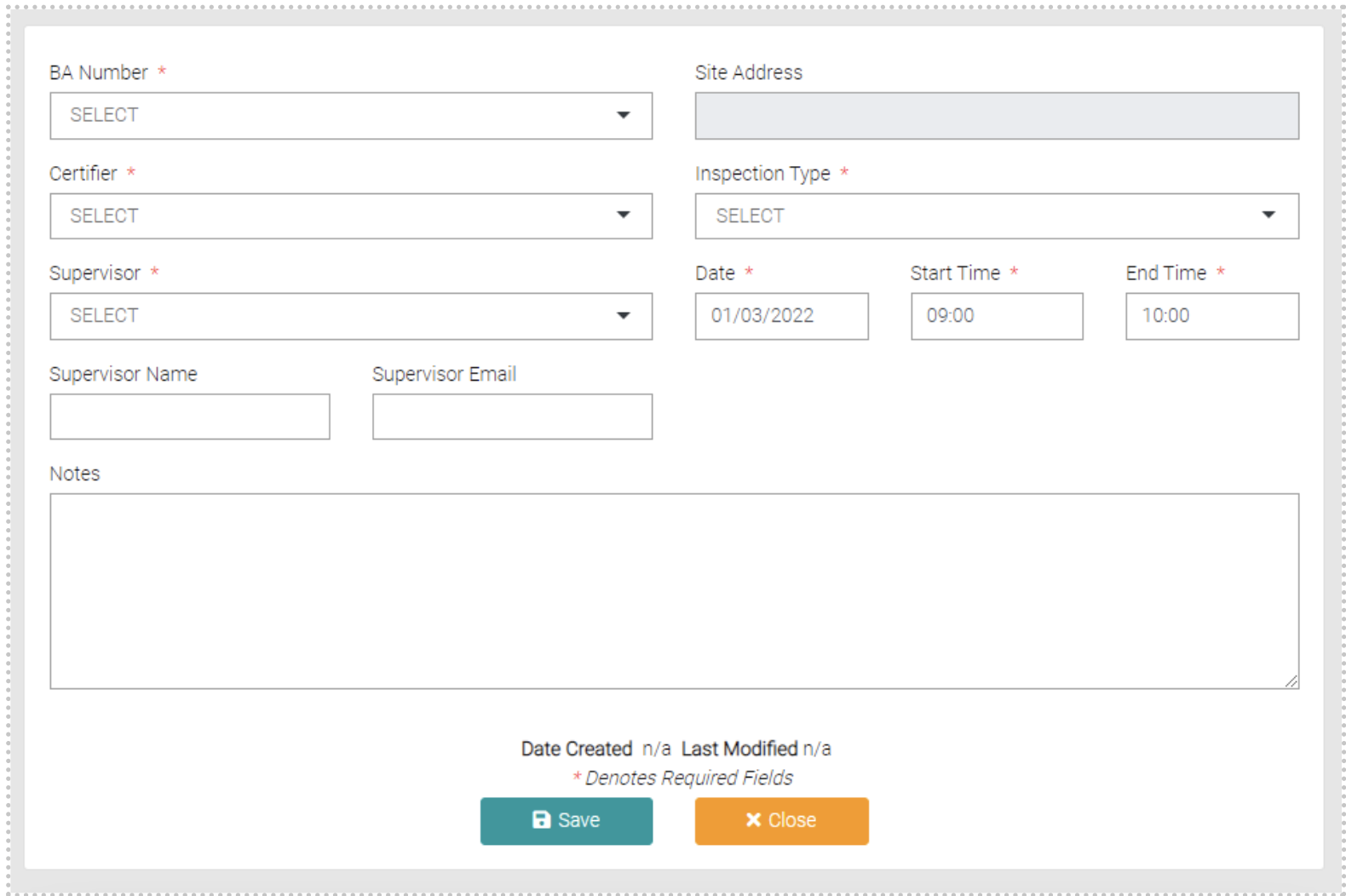
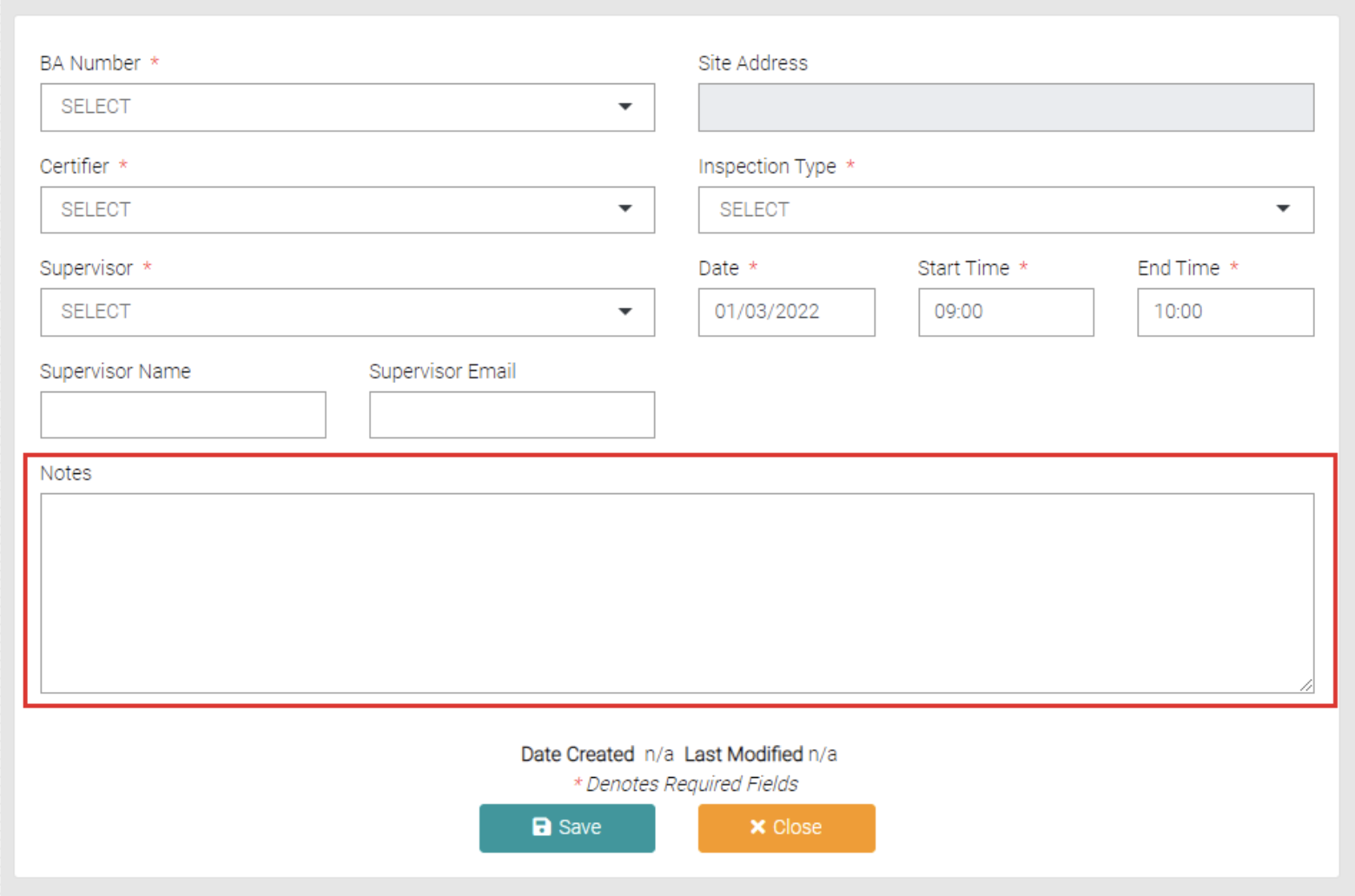
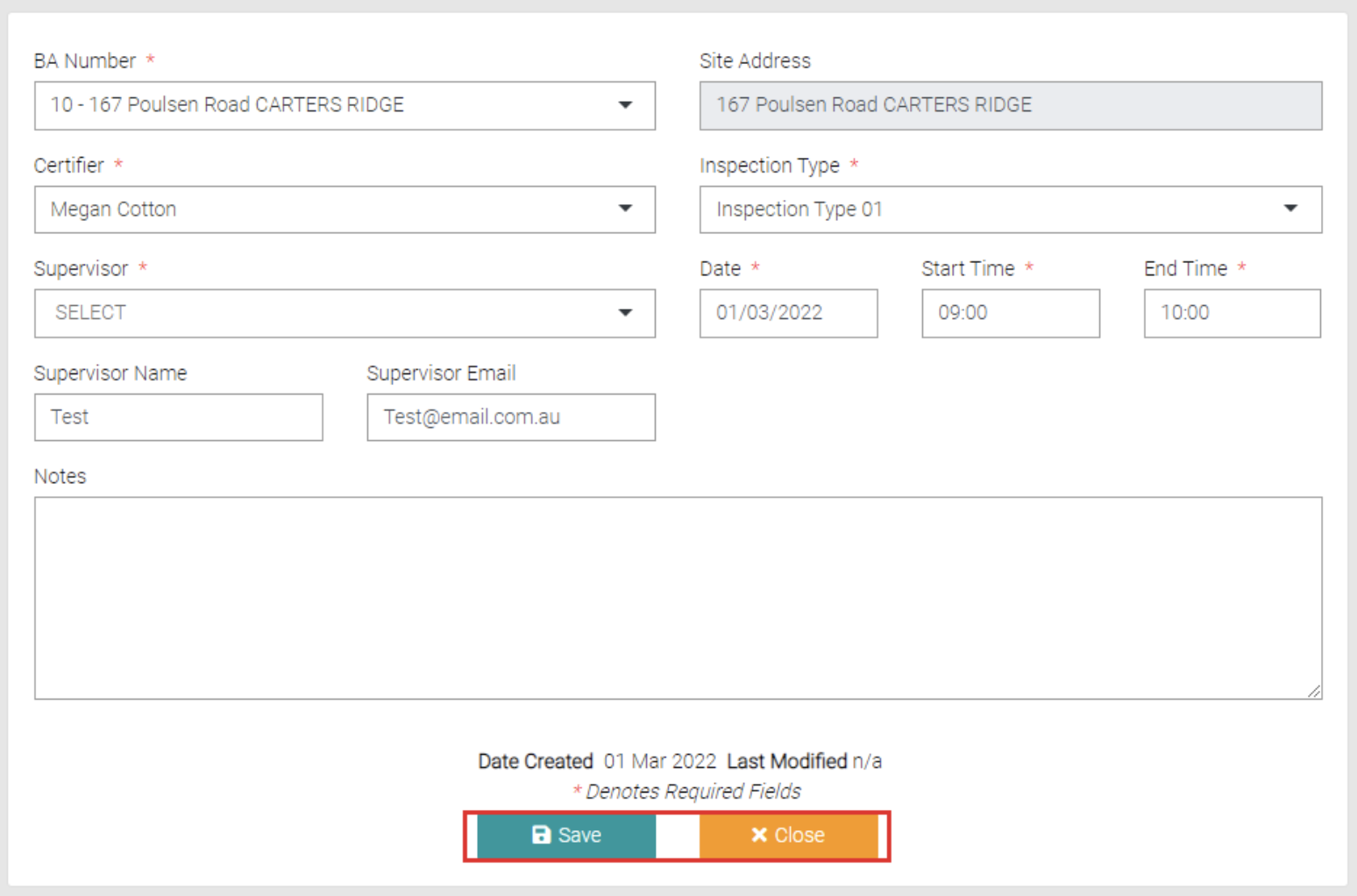
Complete the mandatory text fields marked by *.
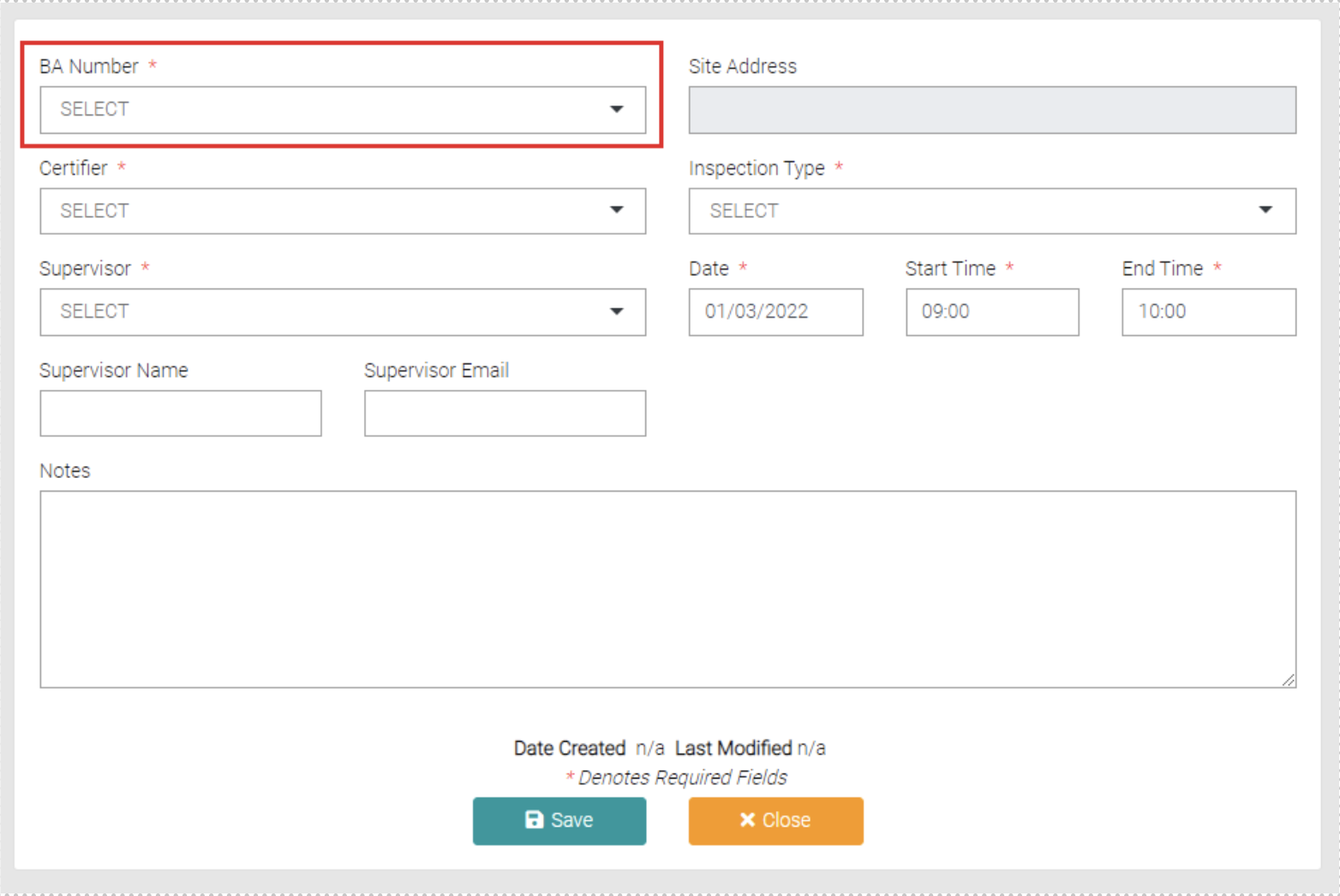
The BA Number is selected in the drop-down menu. To edit existing or create new BA Numbers go to Building Approvals > Add New Jobs or Search Job. When the BA Number is selected the Site Address is automatically added.
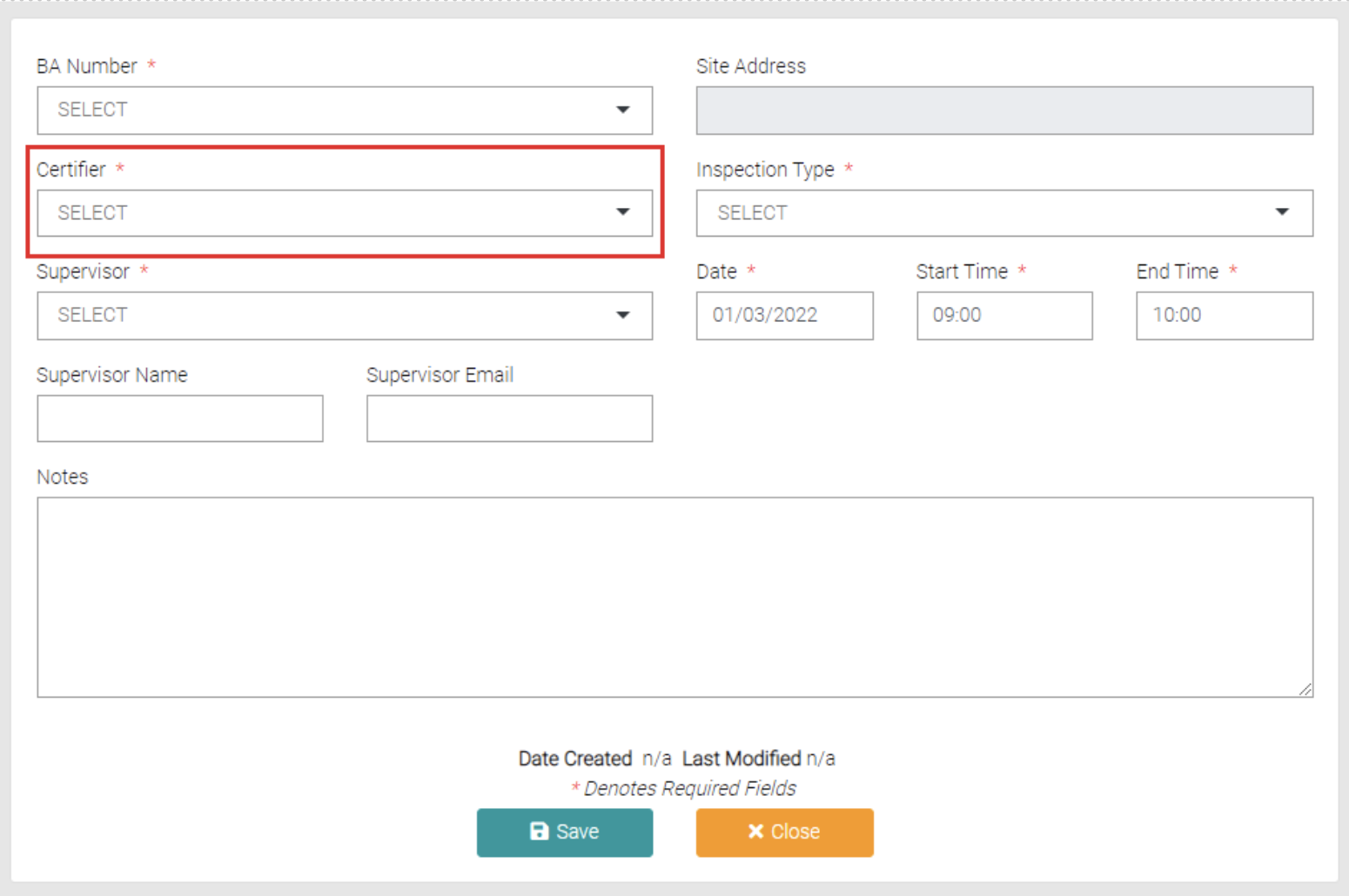
The certifier is selected through the drop-down menu. Certifiers are users that have been given the permission of Certifier in System Users. To edit existing or create new Certifier Users go to System Users.
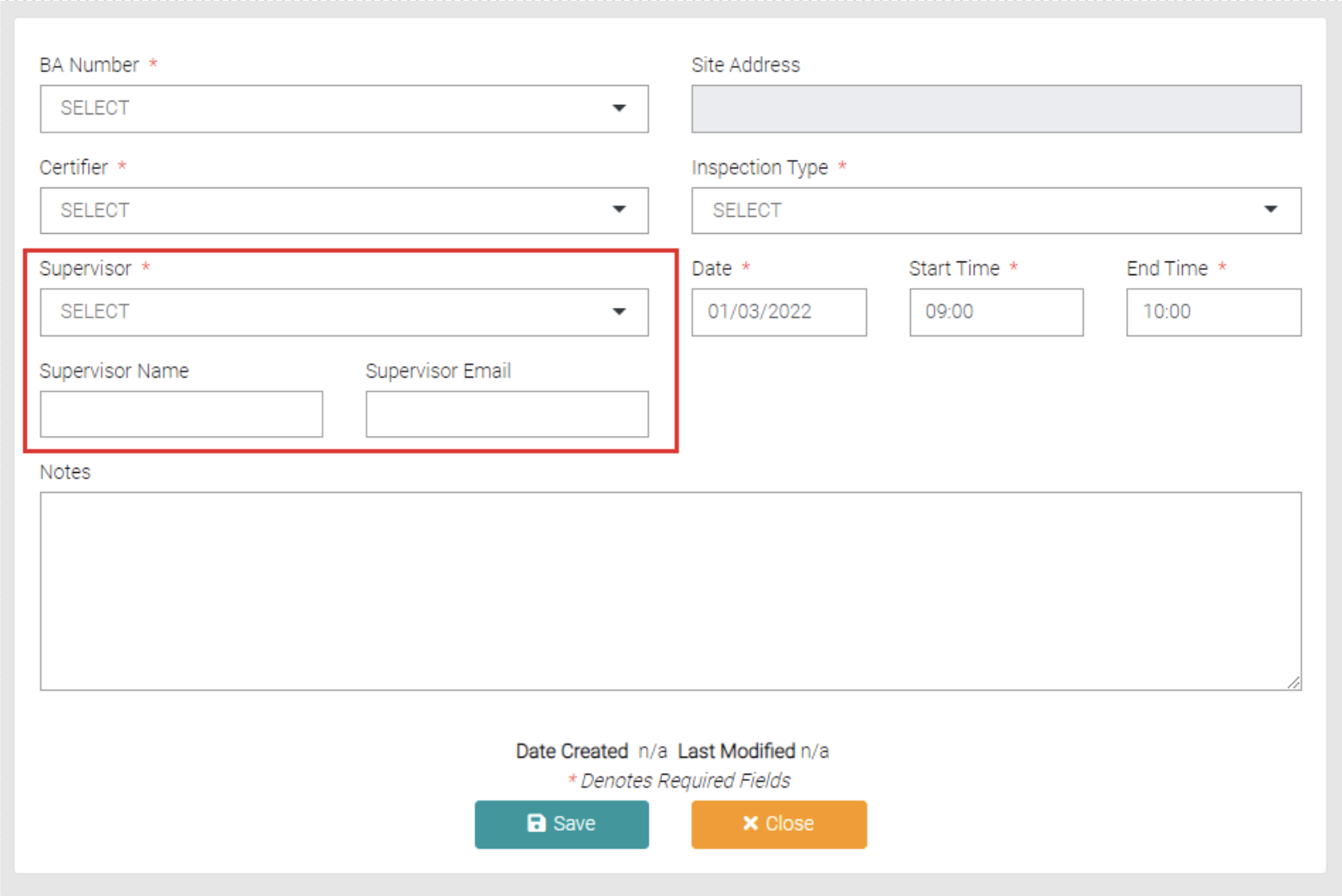
The supervisor is selected through the drop-down menu. There is an option in the drop-down to create a New Supervisor if the one you are looking for is not there, if that is the case fill in the Supervisor Name and Supervisor Email.
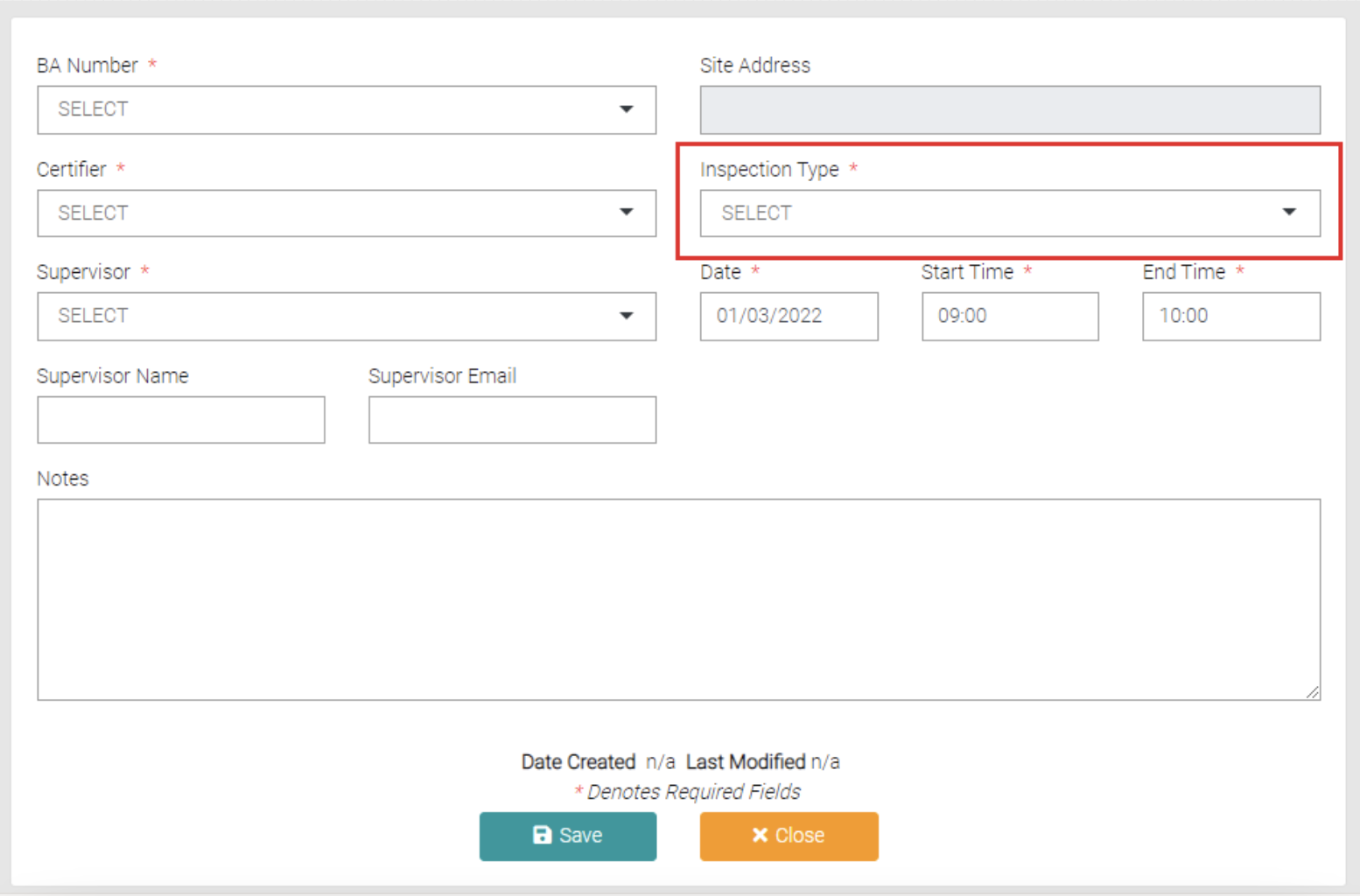
Inspection Types can be selected from a drop–down menu. To edit existing or create new Inspection Types go to Lookup > Inspection Types.
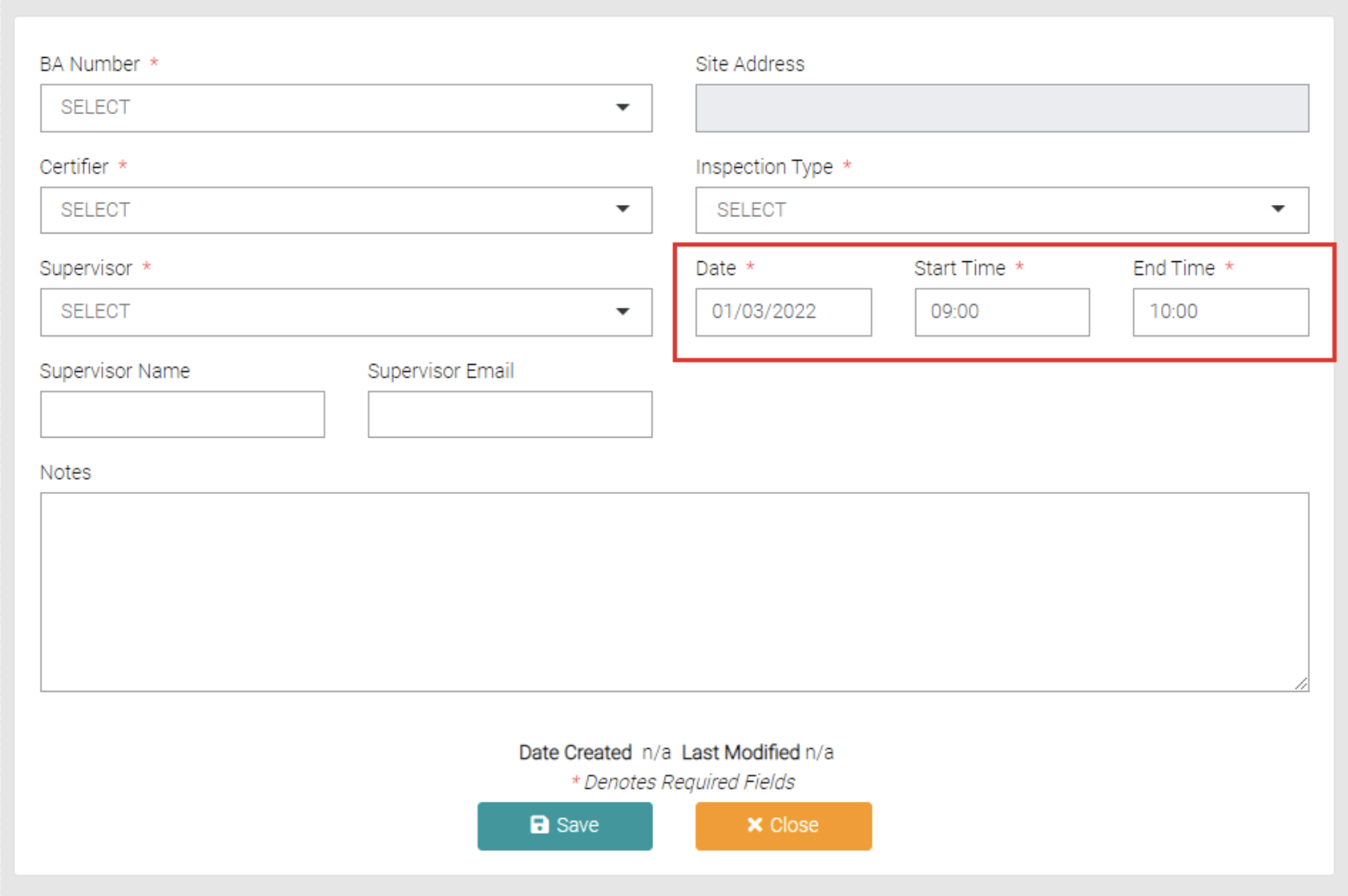
Date allows for selection of the Date the Inspection Run is being completed, required as well as a starting time and end time. All boxes open a menu so you can select from the Calander and preloaded times.
The text field Notes is optional but can be used to add information to do with the Inspection Run.
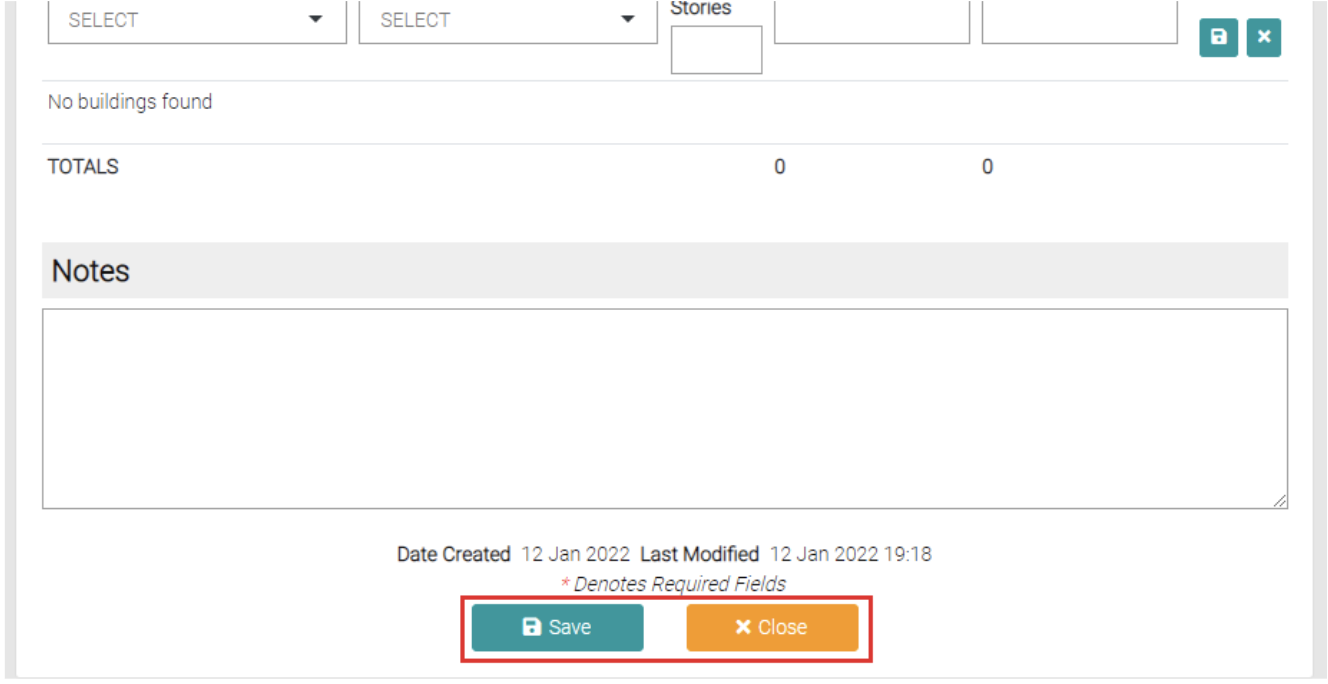
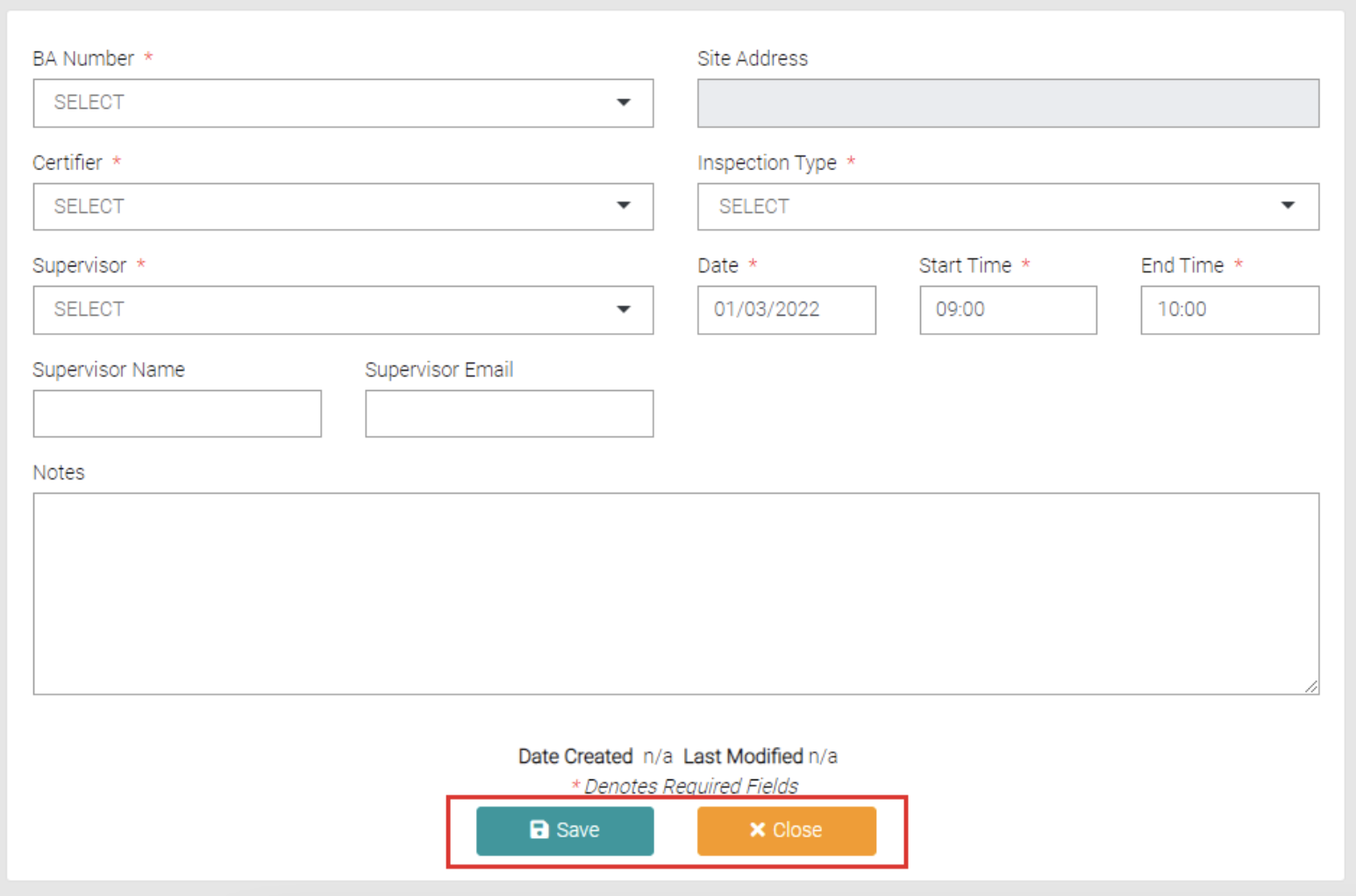
Once all required fields are filled out then select either Save to save the new Inspection Run or Close to go to the Calendar which can be found under Business > Calendar.
Calendar
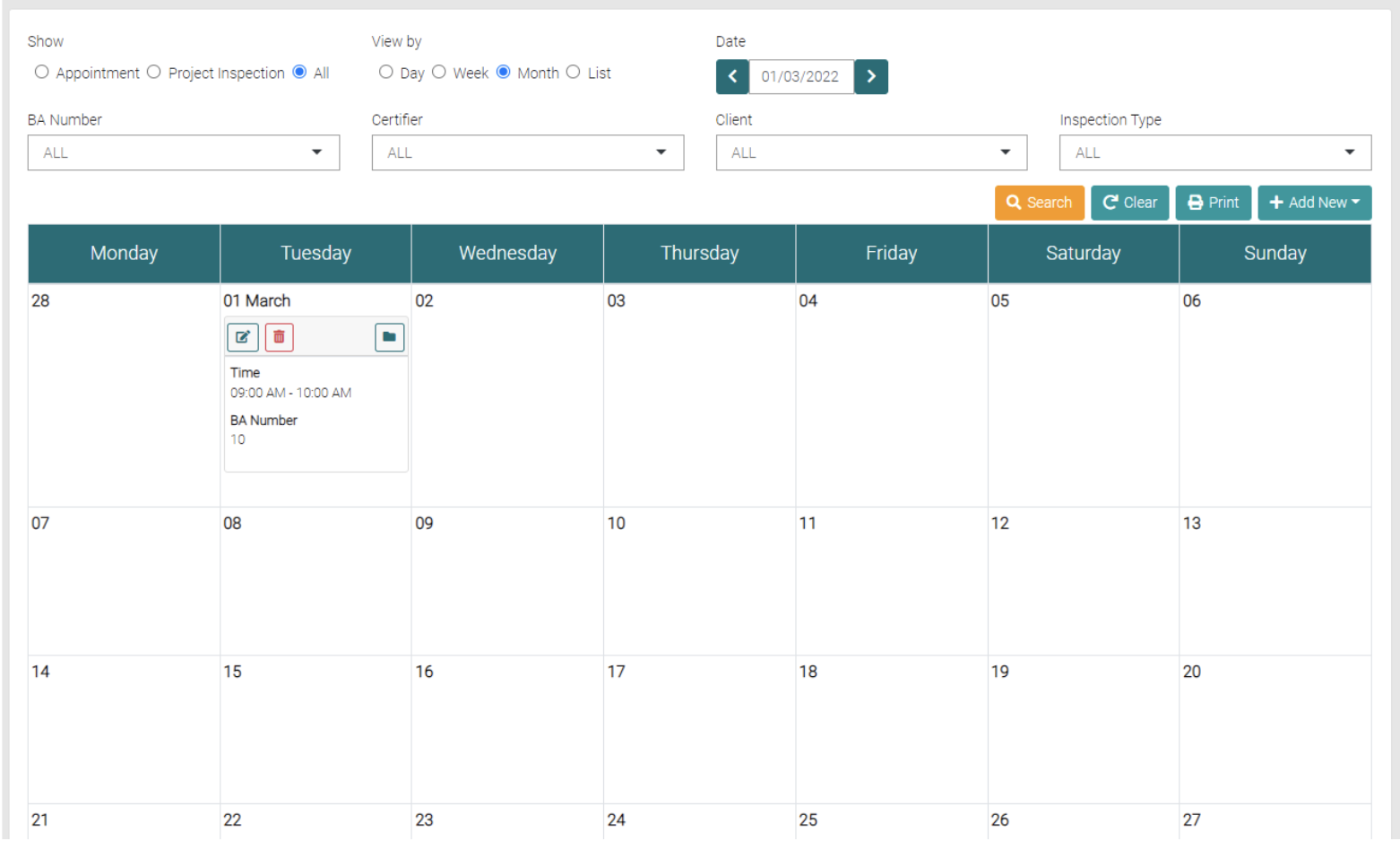
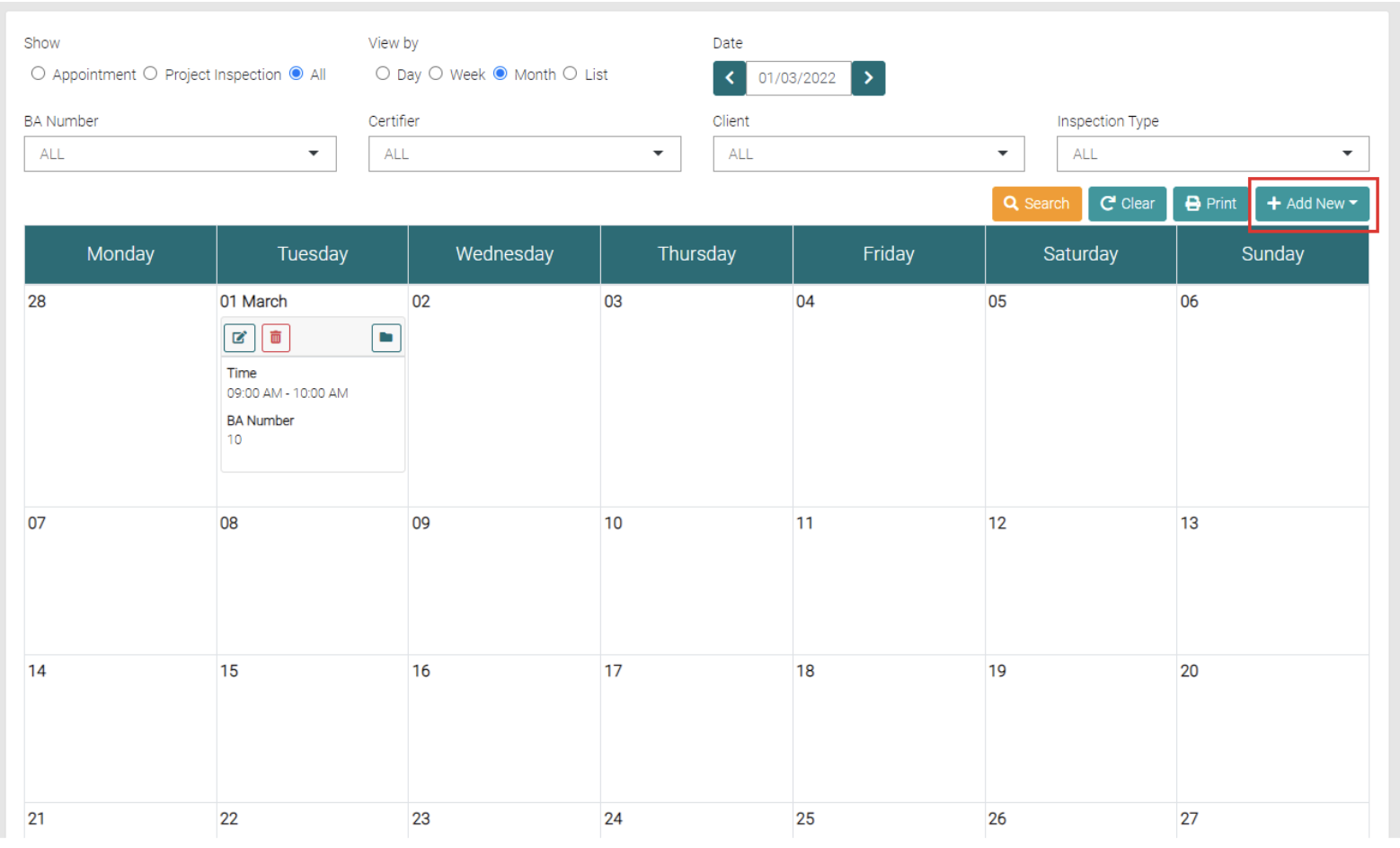
On the Calendar, you can see upcoming Inspection Runs and Appointments
You can change the shown Inspections by BA Number, Certifier, Client, Inspection Type or Date.
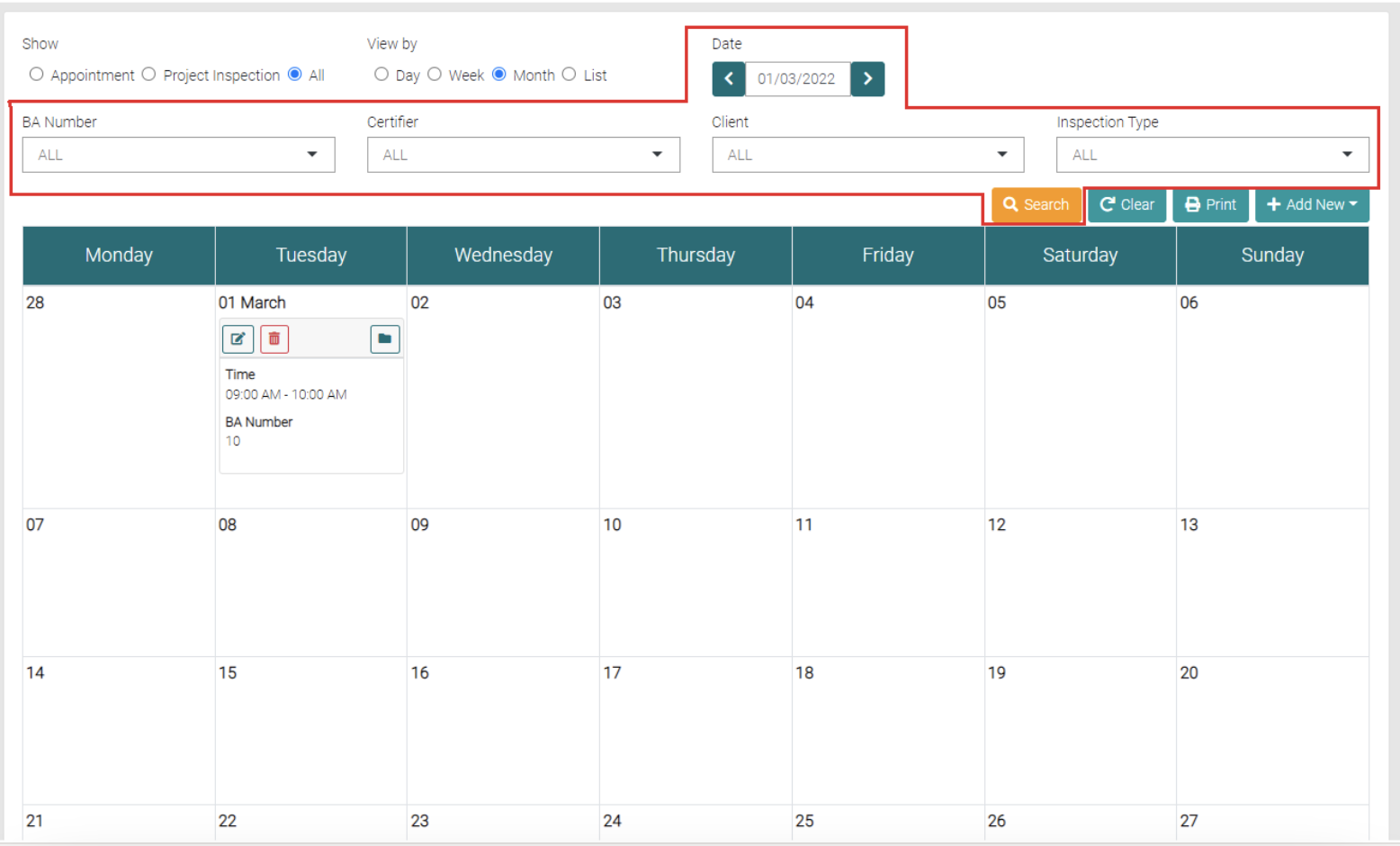
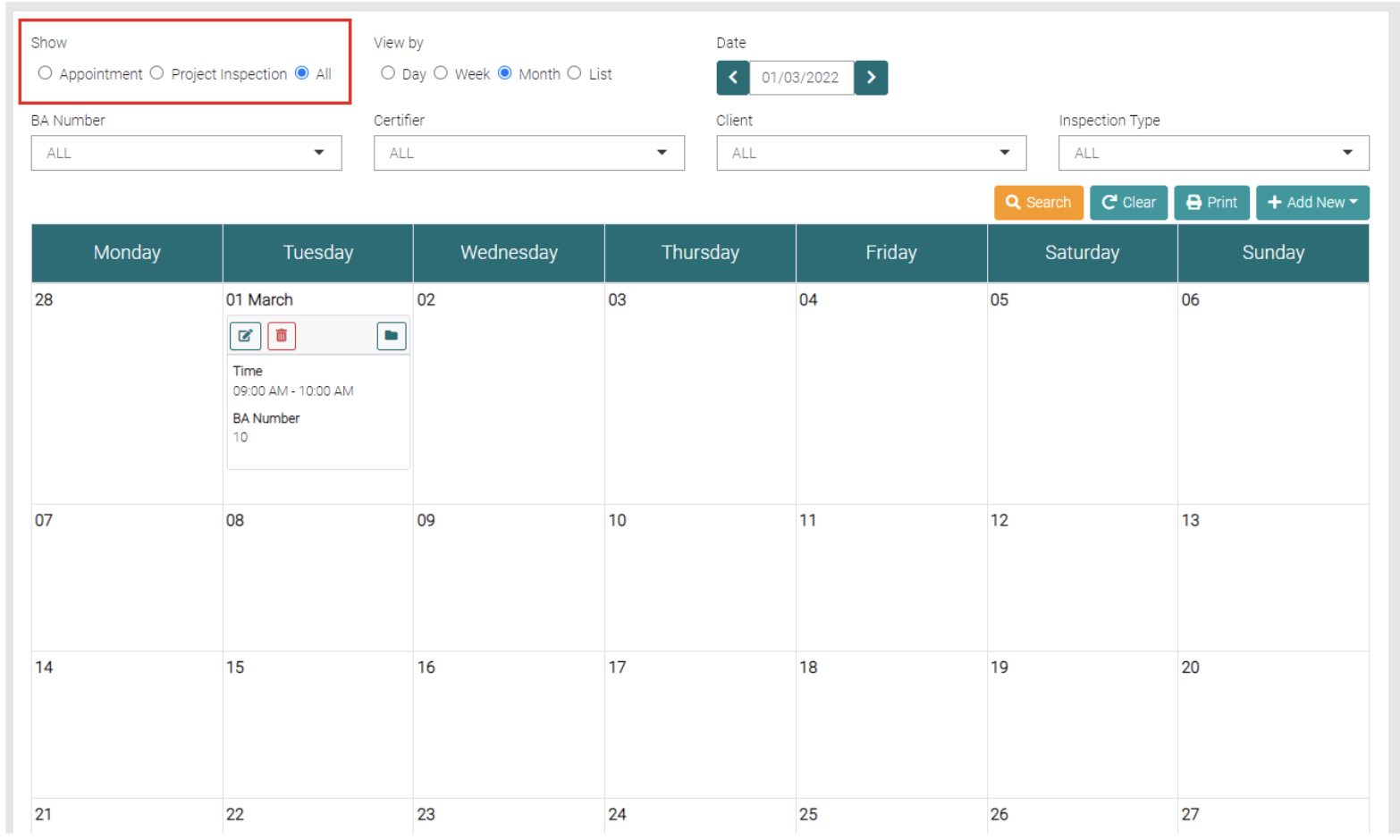
You can also show if it is an Appointment or Project Inspection.
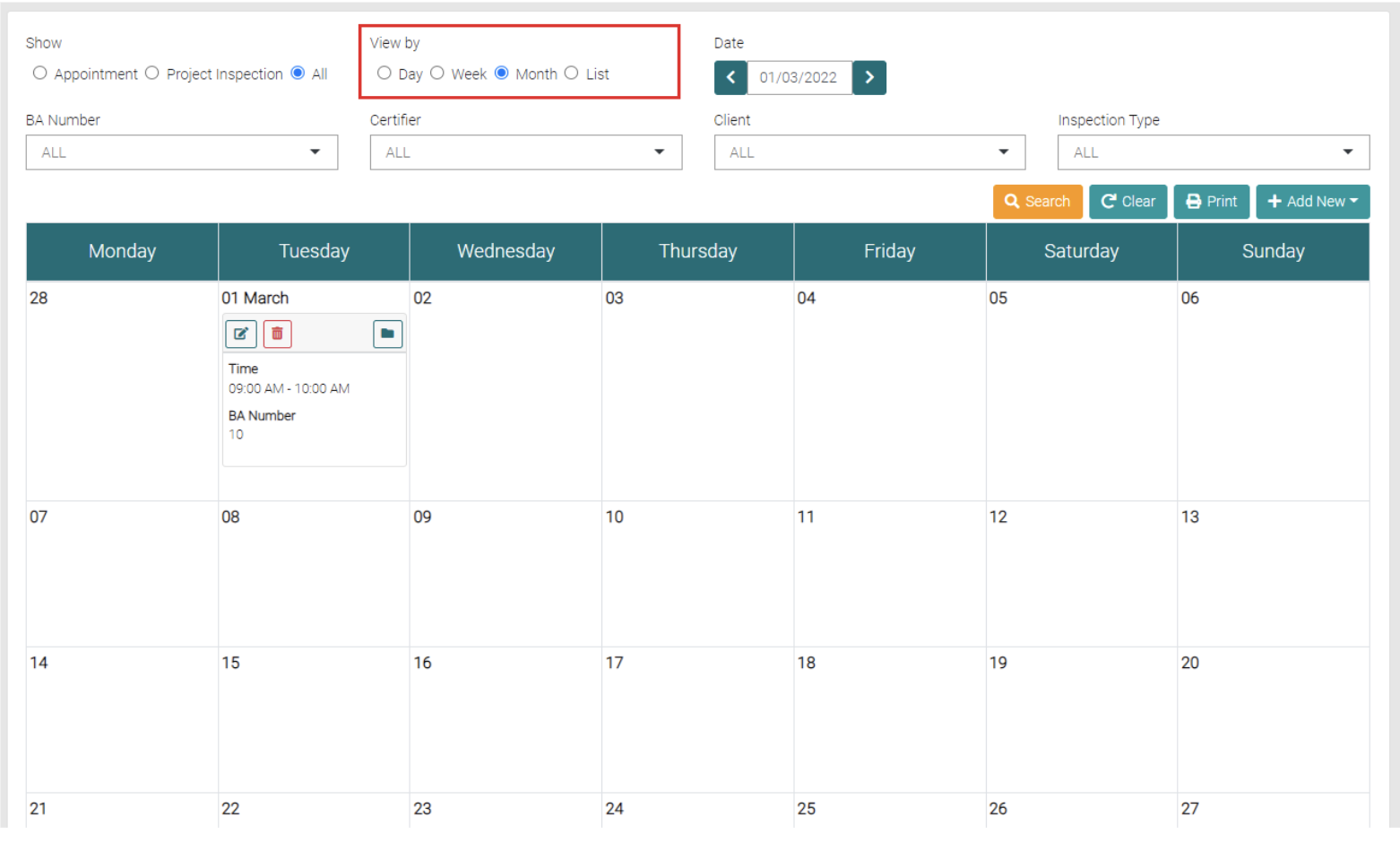
The Display can be changed from a Monthly View to a Day View, Weekly View or a ListView of upcoming Inspections.
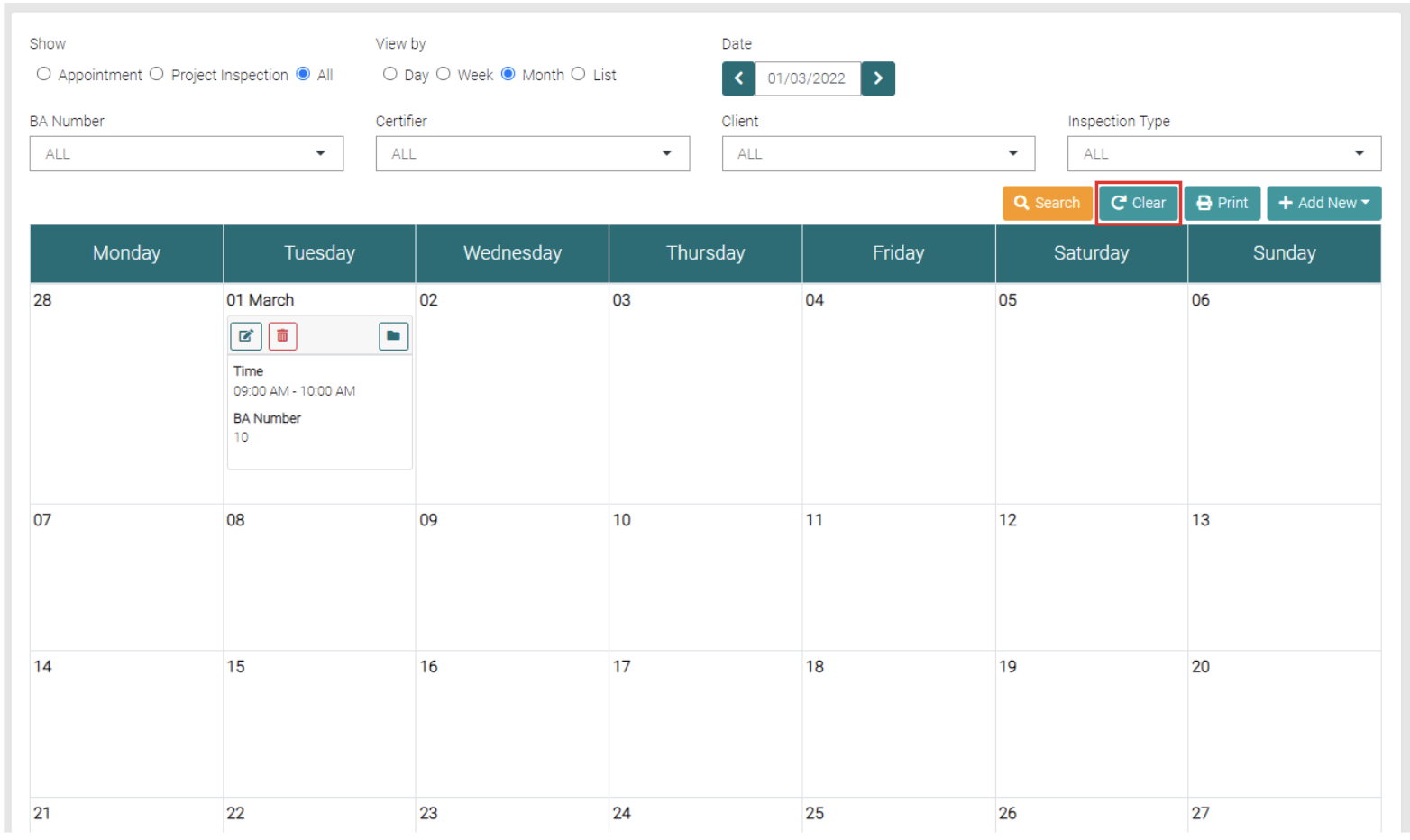
Filters put upon a Search can also be cleared by pressing the Clear button.
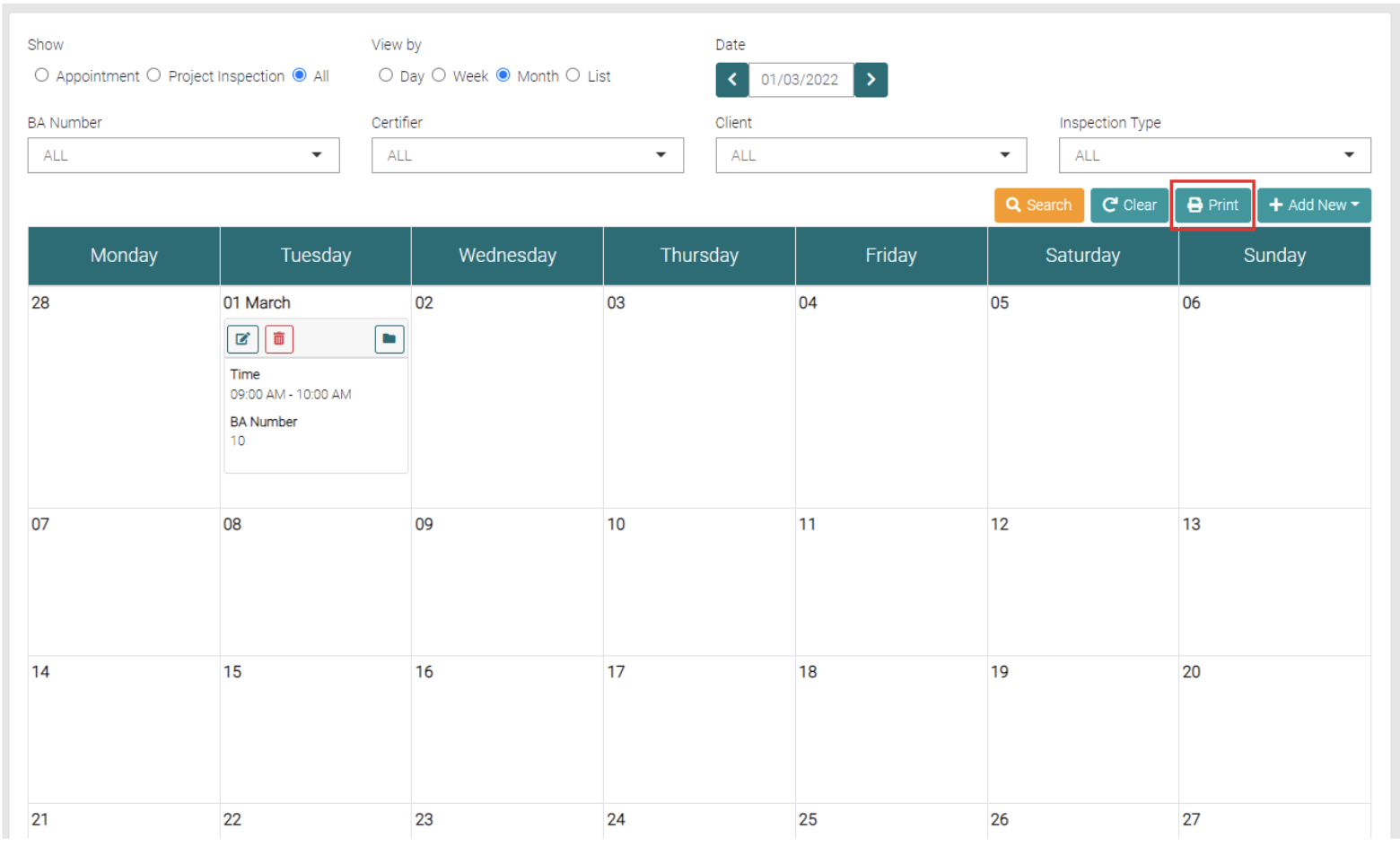
You can Print a List of the Upcoming inspections Runs and Appointments using the Print button.
Clicking the Add New button reveals a drop-down menu; you can create an Inspection Run or Appointment. Refer to Add New Inspection Run and Add New Appointment for creation of Inspection Run and Appointment.
Edit Existing Inspection Runs
Select the Inspection Run from the Dashboard by clicking on the Type.
A page similar to the Add New Inspection will appear, edit any details needed and click Save to apply changes or Close to go to the Inspections Calander.
Edit Existing BA Number
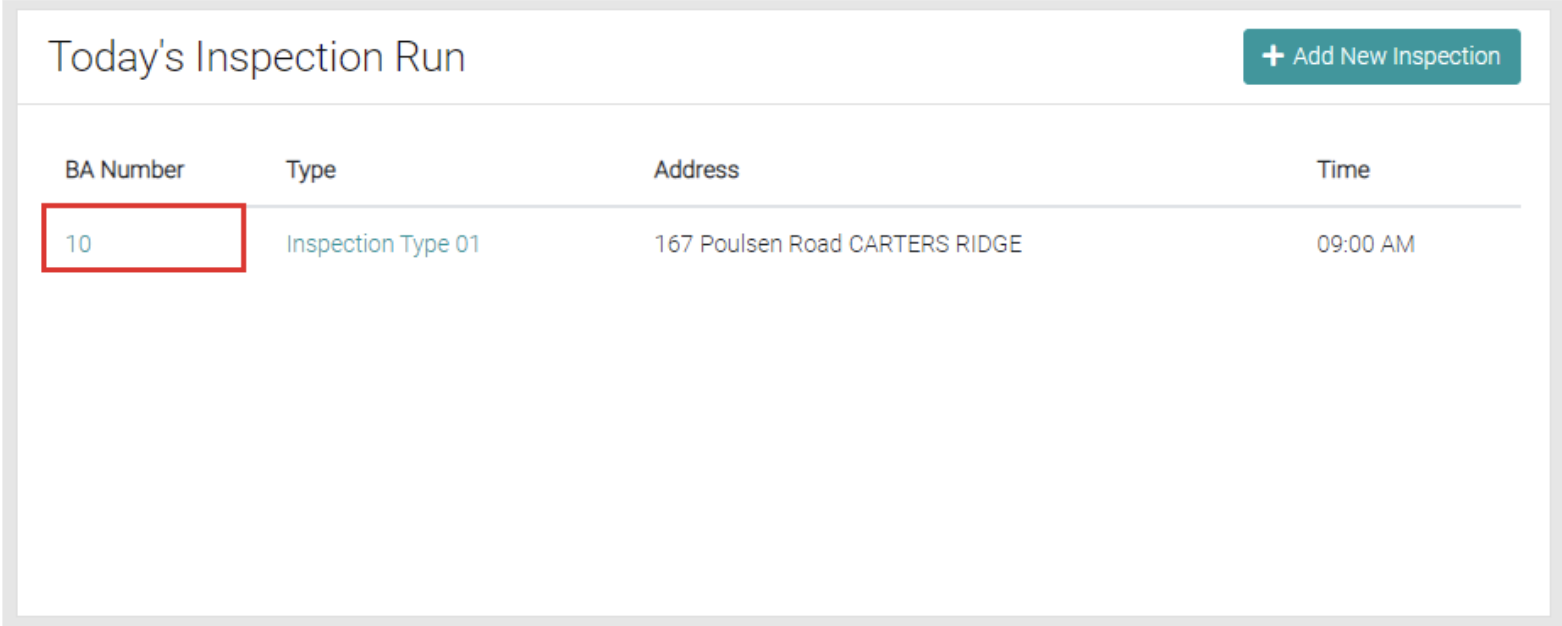
Click on the BA Number on the Inspection Run and it will open up the related BA Number Details
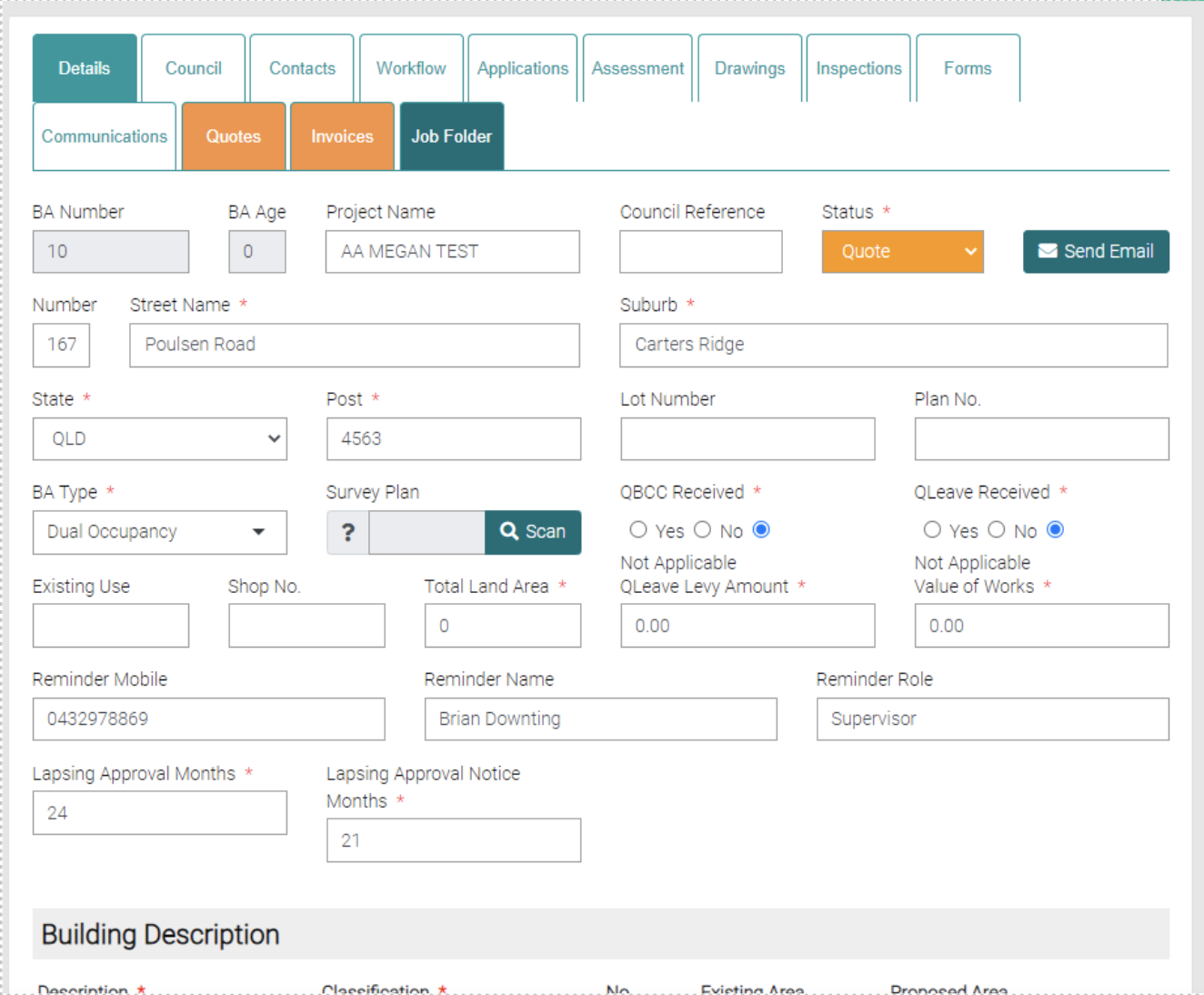
Save any changes to the BA Numbers with the Save button or Close to go back to the Dashboard.