
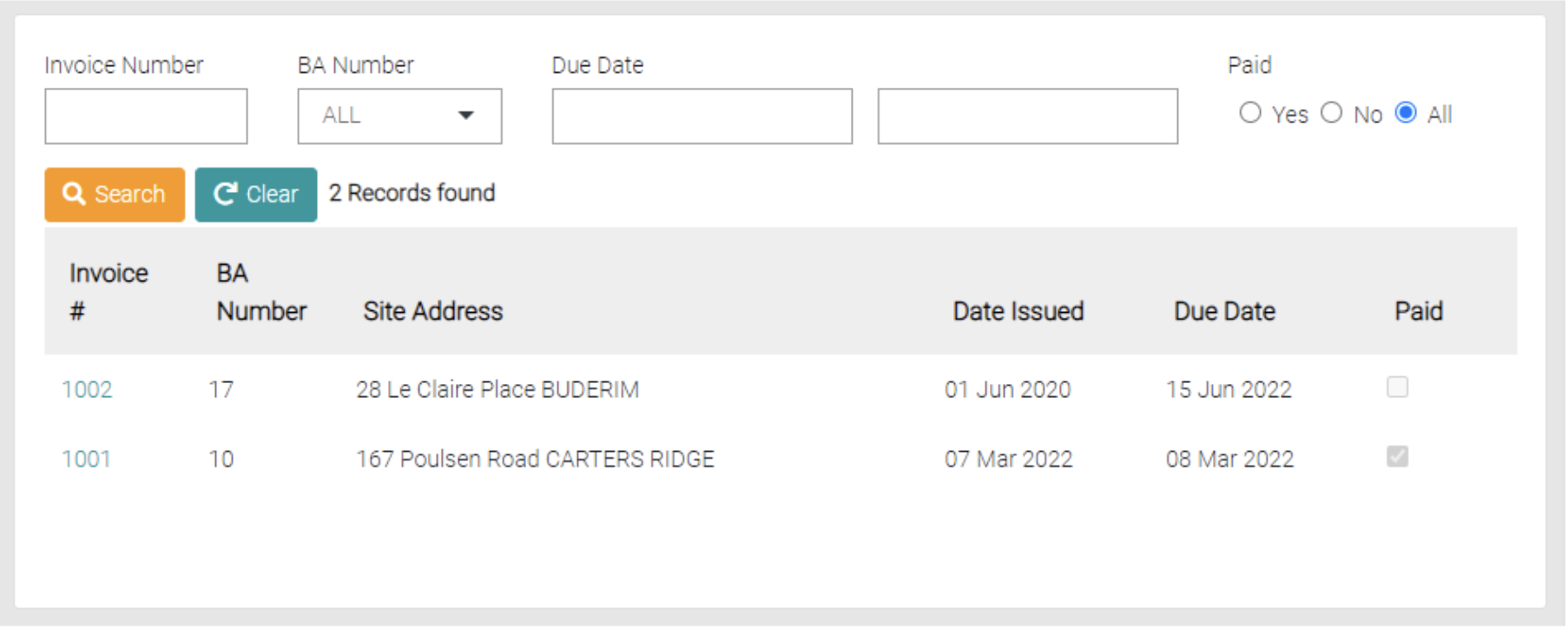
The invoices page shows all Invoices by Invoice #, BA Number, Site Address, Date Issued, Due Date and if it has been Paid.
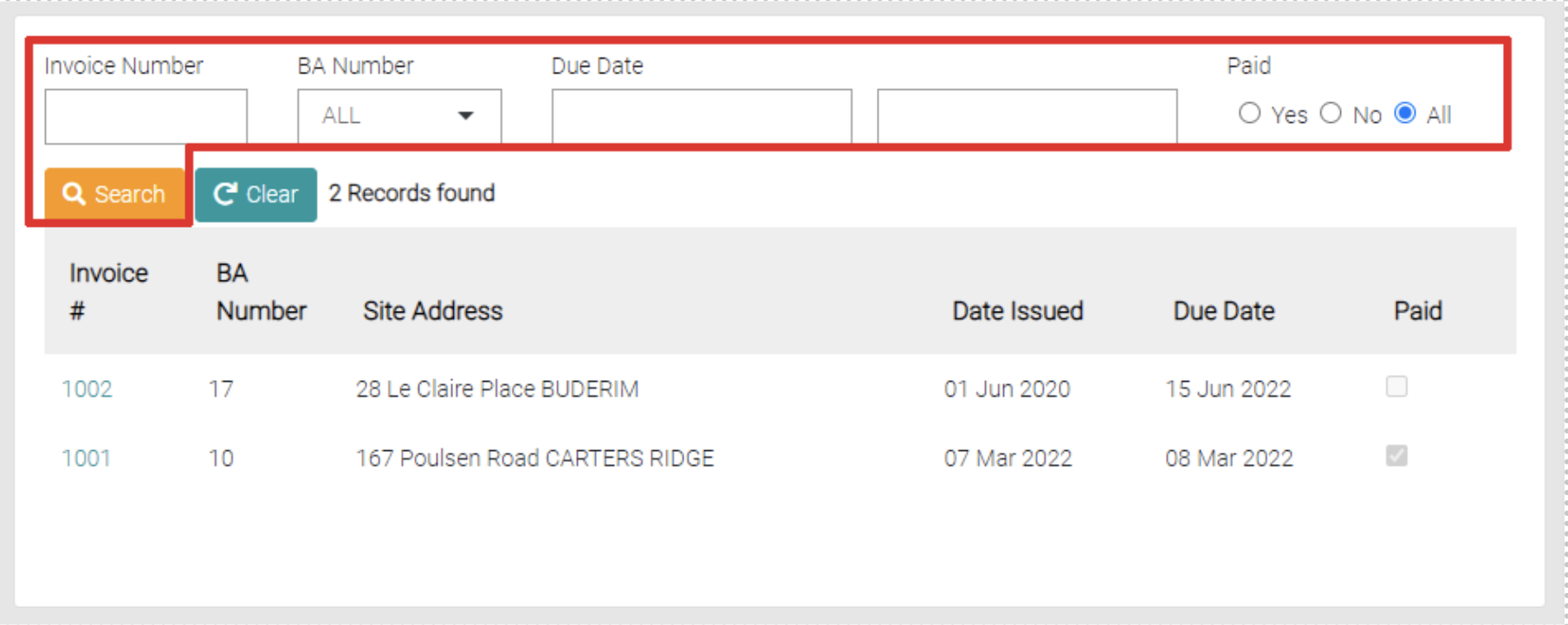
Search
Search filters can be applied using the options, the options include Invoice Number, BA Number, Due Date and Paid Status.
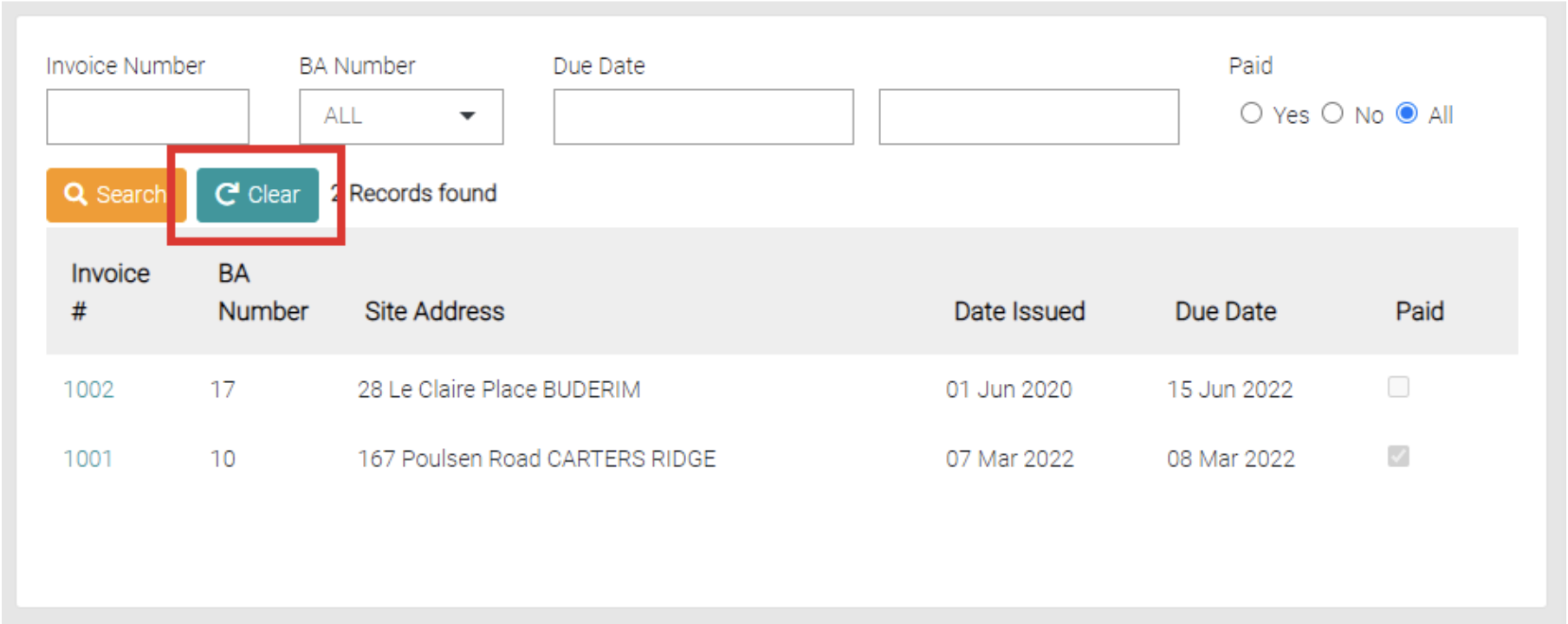
Use the Clear button to remove any filters on the search.
Edit
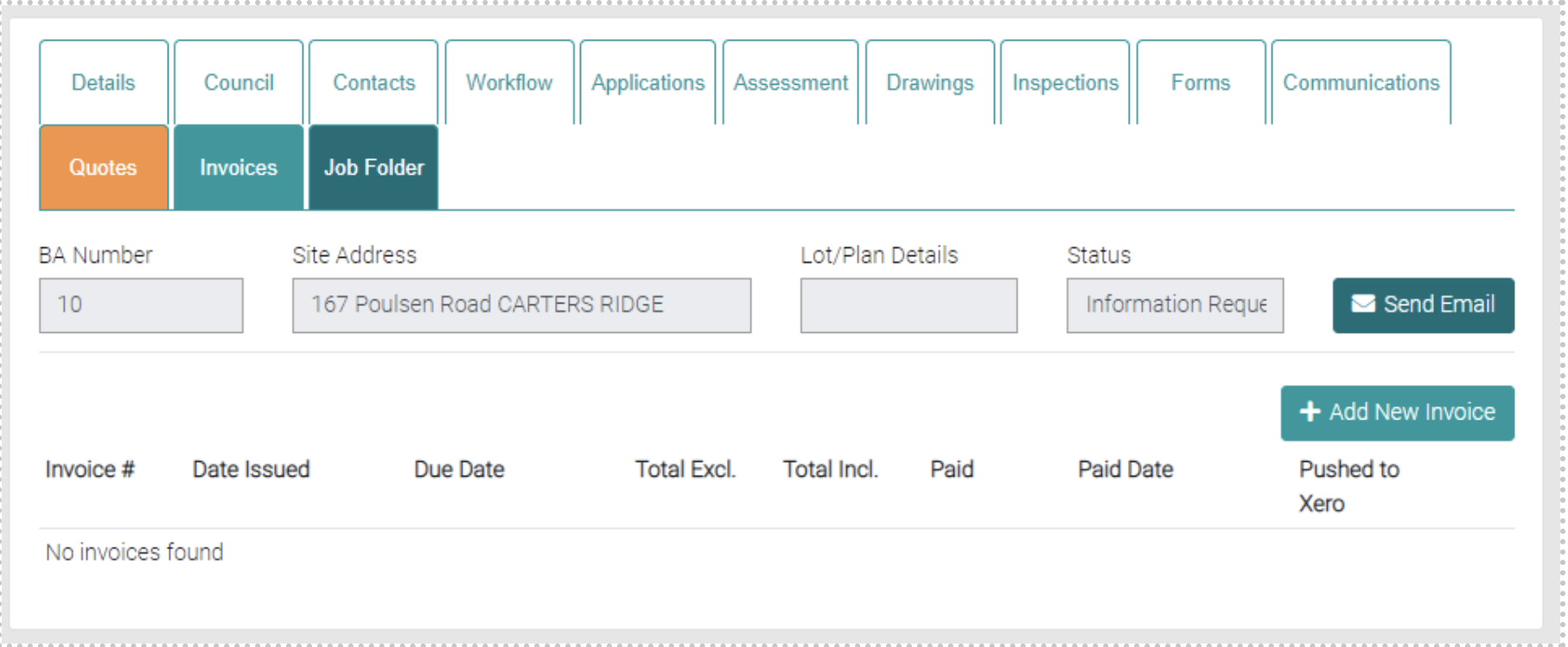
Edit existing invoices by clicking on the Invoice # of the relevant Invoice, this will open the Invoice tab of the Job. The Invoices tab is where Invoices are created and managed.
Add
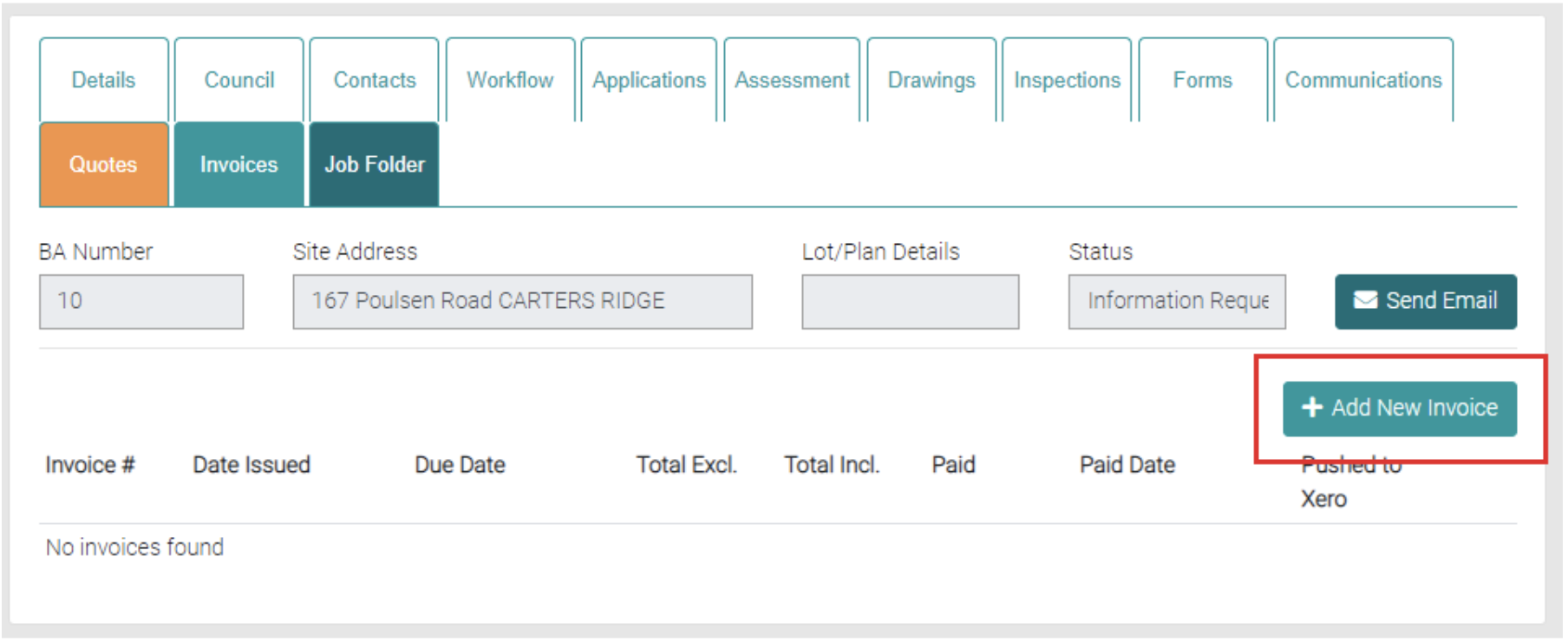
New Invoices are made by clicking on the Add New Invoice.
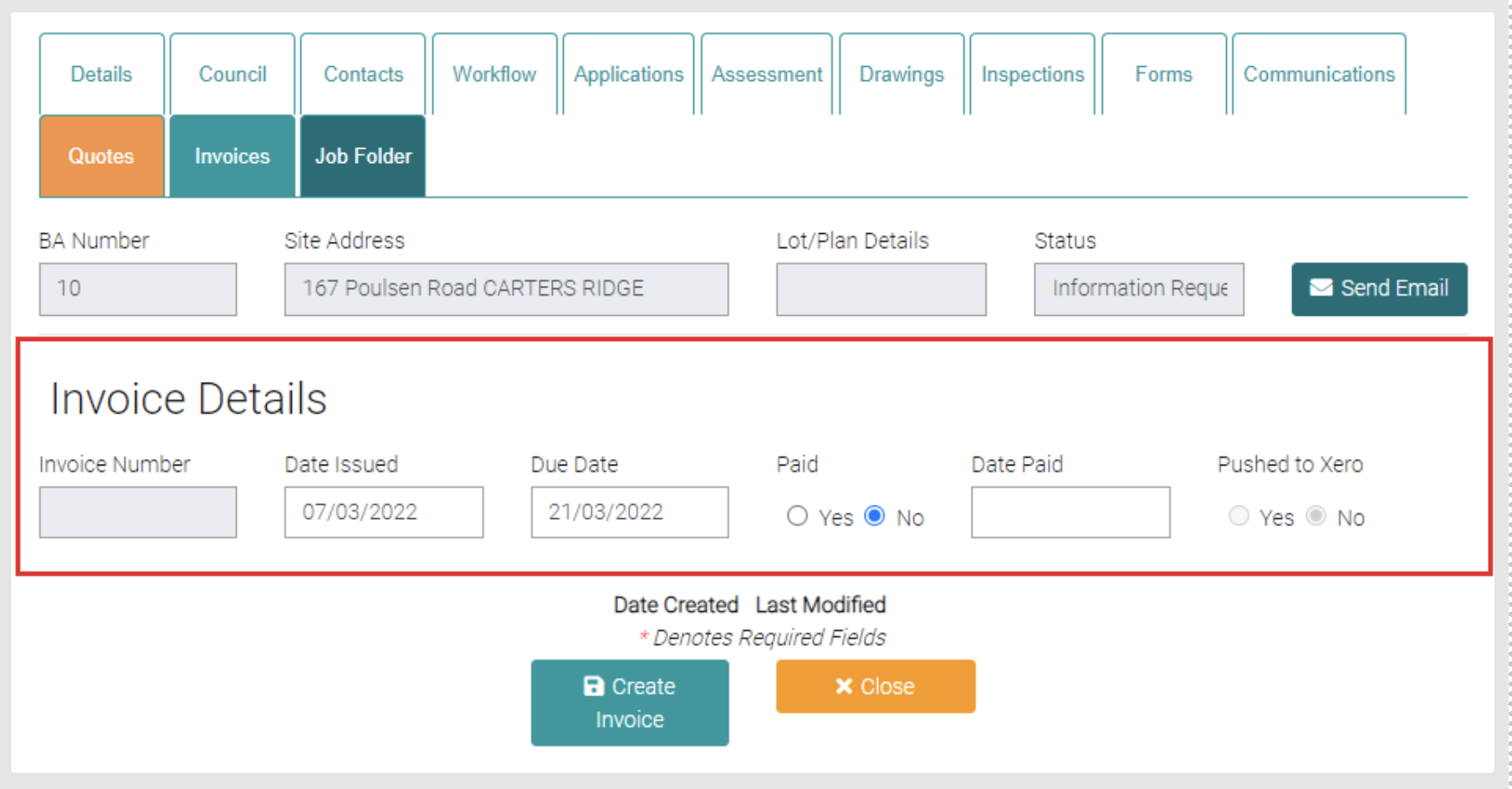
Enter in the details of the Invoice, the text fields that are greyed out are unable to be edited.
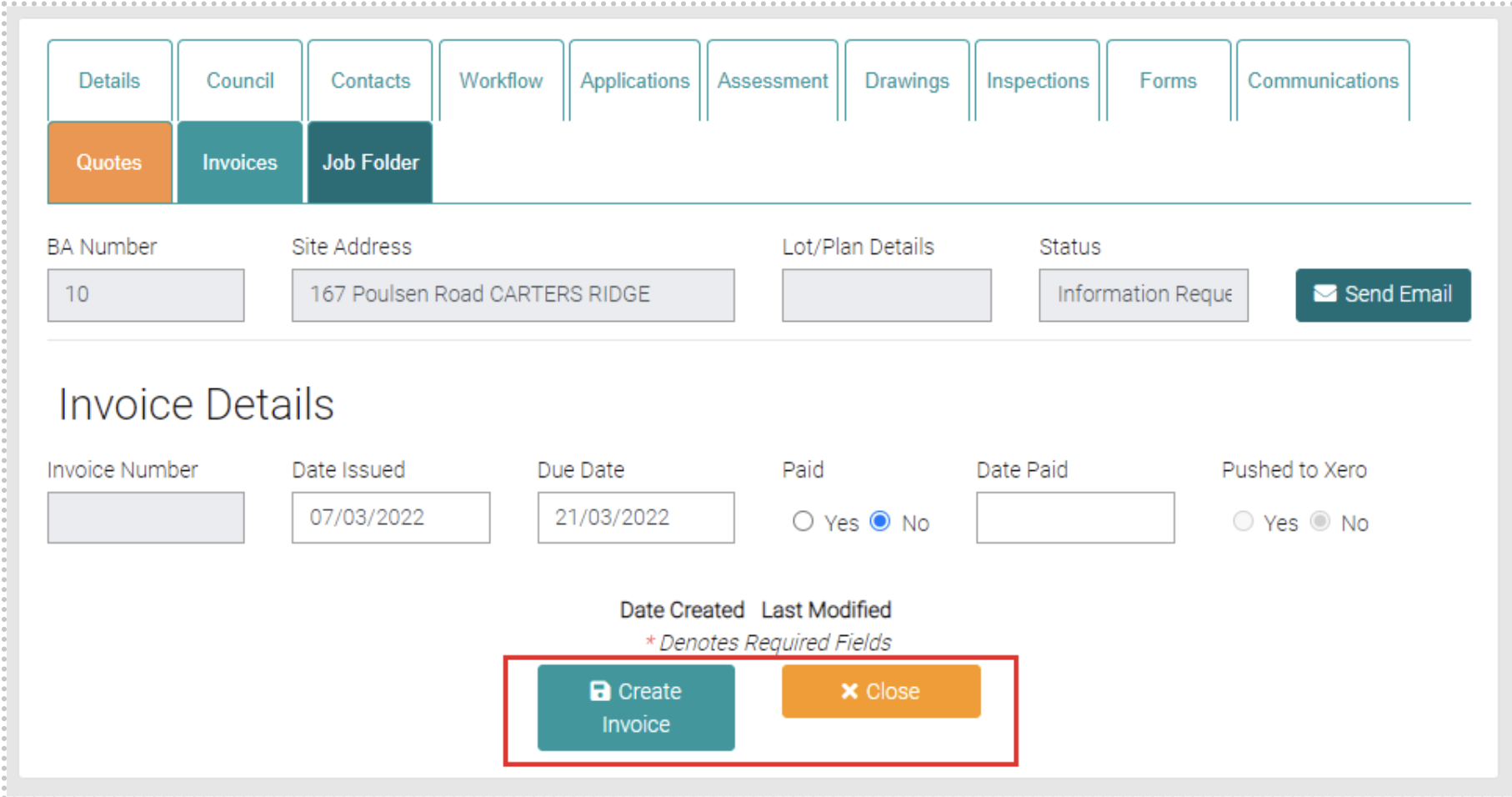
Once the details have been entered click Create Invoice to create the new Invoice or Close to go back to the list of Invoices.
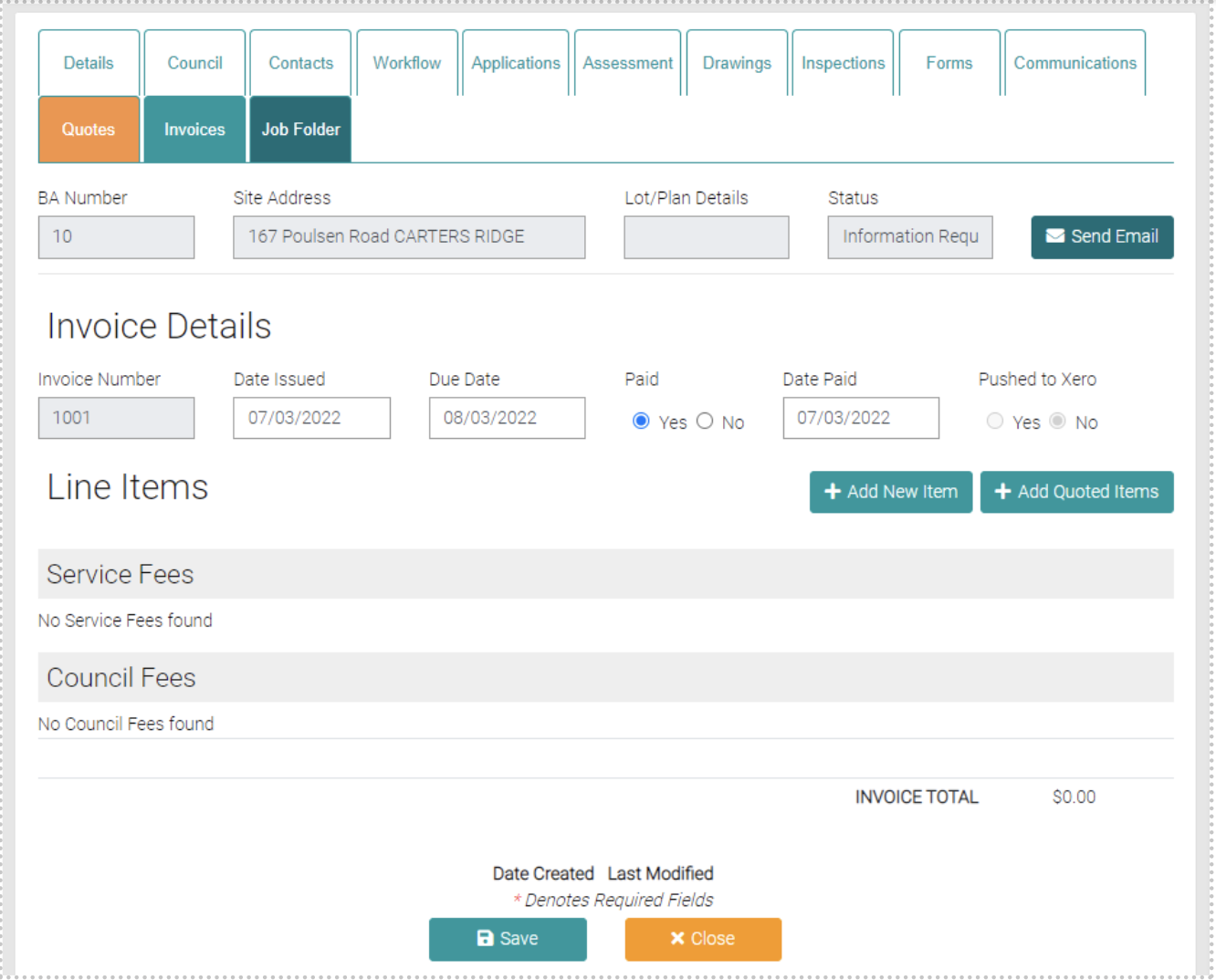
Once a New Invoice has been created this opens a page to add all the Service/Council Fees to the Invoice.
Add New Item
Use the Add New Item to create a new item for the Invoice.
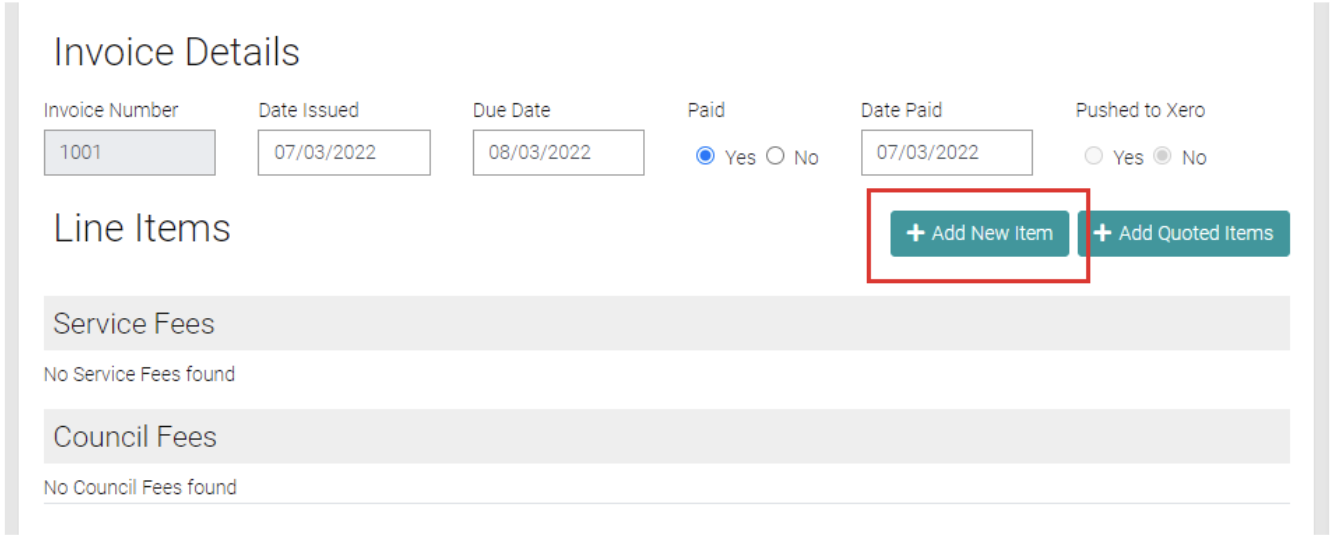
This will open a new section to add the details of the new Item.
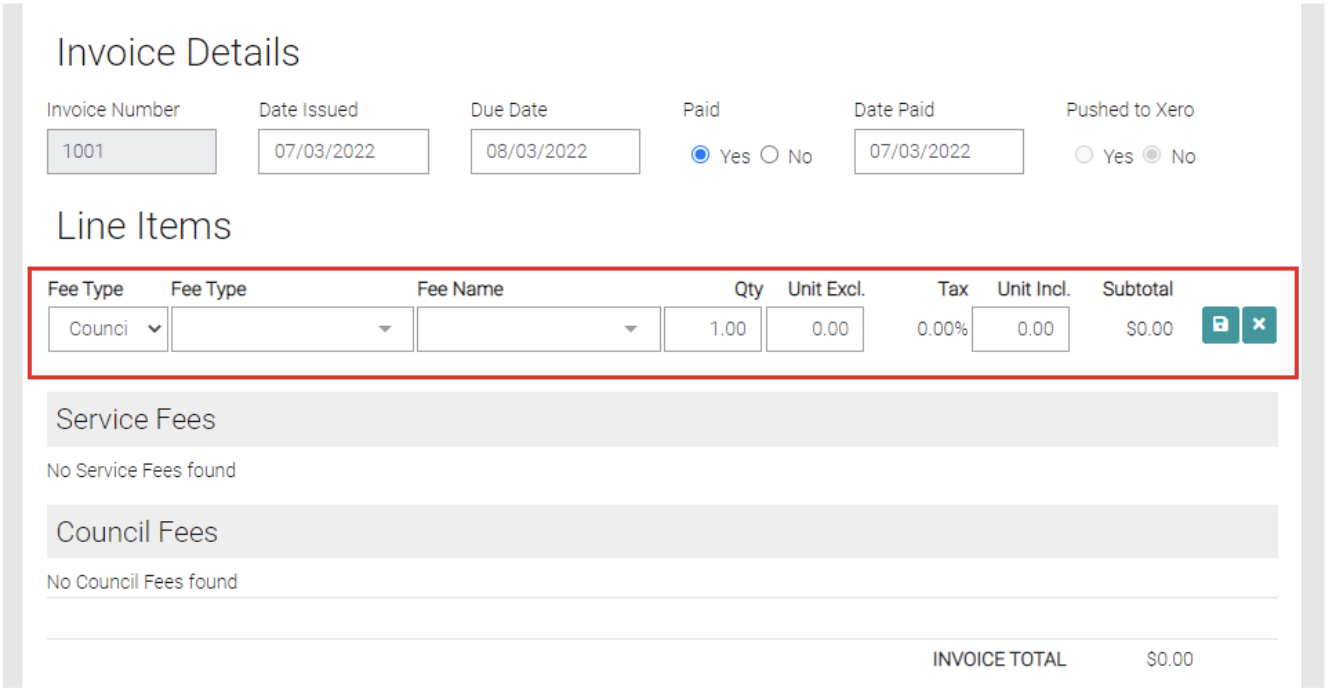
Add in all the details of the new item for the Invoice. Select if the Fee is a Council/Misc Council/ Service Fee/Misc Service Fee.
When the Fee Type is Council Fee or Service Fee you will need to select from another two drop-down menus, another Fee Type (which its options are managed in either Lookups > Service Fee or Lookups > Council Fee) and Fee Name. You can enter the quantity and Unit Excl. and Unit Incl, these should prefill with information that has already been used in the Service Fee, double-check the information is accurate.
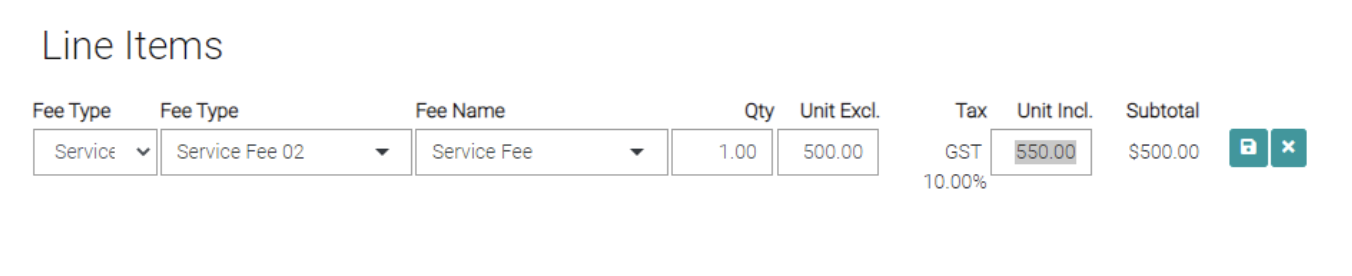
When using the Misc Council or Misc Service Fee the second Fee type drop-down menu becomes a Description text field where the user can give a general description of the new Item. Like with the Service Fee/Council Fee you can enter the Quantity, Unit Excl. and Unit Incl., make sure these numbers are accurate.

Once the new Council/Misc. Council/ Service Fee/Misc. Service Fee has been filled out then click on the green Save button to save the new Item to the Invoice or use the green cross to not add the new Item. 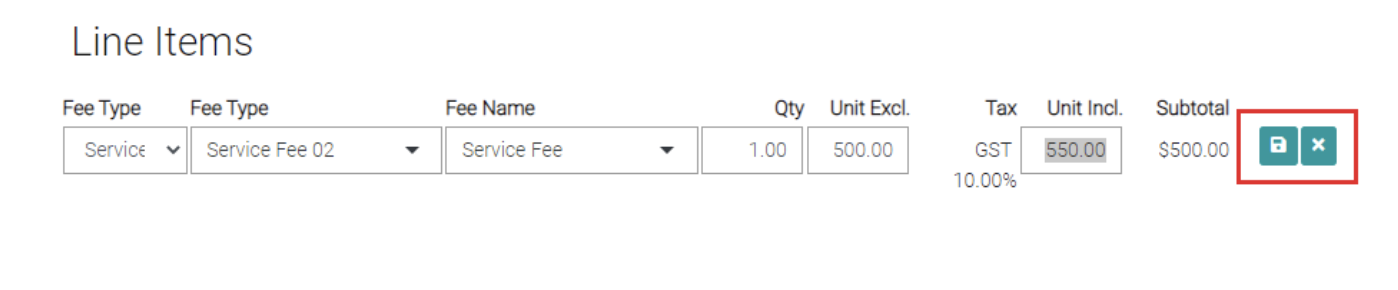
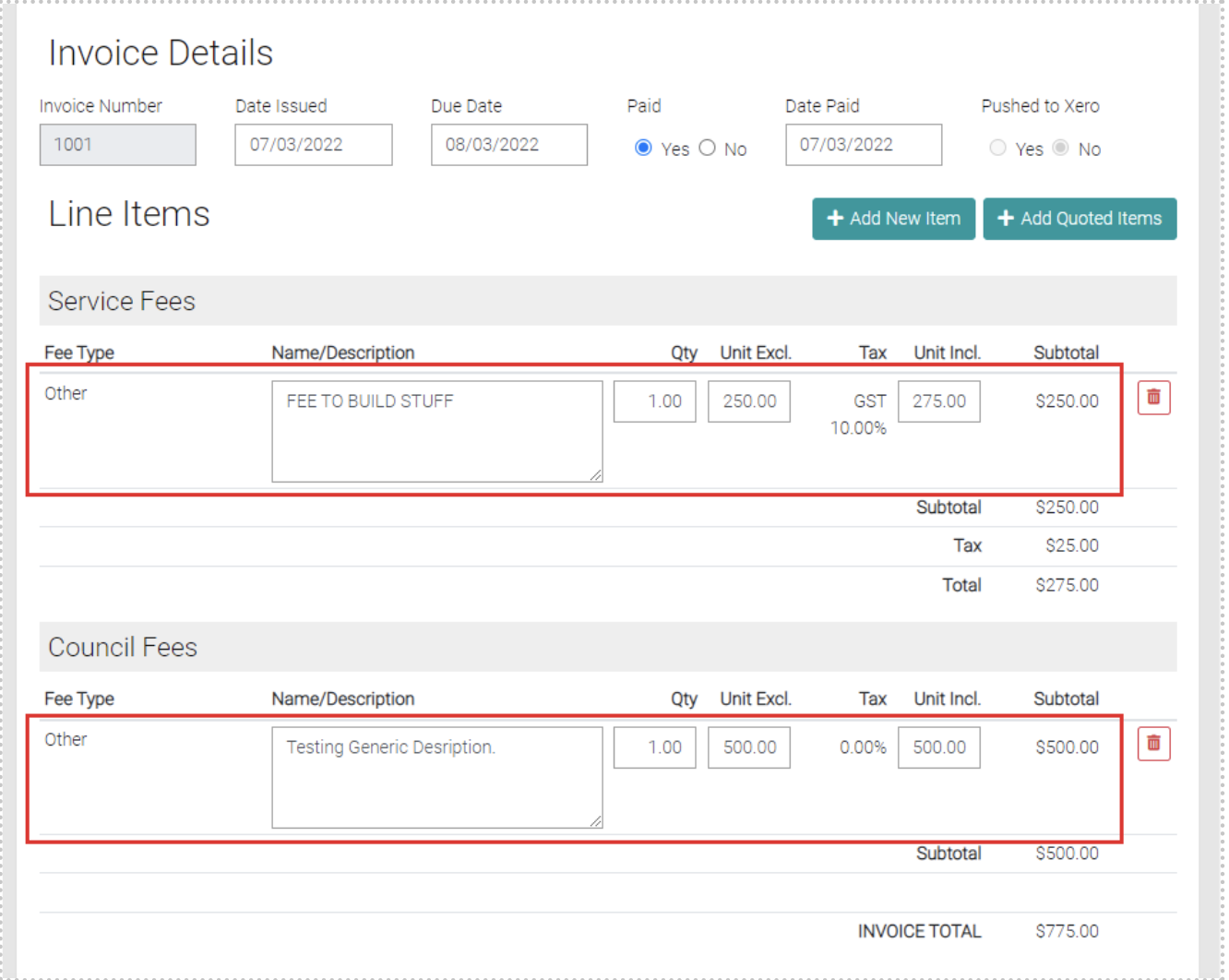
Once save it will appear on the invoice in either the Service Fee or Council Fee section. The Subtotal and Invoice total appear at the bottom of the Invoice.
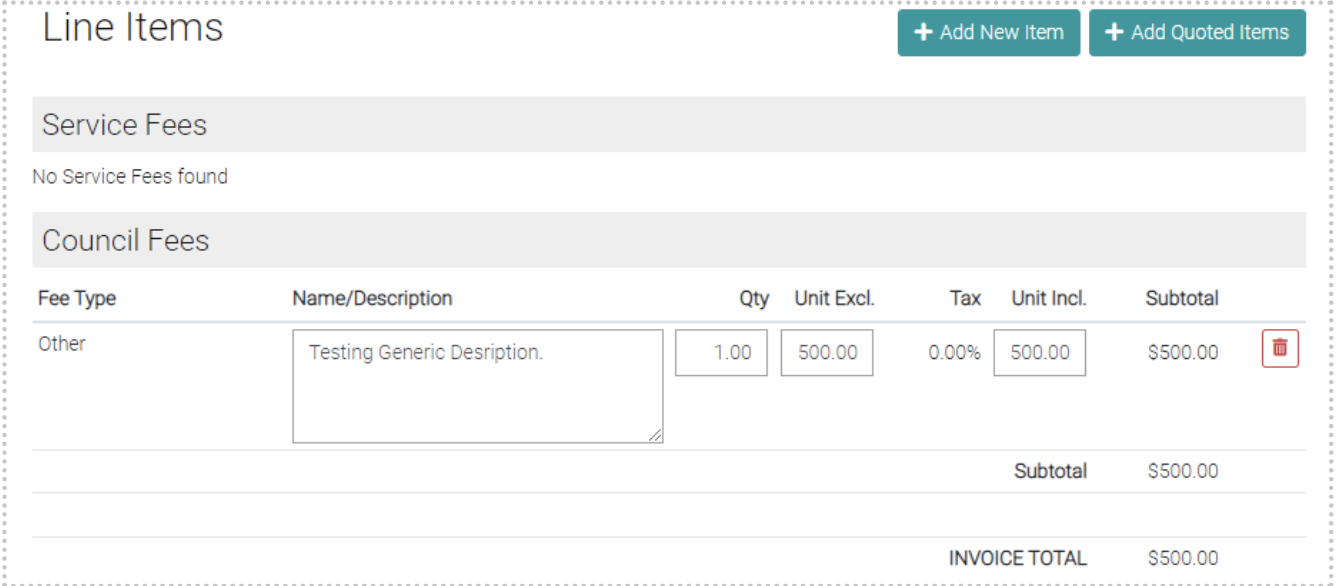
Add Quoted Items
To add already Quoted Price click on the Add Quoted Items
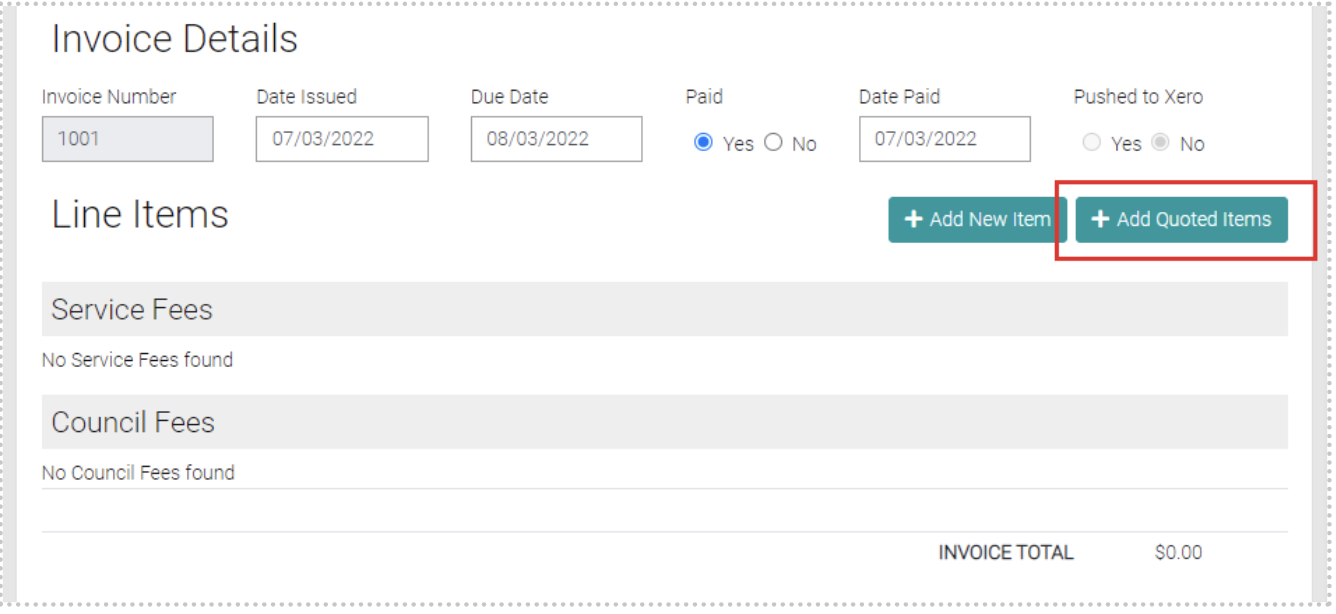
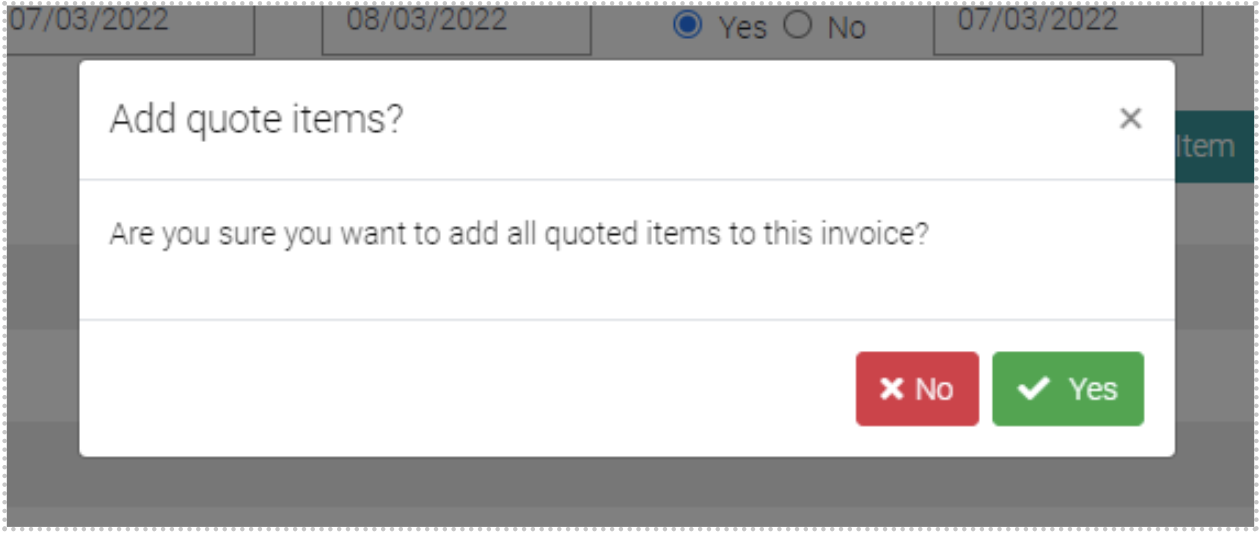
This will prompt a selection, by selecting Yes you add all the Quoted Items, by selecting No you don’t add any Quoted Items.
When Quoted Items have been added the details of the new item is automatically added.
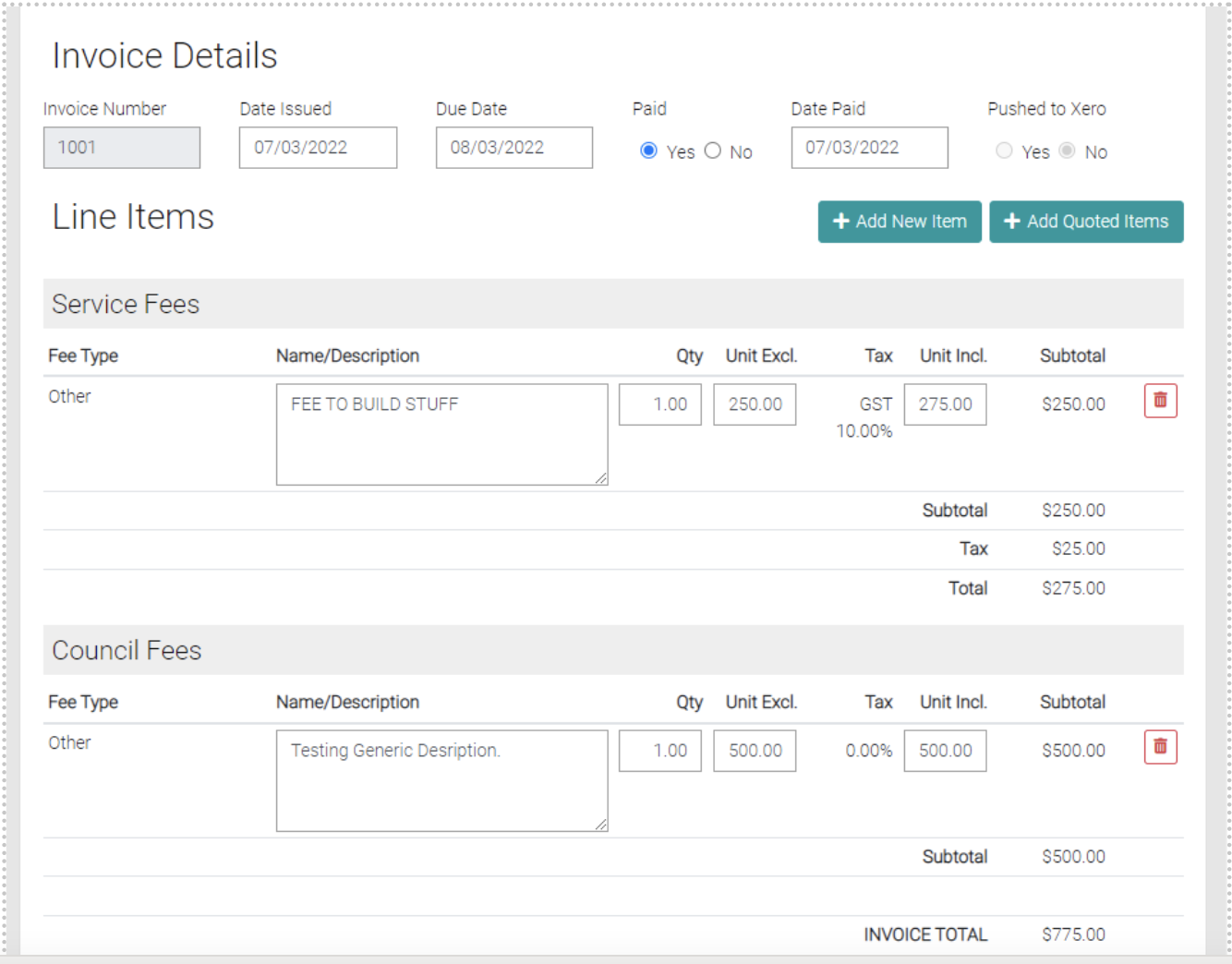
Edit Items
Any of the Items have editable text fields, instead of pressing save the Invoice will automatically update prices.
Delete
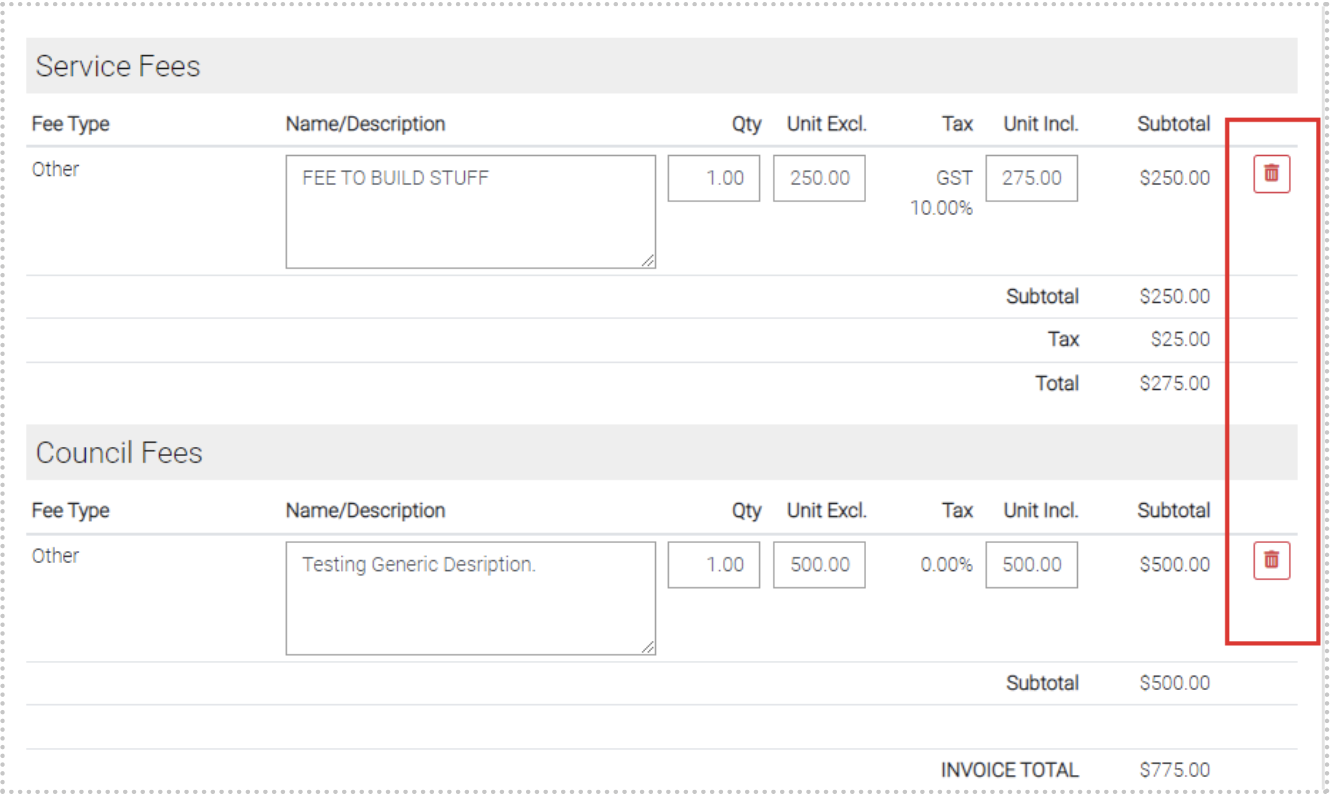
On each of the Items, there is a red trash can that will Delete the Item.
Save
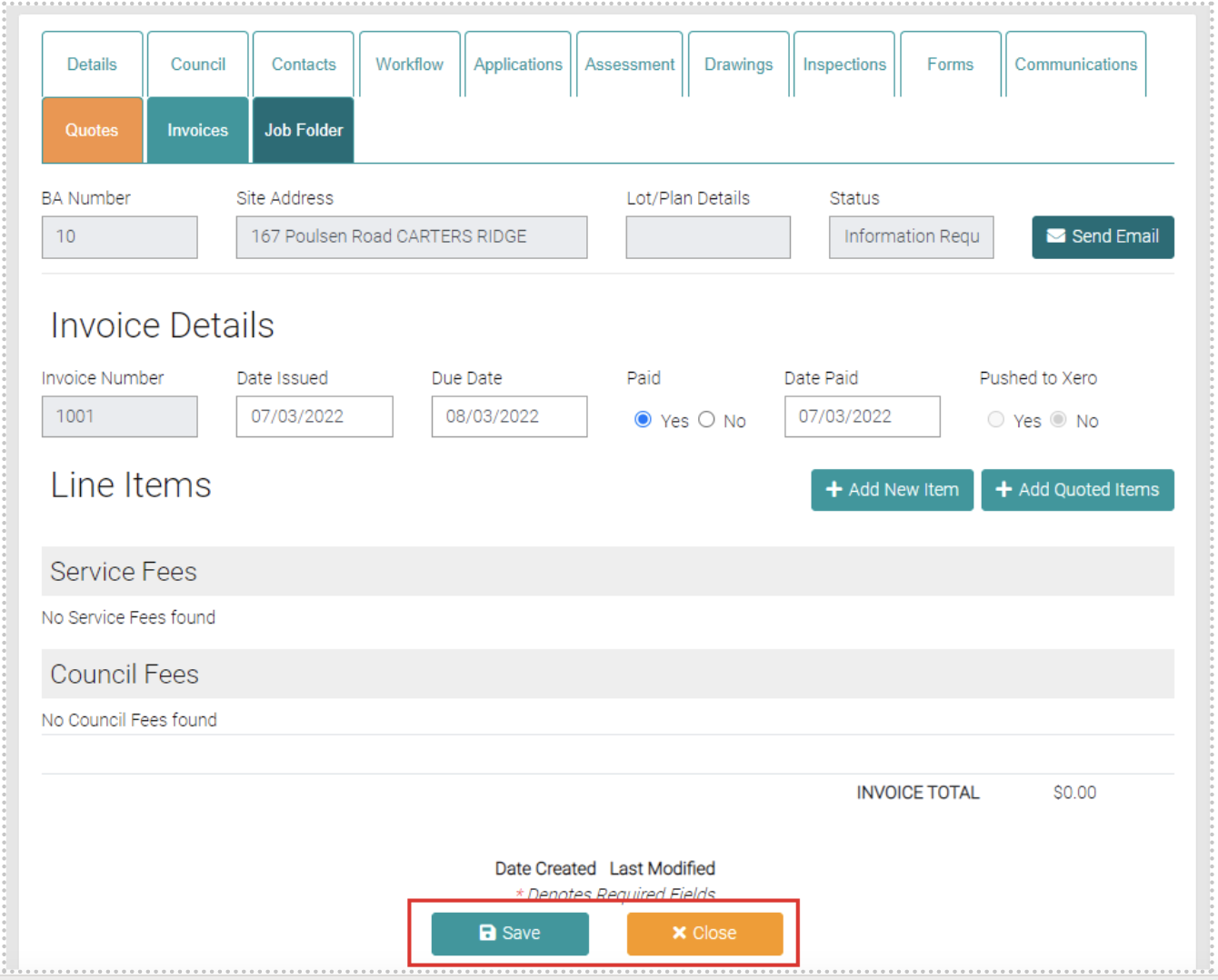
Once the invoice is completed then click on the green Save button to save the Invoice or click on Close to back out of adding new items to the Invoice.
Edit Existing Invoice
From the Invoice tab, all invoices related to this Job are located. Click on the Invoice # to edit the Invoice.
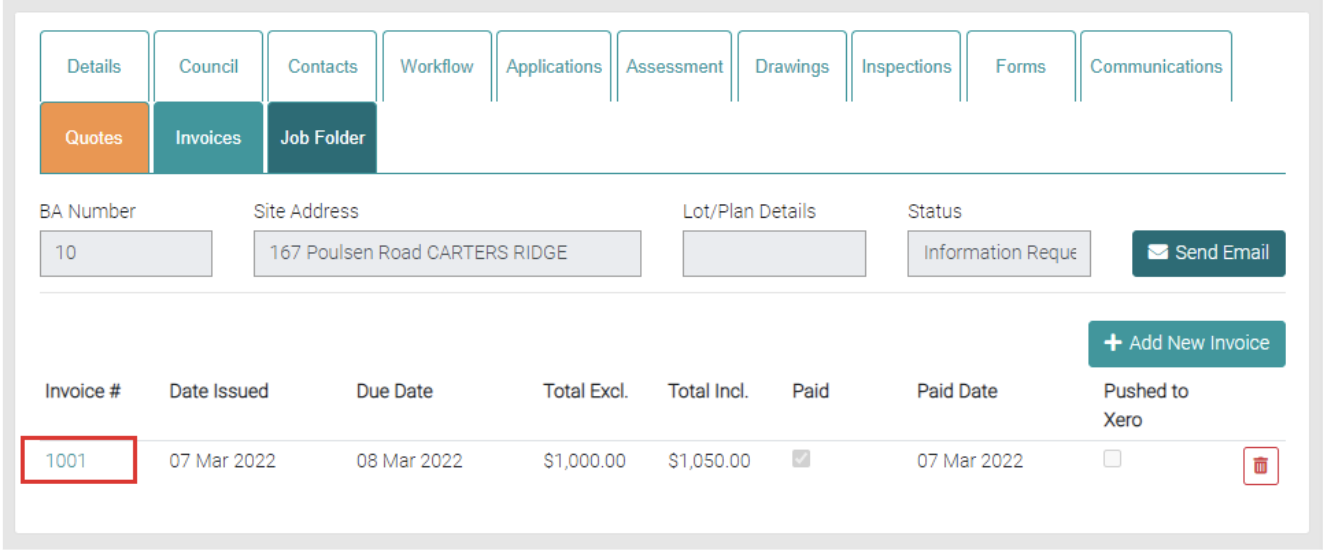
Once in you can add, edit and delete items from the Invoice till correct changes have been made. Once changes have been completed use the green Save button to apply changes or use the Close button to go back to the Invoice List without making changes.